

Build an 802.1X lab
These hands-on guides walk a complete 802.1X deployment on a lab small enough to build in an afternoon, and concrete enough that every command and every checkbox is one you will actually type. This first page builds the foundation the others start from: a switch that talks RADIUS to Taranac, one access port under 802.1X, and a Windows PC on the other end of the cable.
Nothing here authenticates a user yet — that is deliberate. The single most common way an 802.1X rollout stalls is that the plumbing was never proven before the supplicant was touched, so a switch-side problem gets mistaken for a client problem for hours. By the end of this page you will have positive proof that a RADIUS request leaves the switch and arrives at Taranac, and only then do the later guides configure the client.
What you’ll build
Section titled “What you’ll build”| Component | Role | Reference address |
|---|---|---|
| Taranac | NAC RADIUS server + policy engine | 10.30.0.20 |
| SW1 | Access switch (the authenticator) | 10.30.0.11 |
| Windows 10/11 PC | 802.1X supplicant | DHCP, on SW1 Gi1/1 |
| A dumb client (VPC, printer, camera) | MAB endpoint — used by the MAB guide | DHCP, on SW1 Gi1/0 |
VLANs used throughout the series:
| VLAN | Purpose | Gateway |
|---|---|---|
| 1 | Switch management + Taranac | 10.30.0.1 |
| 10 | Data — where authenticated corporate devices land | 10.30.10.1 |
| 30 | Guest / quarantine | 10.30.30.1 |
| 40 | Printers and other MAB’d devices | 10.30.40.1 |
| 300 | Restricted — what the shipped MAB-Default profile assigns | none needed for this page |
Substitute your own addressing as you go — the only hard requirement is that the switch and Taranac can reach each other on UDP, and that the switch’s RADIUS source address matches what you register in Taranac.
Before you start
Section titled “Before you start”- Taranac installed and reachable. See Installation or the virtual appliance. You need admin access to the web UI.
- A switch with a management IP and an L3 path to Taranac. Console or out-of-band access to that switch — you are about to enable port authentication, and locking yourself out of a lab switch is a rite of passage worth skipping.
- A Windows 10/11 machine with a wired NIC on a port of that switch.
- The NAC RADIUS ports open between them: auth
1814/udp, accounting1815/udp, and CoA towards the switch —1700/udp on Cisco IOS,3799/udp on Arista EOS (the port each platform’s CoA listener uses; Step 1 explains how Taranac picks it).
Step 1 — Register the switch in Taranac
Section titled “Step 1 — Register the switch in Taranac”A switch that is not registered is not a client: the NAC server drops its packets before any policy runs, and you will see nothing in the logs. This step comes first for that reason.
-
Open Infrastructure → Network → Devices (
/network/devices) and click Add Device. -
Fill in the identity side — a name, and a Network Object carrying the switch’s address (a
/32host object is the usual choice). That address must be the one the switch sources RADIUS packets from, not necessarily its loopback or its DNS name. Vendor and Platform under Device Info are optional but worth filling in. The Device Groups picker can stay empty in a one-switch lab. -
Under Protocol Support, turn on NAC. NAC rides on the RADIUS protocol, so enabling it reveals the RADIUS Secret field even when the RADIUS toggle itself is off — that same secret is what your
radius serverline on the switch must carry. Set a strong one and keep it to hand. -
Pin the Vendor Dictionary (CoA): Cisco IOS / IOS-XE for the Cisco switch, Arista EOS for the Arista one. The pin sets how CoA actions (reauth, bounce, VLAN change) are encoded, and it also supplies the port the platform listens on. Leave CoA Port empty — empty means inherit, in the order device → device group → vendor dictionary → global
nac.coa_port(3799). With the pin in place the Details panel on the right reads 1700 (From the vendor dictionary) for Cisco IOS and 3799 (From the vendor dictionary) for Arista EOS, which is what the switch configuration in Step 2 listens on. Left on Auto-detect, a device takes no port from the vendor dictionary and CoA goes to the global3799— which a Cisco IOS listener on its default port never hears.Set the CoA Secret, though. It inherits the same way, but the global
nac.coa_secretis a random 32-character value Taranac generates on first start — nothing you have ever typed on a switch. Leave the field empty and Taranac will sign every reauth, bounce and VLAN change with a secret the switch cannot verify, so CoA silently fails while authentication keeps working. Put the same value here that you put on the switch’s CoA listener in Step 2 (the lab reuses the RADIUS secret for both). If you would rather use the generated global one, reveal it under NAC → Settings → NAC (/nac/settings) and paste that into the switch instead — the reveal is audit-logged. -
Press Create Device. Once it is saved, the Details card offers a CoA test — press it after Step 2 to confirm the port, the CoA secret and the switch’s listener in one go (see CoA test).
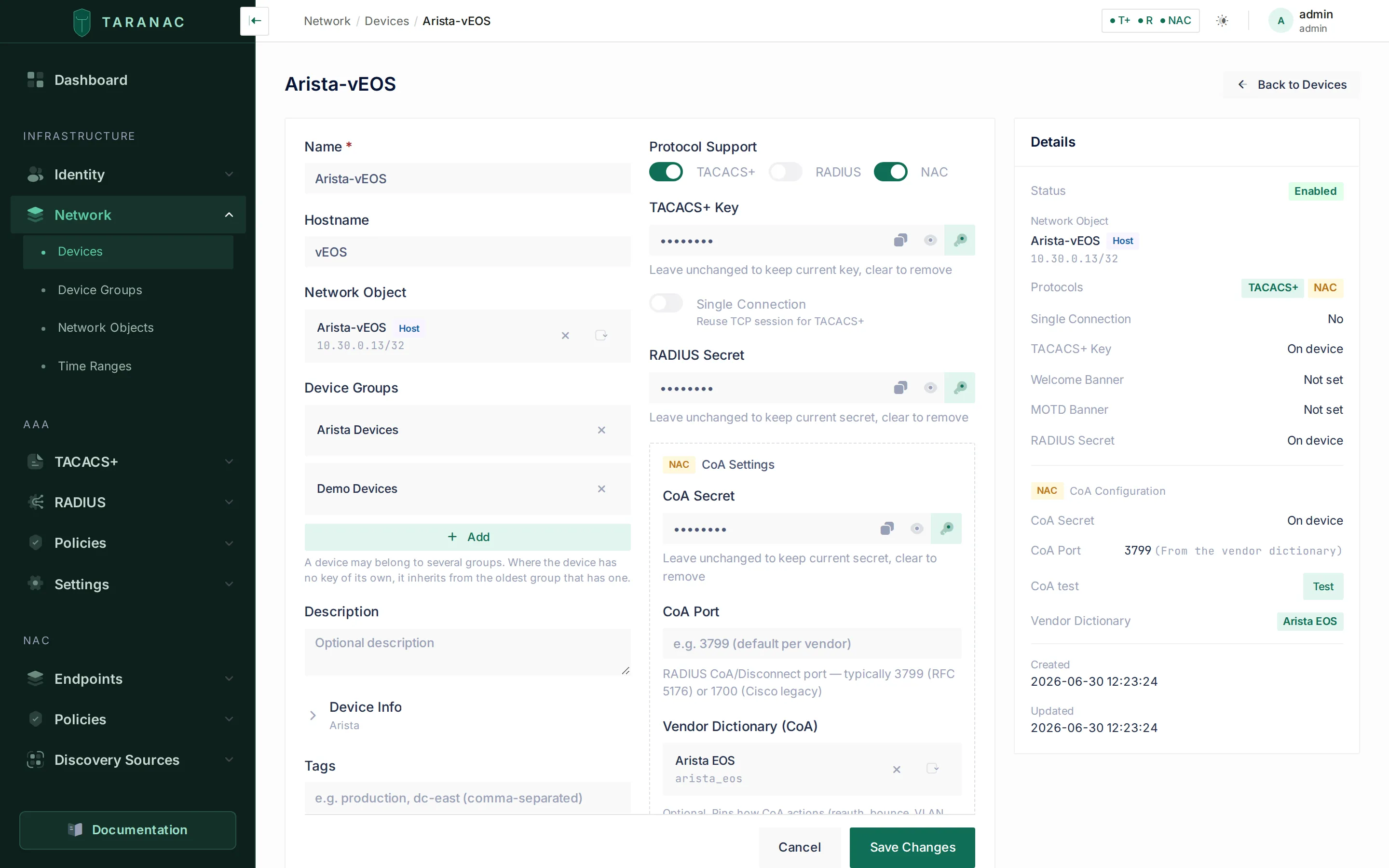 The device form. RADIUS is off and the RADIUS Secret field is still there — that is NAC reusing it. On the right, the Details panel resolves what each setting actually evaluates to: the CoA port is left blank on the left, and the pinned Arista EOS entry supplies
3799 (From the vendor dictionary).
Secrets resolve along a three-level chain — device → device group → global setting — with the first level that has a value winning. For a lab, set it on the device. For a real network, a per-site device group carrying the secret is usually the better shape; see Network devices.
Step 2 — Point the switch at Taranac
Section titled “Step 2 — Point the switch at Taranac”Now the switch side. This block is global plumbing only: which server, which ports, which secret, and the master switch that turns 802.1X on.
! ── The NAC RADIUS server ───────────────────────────────────────radius server TARANAC-NAC address ipv4 10.30.0.20 auth-port 1814 acct-port 1815 timeout 5 retransmit 2 key <RADIUS_SECRET>
! ── Its own server group, so device-admin AAA is untouched ──────aaa group server radius TARANAC-NAC-GRP server name TARANAC-NAC ip radius source-interface Vlan1
aaa authentication dot1x default group TARANAC-NAC-GRPaaa authorization network default group TARANAC-NAC-GRPaaa accounting dot1x default start-stop group TARANAC-NAC-GRP
! ── The global 802.1X master switch ─────────────────────────────dot1x system-auth-control
! ── Source + attributes ─────────────────────────────────────────ip radius source-interface Vlan1radius-server attribute 6 on-for-login-authradius-server attribute 8 include-in-access-reqradius-server attribute 25 access-request include
! ── CoA listener (Taranac pushes reauth / disconnect here) ──────! 1700 is IOS's own default; it is written out so it matches what! Taranac resolves from the Cisco IOS / IOS-XE vendor entry.aaa server radius dynamic-author client 10.30.0.20 server-key <RADIUS_SECRET> port 1700 auth-type any
! ── The global 802.1X master switch ─────────────────────────────dot1x system-auth-controldot1x dynamic-authorization
! ── The NAC RADIUS server + CoA listener ────────────────────────radius-server host 10.30.0.20 auth-port 1814 acct-port 1815 key 0 <RADIUS_SECRET>radius-server dynamic-authorization port 3799
aaa group server radius TARANAC-NAC server 10.30.0.20 auth-port 1814 acct-port 1815
aaa authentication dot1x default group TARANAC-NACaaa accounting dot1x default start-stop group TARANAC-NACOn EOS the CoA key comes from the radius-server host line — there is no
separate client/server-key stanza like Cisco’s aaa server radius dynamic-author, and EOS will reject that syntax if you try to paste it. Write
the key as key <RADIUS_SECRET> or key 0 <RADIUS_SECRET>; the key 7 … form
is the obfuscated spelling the switch prints back in show running-config,
not something you type.
Three EOS specifics are worth stating plainly, because all three fail quietly:
-
The server group holds a copy of the address and ports, not a reference to the
radius-server hostline. The two lines above happen to agree — keep them agreeing.aaa authentication dot1x default group TARANAC-NACresolves through the group, so a group entry left pointing at the old ports sends every 802.1X and MAB request to a port nothing is listening on. There is no timeout to watch and no reject to read: Taranac’s NAC log shows no event at all, which reads as a broken supplicant. That trap and its fix are on Arista EOS — we lost six days to it in this very lab after moving the NAC ports. -
CoA needs two lines, not one.
radius-server dynamic-authorization port 3799opens the listener;dot1x dynamic-authorizationlets the dot1x process apply what arrives. They are independent, and having only the second one is a config that looks CoA-ready and silently drops every reauth/disconnect Taranac sends. Nothing about authentication breaks, so this can sit unnoticed indefinitely.Verify it by behaviour, not by reading the config: with the port left at its default, the listener line may not appear in
show running-configat all, since EOS omits values that match defaults. Useshow running-config allandshow radiusto confirm it is really there — and re-check after a reload, so a setting that was only ever applied at runtime does not quietly disappear on the next reboot. -
Accounting is its own line, and sessions depend on it.
aaa accounting dot1xis what produces the Accounting-Requests that create sessions in Taranac. A switch missing it authenticates perfectly and shows up in the auth log while producing zero sessions.
Two more things worth getting right the first time:
- Source the RADIUS packets deliberately.
ip radius source-interface Vlan1(Cisco) makes packets carry the switch’s management IP, which is what you registered in Step 1. If the source address and the registered address disagree, the NAC server sees an unknown client and drops the request without logging a policy decision. - The secret is per device. It must match the
radius_secreton this switch’s device entry. Not the TACACS+ key, and not another switch’s secret. A mismatch surfaces as a rejected or unanswered request at the NAC handler. - Save the configuration —
write memoryon Cisco,writeon EOS. A lab switch that reloads with half of this config missing produces symptoms that look nothing like “the config is gone”: authentication may keep working while accounting silently stops, so sessions vanish from Taranac while access still succeeds.
Step 3 — Configure the access port
Section titled “Step 3 — Configure the access port”Wire the Windows PC to Gi1/1 and apply the port config. This is a dot1x port
with MAB as the fallback — the shape you will use for most real access ports.
interface GigabitEthernet1/1 switchport access vlan 10 switchport mode access ip device tracking maximum 10 authentication open ! ← monitor mode; remove when you go live authentication order mab dot1x authentication priority dot1x mab authentication port-control auto authentication periodic authentication timer reauthenticate server authentication violation restrict mab dot1x pae authenticator dot1x timeout tx-period 10 spanning-tree portfast edgeauthentication order sets which method is tried first; authentication priority sets which one wins if both could succeed. Ordering MAB first and
prioritising dot1x is the usual pairing: a device that never sends EAPOL gets
MAB’d quickly, while a real supplicant still ends up authenticated by 802.1X.
interface Ethernet3 switchport access vlan 10 switchport mode access dot1x pae authenticator dot1x port-control auto dot1x host-mode multi-host authenticated dot1x reauthentication dot1x mac based authentication dot1x timeout tx-period 10 spanning-tree portfast edgeOn EOS, MAB is dot1x mac based authentication on the port. With both enabled,
802.1X is attempted first and MAC-based authentication is the fallback. EOS has
no direct equivalent of Cisco’s authentication open, so keep console or
out-of-band access to the switch while you bring the port up.
Step 4 — Prove the plumbing before touching the PC
Section titled “Step 4 — Prove the plumbing before touching the PC”Do not configure the Windows supplicant yet. First confirm that a request physically reaches Taranac.
On the switch:
show dot1xshow dot1x interface GigabitEthernet1/1 detailsshow authentication sessions interface GigabitEthernet1/1 detailsshow aaa serversshow dot1x must report that 802.1X is enabled system-wide. If it does not, you
skipped dot1x system-auth-control.
show dot1xshow dot1x interface Ethernet3show radiusshow aaa accountingshow mac address-tableshow loggingshow radius should list the Taranac server and the dynamic-authorization
listener; if the listener is absent, you have dot1x dynamic-authorization
without radius-server dynamic-authorization port 3799. Note that the listener
line may be missing from show running-config even when it is active — check
show running-config all before concluding anything from the config text.
show aaa accounting must show a dot1x method pointed at your server group —
without it you will authenticate but never create a session.
On Taranac: open Logging & Reports → NAC Logs → Auth Log
(/logging/nac/authentication). Plug the PC in, or bounce the port
(shutdown / no shutdown), and watch.
-
With Windows’ 802.1X not yet configured, the PC sends no EAPOL, so the port authenticates it by MAB — using the PC’s MAC address as the identity. On the Cisco config above that happens almost at once, because
authentication order mab dot1xtries MAB first; on EOS 802.1X runs first and MAB takes over once thedot1x timeout tx-period 10retries have run out. Either way, a MAB row for the PC’s MAC appears in the log. -
That row will say
accept, notreject— and the accept is the result to expect. What proves this step is that a request arrived and was decided: the row exists at all, it names your switch, and it names a rule. The verdict itself is the seeded policy talking, not your lab (see the callout below). -
The device should also appear under NAC → Endpoints → Endpoints (
/nac/endpoints), auto-discovered from the MAC the switch reported, with status unknown and its manufacturer filled in from the OUI database.
If nothing arrives at all — or something arrives and misbehaves — work down this table before changing anything on the client.
| Symptom | Likely cause | Fix |
|---|---|---|
| No requests reach Taranac at all; port is silent | dot1x system-auth-control missing | Add it globally — see the callout above |
| Nothing in the NAC log, but device-admin logins work | Switch pointed at 1812/1813 | NAC listens on 1814/1815 |
| Nothing in the NAC log, the switch says the server is dead | Source IP ≠ registered device IP | An unregistered source is not a RADIUS client, and FreeRADIUS discards the packet before anything is logged — there is no “unknown client” row to find. Set ip radius source-interface, or correct the device’s Network Object |
| Nothing in the NAC log, Arista switch, config looks right | Stale server copy inside aaa group server radius | The group holds a copy of the ports, not a reference. Compare it against the radius-server host line — see Arista EOS |
| Access-Reject, secret suspected | Wrong or stale shared secret | The secret must equal this device’s RADIUS secret, not the TACACS+ key and not another switch’s |
| Device saved in Taranac but still not a client | Config not regenerated yet | Wait ~30 s (nac.auto_reload_interval), then retry |
| CoA sent but the session never changes | The CoA secret does not match | Taranac signs CoA with device → group → global nac.coa_secret, and the global one is randomly generated. Set it on the device, matching the switch’s listener — Step 1 |
| CoA sent but the session never changes | CoA listener points elsewhere | The switch’s client / listener must name the Taranac that serves this switch, on the resolved port |
| CoA times out; the switch never answers | Taranac sends to a port the switch does not listen on | Read CoA Port on the device’s Details card and the level it came from. Cisco IOS listens on 1700 — pin Cisco IOS / IOS-XE (or type the port on the device) so it does not fall through to the global 3799. Press CoA test to prove it |
What’s next
Section titled “What’s next”The lab is now a working NAC testbed: the switch asks, Taranac answers, and every answer is logged. From here:
- 802.1X with PEAP — create a user, build a policy that gets in front of the seeded rules, configure the Windows supplicant window by window, watch a real authentication succeed, and close the port.
- EAP-TLS for domain users — certificates instead of passwords, for Active Directory accounts.
- Machine authentication and SSO — the computer authenticates at boot, the user at logon, and the policy order that decides which one wins.
- EAP-TTLS for directory users — a directory password inside a TLS tunnel, with no NT hash stored anywhere.
- MAB for printers and IoT — take the dumb client on
Gi1/0from unknown to classified and onto a VLAN you chose rather than the seededMAB-Default. (Coming next in this series.)
Related
Section titled “Related”- NAC overview — how the pieces fit together
- Network devices — device fields, groups and secret inheritance
- 802.1X authentication — what each EAP method needs
- NAC policy — authorization profiles and rule matching