

Machine authentication and SSO
A domain workstation needs network access before anybody logs in — to reach a domain controller, apply group policy, run scheduled tasks, accept a remote session. But the user’s certificate lives in the user’s profile, which does not exist until they sign in. So the machine authenticates first, with its own certificate, and the session is re-authenticated as the user at logon.
That is what Windows calls single sign-on for this network, and Taranac sees it as two separate authentications on the same port: one with no user at all, one with a user. Getting it right is mostly a question of which policy rule each phase lands on — and that is where this goes wrong in practice.
What the two phases look like
Section titled “What the two phases look like”| Machine phase | User phase | |
|---|---|---|
| When | At boot, before logon | Immediately before or after the user signs in |
| Certificate | Computer certificate, LocalMachine\My | User certificate, CurrentUser\My |
| Identity presented | host/PC-NAME.domain.tld on the wire, which Taranac ignores; the machine certificate is what Taranac reads | The user certificate, carrying the user’s UPN |
| Identity Taranac takes from the certificate | SAN dNSName, else CN — the endpoint’s identity | SAN UPN, else SAN email, else CN. Never the outer User-Name |
| Method Taranac records | eap_tls | eap_tls |
| Resolved user in Taranac | None | The directory user |
| Policy matches on | The endpoint’s groups | The user’s groups |
The user chain is a choice of field, not a search: Taranac takes the first of
those three that is present and looks that value up, with a retry on the bare
name before the @. If the certificate carries a UPN that names no account, it
does not fall back to the CN. A directory account matches only through the LDAP
configuration’s domain suffix or the account’s own e-mail, as in
Step 2 of the EAP-TLS guide.
A computer certificate normally carries only the machine’s DNS name, so it names
no user and the session is a machine session, whatever the supplicant writes into
User-Name. If a computer certificate’s CN equals a local account’s name, that
account is the user. A CN that names a directory account but carries no domain is
rejected (tls_identity_no_domain) rather than treated as a machine, so keep
computer templates to the FQDN.
The asymmetry in the last two rows is the whole story. In the machine phase there is no user, so a rule with a user-group condition simply cannot match. In the user phase, both the user and the endpoint conditions are true — which means a rule written for the machine phase will happily swallow the user phase too, if you let it.
Step 1 — Get a computer certificate onto the machine
Section titled “Step 1 — Get a computer certificate onto the machine”The computer certificate is issued exactly like the user one, from a computer template with Client Authentication EKU, autoenrolled to Domain Computers, with the machine’s FQDN in the SAN.
# elevated — machine enrollment is a machine-context operationcertutil -pulseGet-ChildItem Cert:\LocalMachine\My | Select-Object Subject, NotAfterNote the difference from the user certificate: no -user, and elevation
required. Machine and user autoenrollment are independent mechanisms with
different stores, different policy halves and different permissions — a working
one tells you nothing about the other. If nothing arrives, the diagnostic ladder
in the EAP-TLS guide
applies here too.
Step 2 — Make domain computers a recognisable group
Section titled “Step 2 — Make domain computers a recognisable group”In the machine phase policy has only the endpoint to match on, so the endpoint has to be in a group by the time it authenticates. Two mechanisms feed that, and they complement each other.
Classification rules. A fresh install already seeds an endpoint group called
Corporate Devices — described as “Domain-joined corporate machines, full
network access” — but it seeds no rules for it. Open
NAC → Endpoints → Endpoint Groups, pick that group (or one of your own), and
give it rules that recognise a domain machine: Certificate Authority, which
matches endpoints whose certificate was issued by a CA you select from the NAC
trusted list, and Hostname Pattern. Any endpoint matching either rule joins
the group. See Endpoints.
Computer sync. On the LDAP domain, enabling computer synchronisation imports the directory’s computer objects as endpoints — before those machines ever authenticate. When a machine certificate then arrives, Taranac matches its FQDN against the staged computer objects by hostname, case-insensitively, and carries their directory data onto the endpoint: distinguished name, GUID, operating system, description. It binds only an endpoint that has no directory GUID yet, so it never re-writes one already bound.
Once that link exists, a machine can also be classified by where its object sits (LDAP Distinguished Name) or by the directory groups it is in (LDAP Group Membership) — see directory-based classification. Three things about them are worth knowing before you write one:
- A DN is matched component-wise, never as a substring. A rule for
OU=Computers,DC=corp,DC=localdoes not also captureOU=Computers-Test,DC=corp,DC=local. One semantic covers both uses: name a container and it matches that container’s whole subtree; name a full object DN and it matches that one object. - The rule carries the Directory it speaks about. With several forests
joined, the same DN — and certainly the same group name — exists in more than
one, and an unscoped rule is how a machine from one domain lands in a group
written for another. Leaving it as
Nonemeans “any directory”. - Matching on group membership needs a computer’s
memberOf, which nothing was importing. Collecting it is a switch of its own — Group membership, under Groups on the LDAP configuration’s Computer Sync tab (Settings → Integrations → LDAP) — and it is off by default, because Taranac does not start recording which groups your machines are in without being asked. Turning it back off stops the collection and keeps what was already collected. The endpoint’s card then lists every group the directory reports for that machine, which is what answers “why did my rule not fire”.
Computer sync is not Active Directory’s alone: it runs on FreeIPA,
OpenLDAP and generic LDAP too, and the difference is one line of filter —
(objectClass=computer) on AD, (objectClass=ipaHost) on FreeIPA,
(objectClass=ieee802Device) on an OpenLDAP that keeps machines the RFC 2307
way. The form prefills it from the directory type you chose. Google Workspace is
the one type that still declines: Secure LDAP serves users and groups, and
devices live behind an API no filter reaches.
That difference matters here more than it looks. FreeIPA and OpenLDAP both
publish macAddress, so a machine there becomes a real endpoint on the first
sync, before it has ever authenticated — and is classified before its first
connection. Active Directory has no standard attribute for a MAC, so its
computers are staged in Pending Computers instead and only become endpoints
when a certificate supplies the address. Pending Computers is an Active
Directory concept; on the other directory types you will not see that list fill
up. See Computers.
Step 3 — Order the rules so each phase lands where you meant
Section titled “Step 3 — Order the rules so each phase lands where you meant”This is the step that decides whether SSO works or merely appears to. Everything here happens in NAC → Policies → Policy Table.
Start from what a fresh install gives you. The seeded rules are
Dot1x Known Users → Corporate (method PEAP) and
MAB Known Endpoints → Restricted (method MAB), then Default — Reject at
the bottom. Policy compares the method exactly, so neither of the first two
catches an EAP-TLS session at all: until you add rules of your own, both phases
fall straight through to the reject.
Add a rule for the machine phase — method EAP-TLS, matching the endpoint
group, granting whatever a pre-logon machine should get:
| Dimension | Machine-phase rule | User-phase rule |
|---|---|---|
| Method | EAP-TLS | EAP-TLS |
| Who | Any user | Your AD group |
| What | Corporate Devices | Any endpoint |
| Result | A machine profile | The user profile |
Add rule appends the new rule below every existing non-default one, so it is the wrong control for the second of the pair. Add the machine rule first, then use ↑ Insert rule above on that row to place the user rule ahead of it.
The same reasoning explains a symptom worth recognising, and it is worth being
precise about which rules can cause it. A rule whose Method is MAB cannot
swallow the machine phase — the method is compared exactly, and an EAP-TLS
request is not MAB. What can swallow it is a rule whose method is Any: it
matches every method, and if its only other condition is the endpoint group it
will take the machine phase before your EAP-TLS rule ever sees it — sending
domain computers into whatever restricted VLAN that rule was built for. If
pre-logon machines land somewhere surprising, look at every Any-method rule
above yours, not just the one you added.
What access should the machine phase get?
Section titled “What access should the machine phase get?”Enough to be a domain member and nothing more: reach the domain controllers, DNS, your management systems. It does not need what the logged-in user needs, and this is the phase an unattended machine sits in overnight. Whether that is a separate VLAN or the same one with a tighter ACL is a design decision — see NAC policy.
Step 4 — Turn on single sign-on in the supplicant
Section titled “Step 4 — Turn on single sign-on in the supplicant”In the adapter’s Advanced settings:
| Setting | Value | Why |
|---|---|---|
| Specify authentication mode | User or computer authentication | Allows both phases; User authentication alone disables the machine phase |
| Enable single sign on for this network | ✅ On | Ties the user phase to the Windows logon |
| Perform immediately before user logon | Recommended | The user phase completes before the desktop loads, so logon scripts and drive mappings run on the user’s access rather than the machine’s |
| Maximum delay | 10 s | How long logon waits for authentication |
| This network uses separate virtual LANs for machine and user authentication | On only if the two phases land in different VLANs | Tells Windows to expect an address change at logon and renew DHCP |
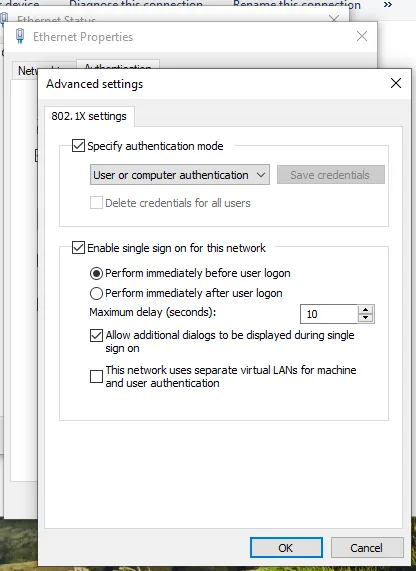 User or computer authentication, with single sign-on performed immediately before user logon.
Step 5 — Reboot and read both phases
Section titled “Step 5 — Reboot and read both phases”Reboot the machine, wait at the logon screen, then sign in. Open
Logging & Reports → NAC Logs → Auth Log, set Auth Method to EAP-TLS and
Endpoint MAC to this machine’s address, and read it bottom-up. A correctly
configured port produces two accepts a logon apart, both EAP-TLS, on the same
MAC — differing in the Rule and VLAN they landed on.
Telling the two apart is easier than it sounds: the Username is whom the session was decided for, taken from the certificate. The user phase shows the Taranac account the user certificate resolved to. The machine phase resolves to no account, so it shows the computer certificate’s own name: its CN, or its DNS name when the subject is empty, typically the machine’s FQDN.
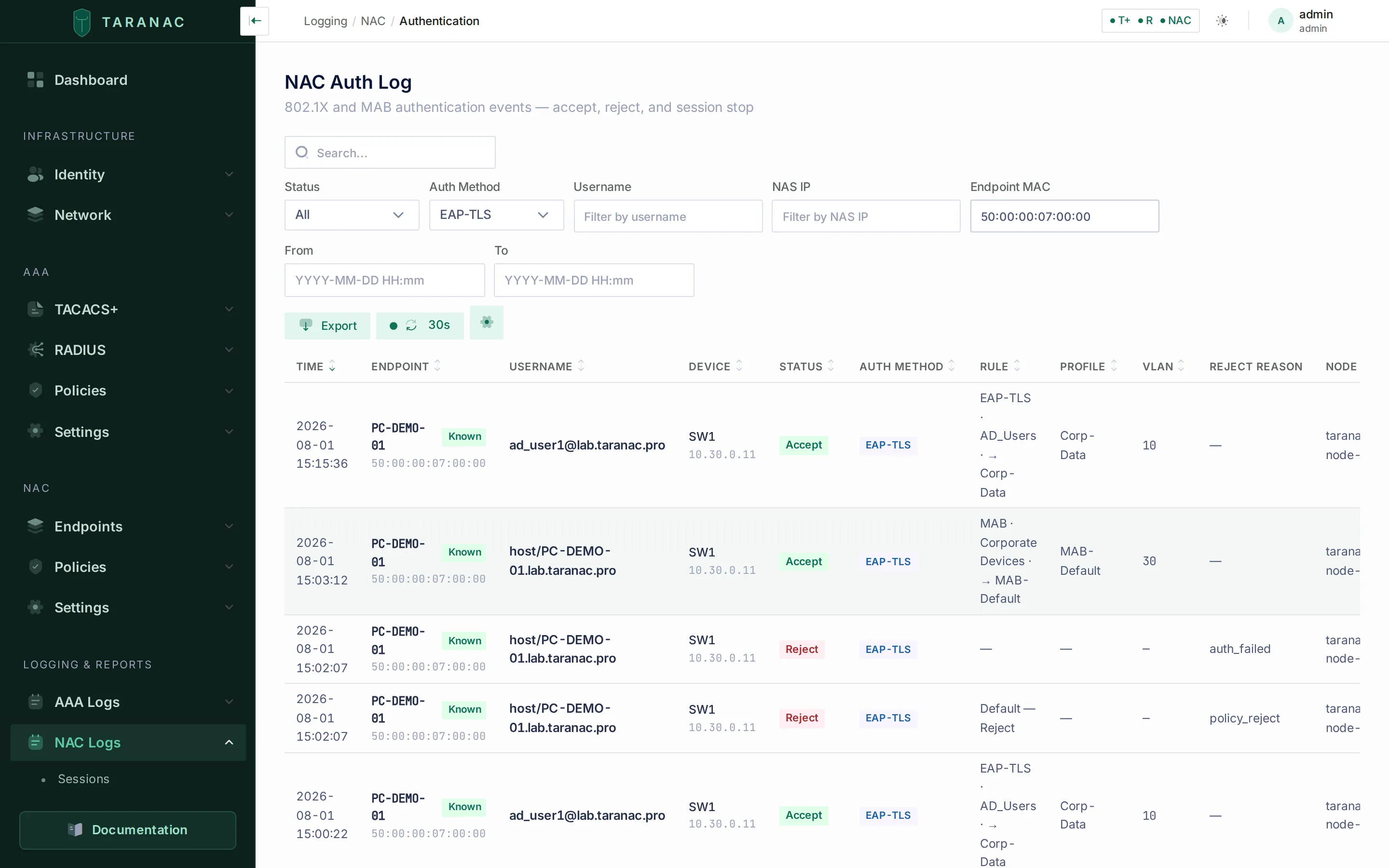 Filtered to EAP-TLS and to this one machine’s MAC, so the port’s whole story is on screen. Read the Rule and VLAN columns of each row — this is the view that exposes a phase landing somewhere you did not intend.
Check three things in those rows, in this order:
- The machine phase is an accept, not a reject. A reject whose Rule is
Default — Rejectmeans the endpoint was not in your group yet — see the classification callout in Step 2. Its Reject Reason readspolicy_reject: the NAC Auth Log translates only a short list of reasons (EAP methods, EAP-TLS certificate, CRL and OCSP refusals, push MFA), so every reason on this page shows as a raw token in every interface language. - Each phase matched the rule you intended. The rule name is in the row.
This is where a machine phase landing on an
Any-method rule, or a user phase landing on the machine rule, becomes visible. - The VLANs are the ones you designed, and if they differ between phases, that the client actually re-addressed after logon.
Troubleshooting
Section titled “Troubleshooting”| Symptom | Cause | Fix |
|---|---|---|
Machine phase rejected, Default — Reject, reason policy_reject | The endpoint was not yet in the endpoint group when policy ran | Expected on a first-ever connection; reauthenticate. On FreeIPA/OpenLDAP, computer sync pre-creates the endpoint and closes the gap; on AD, add a fallback rule |
| Machine phase rejected although a rule matching PEAP was written for the machines | A machine presenting a certificate authenticates as EAP-TLS, and the method is compared exactly | Change that rule’s Method to EAP-TLS — see the note at the top of this page |
| Machine phase accepted but lands in a restricted VLAN | It matched an Any-method rule conditioned on the same endpoint group. A MAB rule cannot do this — the method is compared exactly | Put your EAP-TLS + endpoint-group rule above every Any-method rule, or narrow that rule’s method |
| Logged-in users get the machine’s access | The machine rule sits above the user rule and matches both phases | Use ↑ Insert rule above to move the user rule above the machine rule |
| No machine phase at all in the log | Authentication mode is User authentication, or there is no computer certificate | Set User or computer authentication; check Cert:\LocalMachine\My |
| No machine phase, and the profile is PEAP or EAP-TTLS | A machine account has no password; Taranac skips the host/… round silently and logs nothing | Machine authentication requires EAP-TLS with a computer certificate |
| Nothing at all in the log, either phase | Automatically use my Windows logon name is on while single sign-on is off — Windows sends no RADIUS request at all | Windows Event Log (Wired-AutoConfig) shows 0x50001 / 0x525. Enable SSO, or clear that checkbox |
| Port authorized after logon, but no connectivity | VLAN changed between phases and the client kept its old address | Tick This network uses separate virtual LANs…, or keep one VLAN and use ACLs |
| Machine authenticates, user phase never happens | Single sign-on is off, or the user has no certificate in their own store | Enable SSO; verify Cert:\CurrentUser\My for that user |
An LDAP Group Membership rule never fires | Group membership is not being collected — the switch is off by default | Turn on Group membership on the directory’s Computer Sync tab, resync, then check the endpoint’s card for the groups it lists |
Related
Section titled “Related”- EAP-TLS for domain users — trust, issuance, supplicant
- Endpoints — endpoint groups and classification rules
- NAC policy — conditions, first-match-wins, CoA
- LDAP directories — directory and computer sync, including group membership