

Captive portal
A captive portal is the web page an unknown device is sent to before it gets on the network. There the person behind it registers as a guest, enrols a personal device with their corporate account, or accepts a usage policy. When they finish, Taranac places the device’s endpoint in the target endpoint group of the flow they used. What happens next depends on one question each portal answers: who opens the network. Either the network is asked to read its rules again, which is a Change-of-Authorization (CoA) to the switch or access point, or the portal lets the guest out itself because it routes the guest segment.
You can run as many portals as you need, one per site, building or audience. Each one is embedded (served by the core’s own captive-portal container) or standalone (installed on a host of its own, usually in a branch or DMZ segment). This page covers what every portal shares. The four registration flows are described in Captive portal flows, and installing and running a portal on its own host in Standalone captive portal.
Key concepts
Section titled “Key concepts”| Term | Meaning |
|---|---|
| Portal | One configuration with a unique slug, which gives its URL path (/portal/{slug}), plus its branding, security settings and flows. |
| Flow | A registration scenario inside a portal: Guest, Self Registration, BYOD or Accept Use Policy. A portal has at most one of each. See Captive portal flows. |
| Target endpoint group | The group a device joins when its flow completes. Your NAC policy matches on this group to decide what the device gets. |
| Guest session | The record of one registration: who, which device, verification and sponsor state, when access expires, and who holds it open. |
| Embedded portal | Served by the captive-portal container on every core node. The network always does the enforcing. |
| Standalone portal | Installed on its own host with a single command. It serves DHCP and DNS on its segment, and it can open access itself. |
| Who opens the network | Set per standalone portal: the portal (it routes the segment and admits the guest in its own datapath) or the network (a CoA asks the switch or access point to re-authorize the device). An embedded portal is always the second. |
| Guest VLAN (label) | A VLAN number you give a portal to describe its segment. It is copied onto every guest session the portal creates, so a guest log covering several portals says where each guest came from. Nothing is enforced from it. |
Embedded or standalone
Section titled “Embedded or standalone”| Embedded | Standalone | |
|---|---|---|
| Where it runs | The core’s captive-portal container, on every cluster node | Its own host, installed with ./taranac captive-portal join |
| How a device reaches it | The switch redirects it (URL redirect), or it sits in a registration VLAN whose subnets you list in Source Networks | It is the DHCP and DNS server of its segment, so devices find it without help from the switch |
| Who opens the network | Always the network (CoA) | The portal or the network, your choice |
| Turned on by | The Embedded portal switch on the Captive Portals page | Installing it. The switch does not affect it |
| Health | Cluster nodes reads all cluster members | One row per installed box under Portal Instances |
Use an embedded portal where your switches and access points can redirect or re-VLAN a device and the core is reachable from the guest segment. Use a standalone portal where the site needs its own gateway: a branch whose switches cannot do 802.1X or dynamic VLANs, a Wi-Fi network where a VLAN change would disconnect the guest, or a DMZ segment that must not reach the core directly.
How a registration becomes access
Section titled “How a registration becomes access”The steps are the same for every flow:
- Find the device. The portal knows the guest by the IP address their browser came from, as the portal that served them saw it and proves to the core; an address a client names for itself is not taken. Taranac looks that address up in the live NAC sessions. A standalone portal can also look it up in the DHCP lease it granted and in its own datapath. If no MAC address is found, the sign-in is refused with a message saying the device is not on the portal’s segment. The device then reached the page through a router, from another subnet, or through a proxy that rewrote the address. Without a MAC, neither a group membership nor a CoA could be applied, and the guest would be told they are online while nothing changed.
- Place the endpoint. The endpoint joins the flow’s target group, and the endpoint card labels that membership by the captive portal. A blocked endpoint is refused at this step, whatever the flow.
- Open the network. This step depends on who opens it:
- The network. Taranac sends a CoA to the NAS that holds the device’s session. The switch or access point re-authorizes the session, and your policy now matches the new group. On a wired port, where the switch’s vendor dictionary declares a port bounce and the session reports an Ethernet
NAS-Port-Type, the port is bounced instead. A bounce makes the device take a new DHCP lease in the VLAN it lands in; a plain re-authorization would leave it holding an address from the registration VLAN. If the device had no NAS session yet when the guest signed in, the CoA goes out as soon as one appears. - The portal. No CoA is sent anywhere. On its next report, a few seconds later by default, the portal’s datapath lets the device through. See Standalone captive portal.
- The network. Taranac sends a CoA to the NAS that holds the device’s session. The switch or access point re-authorizes the session, and your policy now matches the new group. On a wired port, where the switch’s vendor dictionary declares a port bounce and the session reports an Ethernet
When a session expires or is revoked, the steps run in reverse. See Revoking.
How a device reaches the portal
Section titled “How a device reaches the portal”Devices are not told about the portal; they are brought to it. For a portal the network enforces, the Redirect Mode on the General tab chooses how:
| Mode | How the device reaches the portal | When to use |
|---|---|---|
| URL Redirect (Cisco-style) | The authorization profile returns a url-redirect (plus a redirect ACL) pointing at the portal | Switches and WLCs that support URL redirection |
| VLAN Intercept | The device is placed in the registration VLAN, where the portal’s DNS answers every name with the portal’s own address | Any switch that can assign a VLAN |
| Both | URL redirect where it is offered, VLAN intercept otherwise | The default. The safest choice across mixed hardware |
A standalone portal that opens access itself does not rely on either. It is the guests’ gateway, so its firewall sends a device that has not signed in to the sign-in page.
Phones and laptops check for a captive portal on their own (Apple’s captive network assistant, Android’s generate_204, Windows NCSI, Firefox). The portal answers those checks and redirects them, so the “Sign in to network” window opens by itself.
The Embedded portal switch
Section titled “The Embedded portal switch”The Embedded portal card at the top of NAC → Endpoints → Captive Portals decides whether the core serves embedded portals at all. It is off by default. While it is off, the core’s captive-portal container closes every connection on the portal ports, and the portal table shows embedded portals as Not running — embedded portal is off. An embedded portal opened for editing says the same. Standalone portals are not affected either way.
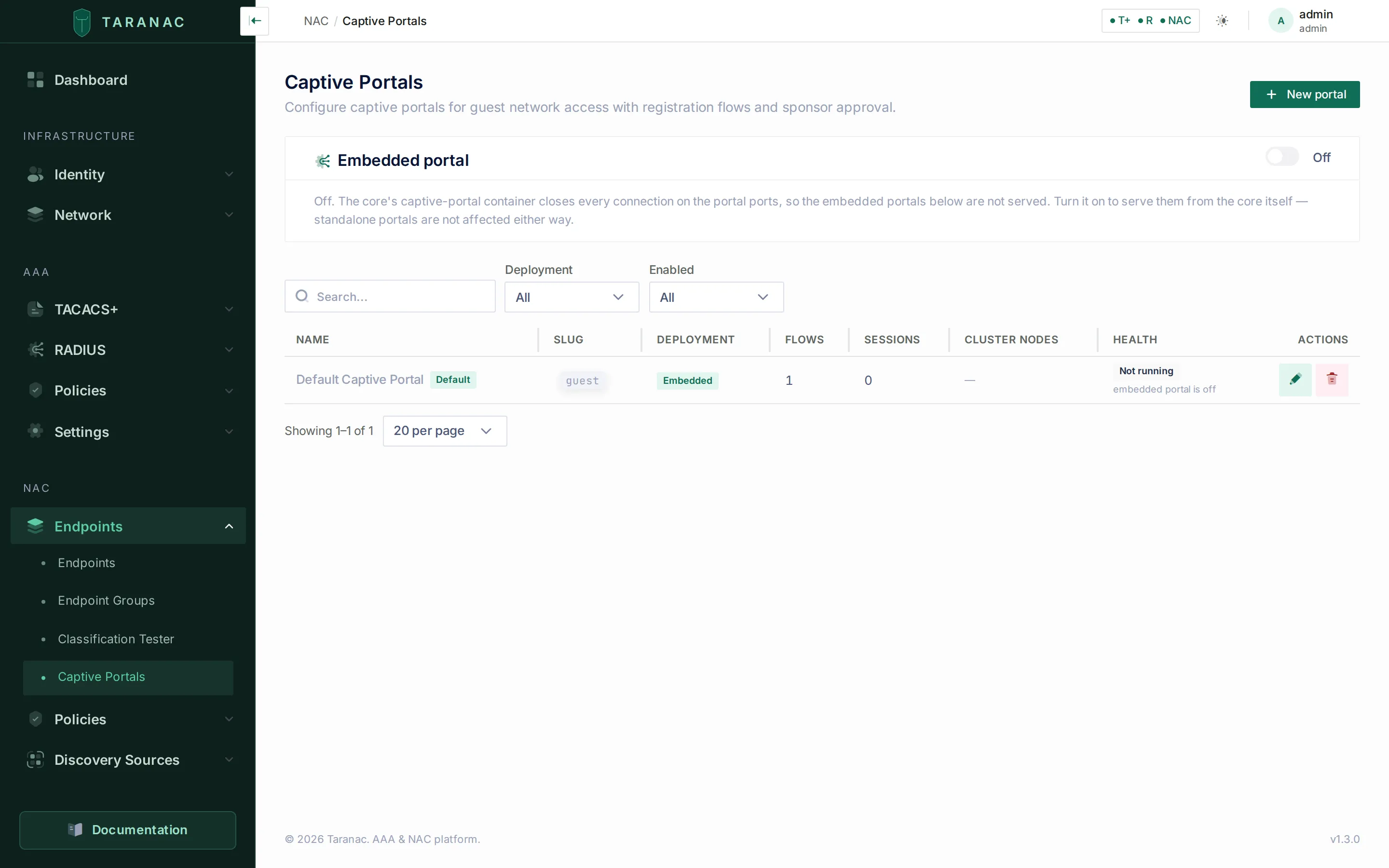 The Captive Portals page. The Embedded portal card sits above the portal table; here it is off, so the seeded default portal is not served.
There is no Apply button. Switching the card on, or saving any portal, writes the new configuration, and a job on every cluster node brings that node’s configuration in line with the database within a minute. Switching it off asks for confirmation, because guests lose the portal on their next request. Portal settings are kept and come back when it is switched on again.
The card then reports whether the configuration took effect:
| State | Meaning | What to do |
|---|---|---|
| Running | The container loaded the current configuration. The card shows when it was applied and by whom. | Nothing. Show config displays it, and What changed compares it with the last version. |
| Applying… | Written; waiting for the container to confirm. | Wait a few seconds. The card re-checks by itself. |
| The config has not been written yet | The settings are saved, but the core could not write the nginx configuration on this node. It retries every minute. | Apply again retries now. If that fails too, the reason is in the core’s log: docker compose logs api | grep -i captive. |
| The portal container is not answering | The configuration is written, but no captive-portal container confirmed it read it. Most likely the container is not running. | docker compose ps captive-portal and docker compose logs captive-portal. |
| nginx rejected the config | nginx refused the generated file and keeps serving the previous one. The card shows nginx’s own error text. | This is a fault in the generated configuration, not in your settings. Send the text to support. |
Configuring a portal
Section titled “Configuring a portal”NAC → Endpoints → Captive Portals lists every portal with its slug, deployment, number of flows, active sessions, Cluster nodes and Health. For an embedded portal, Cluster nodes reads all cluster members. For a standalone portal it reads per instance, because each installed box connects to one node, which is shown under Portal Instances. New portal opens the editor, a drawer with tabs. With view-only rights, the row action opens the portal read-only.
General
Section titled “General”| Field | Notes |
|---|---|
| Name, Slug | The slug is the URL segment /portal/{slug}. On create it is generated from the name; you can edit it. |
| Enabled | Whether the portal is served. |
| Default Portal | Embedded portals only. Catches VLAN-intercept traffic that arrives without a slug. Only one portal can be the default. |
| Deployment Mode | Embedded or Standalone (DMZ). Saving a new standalone portal opens it again on its Deployment tab, where the rest of its setup is. |
| Redirect Mode | Both, URL Redirect (Cisco-style) or VLAN Intercept. See above. |
| Backend API URL | Standalone only. The core address the installed box calls back to. Generating a token fills it in when it is empty. |
| Portal URL | The public address of the portal, used as the URL-redirect target and in email links. For a standalone portal, its host name is also the name the portal answers for itself in its segment, and an https:// host name here is what enables the captive-portal API. |
| Guest VLAN (label) | A whole number between 1 and 4094, or empty. A label only: it is stamped on each guest session this portal creates and shown in Guest Sessions. Where the network enforces, use the VLAN the guest arrives in. |
| Default Flow | Landing (show all flows), or open straight into one flow. With a single enabled flow the landing page is skipped anyway. |
| Source Networks | Embedded only. CIDR subnets, one per line, that route VLAN-intercept traffic to this portal. |
| Redirect After URL | Where to send the guest after success, instead of the success page. |
These values end up in the configuration files the core writes for a portal, so anything that would read as syntax there is refused on save. The Name may not contain line breaks or other control characters. Backend API URL, Portal URL and Redirect After URL must be absolute http:// or https:// addresses with a host, without spaces, quotes, backticks, backslashes or any of ; { } < > $ #. A standalone portal’s DHCP interface, where it is set through the API, must be an interface name: up to 15 letters, digits, ., _ and -.
One card per flow, each with a display name, icon, order, enable switch and Target Endpoint Group. The rest of the card holds the flow’s own settings, described in Captive portal flows.
An enabled flow must have a target group. Without one it can grant nothing, so saving the portal is refused with an error naming the flow, and the editor switches to the Flows tab. Deleting an endpoint group that a flow targets is not blocked: the group’s Used by panel lists the portal, and the flow’s target is cleared. That flow then offers nothing to guests until you choose a new group, and if a guest reaches it, the log names the portal and the flow.
Appearance, Security and Preview
Section titled “Appearance, Security and Preview”Appearance holds the logo, brand name, colours, welcome text and success text. Security applies to the whole portal:
| Field | Default | Notes |
|---|---|---|
| Require ALTCHA challenge | on | Self-hosted proof-of-work that the browser solves automatically. No third-party service and no user interaction. Applies to the guest, self-registration and BYOD flows. |
| Enable honeypot field | on | A hidden decoy field; submissions that fill it in are rejected. |
| Rate Limit (per IP per hour) | 5 | Registration attempts allowed from one IP address. An IPv6 guest is counted by its full address, not by its /64, which on a guest VLAN is every guest. |
| Allowed Email Domains / Blocked Email Domains | empty | One domain per line. An empty allow list accepts any domain. |
Preview renders the landing page from your current settings before you save.
Deployment
Section titled “Deployment”Appears only on a saved standalone portal. It holds who opens the network, what the portal enforces, the install command and token, the installed boxes, and their live datapath status. See Standalone captive portal.
What the guest sees
Section titled “What the guest sees”The sign-in page is sent with Cache-Control: no-store, so a phone never shows a stored copy of an older version of the portal.
After a successful sign-in, the page depends on who opens the network:
- The portal opens access. The guest stays connected. The page counts down and then goes to the Redirect After URL, or reloads the portal’s own page if none is set. The operating system re-checks connectivity only after a full page load, so this reload is what lets the sign-in window close. Where the portal publishes the captive-portal API, the phone is also told directly that it is free.
- The network opens access. The guest is about to be moved, and from then on the page cannot reach anybody. So it says so in advance: they are approved, the device is being moved, and the window may close by itself. It also asks them not to press Cancel. On iOS that button disconnects the device from the network instead of closing the window. If the window is still open when the progress bar ends, the page tells the guest to close it and reconnect to the Wi-Fi once.
What the portal learns about the device
Section titled “What the portal learns about the device”Every browser that opens the portal sends a User-Agent line. The portal also asks Chromium-based browsers (Chrome, Edge, Opera, most Android browsers) for User-Agent Client Hints: platform, platform version, model and the mobile flag. It asks for nothing that describes the browser rather than the device. Safari and Firefox send no Client Hints, so for them the User-Agent is all there is.
Both are recorded per device. The User-Agent appears on the endpoint’s Captive Portal card as Browser (User-Agent), and both feed Device Profiling. They are the strongest operating-system signal Taranac can get, and only the Client Hints can tell Windows 11 from Windows 10. See Profiling rules for the signals built on them.
Guest sessions
Section titled “Guest sessions”Logging & Reports → NAC Logs → Guest Sessions lists every registration: guest, flow, Access held by, status, MAC, IP, created and expiry times. A session from a portal with a VLAN label shows it as a VLAN badge. The page refreshes by itself. From a row you can:
- Approve or Reject a session that is waiting for verification or a sponsor, without waiting for the sponsor’s email.
- Extend an active session by a number of hours.
- Revoke access.
- Open the detail drawer for guest, verification, sponsor, endpoint, SSID, portal and VLAN label.
AUP acceptance, approvals and rejections are written to the audit log without the guest’s session token, so the log holds nothing a reader could use to act as the guest.
Access held by
Section titled “Access held by”Revoking works differently depending on who holds the access open, so the table shows it:
| Value | Meaning | What Revoke does |
|---|---|---|
| NAC | The portal’s network enforces. | A CoA disconnect goes to the NAS that authenticated the device, and access ends immediately. |
| Gateway | A portal that opens access itself, with no RADIUS session for the device. | The portal stops listing the device and drops it on its next report, which takes seconds rather than happening instantly. No CoA is sent, because there is no NAS involved. |
| NAC + Gateway | A portal that opens access itself, for a device a switch or access point also authenticated by MAB. | Both ends act: a CoA disconnect goes to the NAS, and the portal stops letting the device through on its next report. |
| Unknown | The portal the session belongs to no longer exists. | The session ends. What reaches the device depends on how its portal enforced access. |
Sessions a portal admits itself exist nowhere in RADIUS. NAC Sessions lists them with a Portal badge, names the portal and the box that reported them instead of a NAS, and starts their timeline with Admitted by the portal instead of an Accounting-Start. When a NAS restarts, only RADIUS sessions are closed; portal sessions are not.
Revoking and expiry
Section titled “Revoking and expiry”When a session is revoked or expires, Taranac undoes what the portal did and nothing else:
- It removes the membership in the flow’s target group, but only the membership the portal created. If an operator, an import or a classification rule had already put the device in that group, the membership stays and the device keeps it.
- The network or the portal ends the access, as described in the table above.
Background jobs keep sessions tidy. Every five minutes, expired sessions and sessions left waiting too long for verification or a sponsor are closed. Expired and revoked records are deleted after the retention window (nac.guest_session_retention_days, 90 days by default).
Reference: session status
Section titled “Reference: session status”register (with verification) → pending_verificationregister (no verification) → pending (sponsor required) → active (self-service)verify code OK → pending (then waits for the sponsor) | activesponsor approve / reject → active | rejectedAUP accept → active (immediately)expiry / timeout (job) → expiredadmin or sponsor revoke → revokedRelated
Section titled “Related”- Captive portal flows: Guest, Self Registration, BYOD and AUP in detail.
- Standalone captive portal: install, who opens the network, datapath and host commands.
- NAC policy: match on the target groups the portal assigns.
- Endpoints: where registered devices land, and how group memberships are labelled.
- Device Profiling: what the browser signals are used for.
- Network devices: a CoA depends on the device’s shared secret.