

802.1X with PEAP, end to end
This guide takes the lab from Build an 802.1X lab and gets a real user onto the network: a Windows PC authenticates with a username and password inside a TLS tunnel, Taranac matches a policy rule, and the switch puts the port into VLAN 10.
PEAP is the right first method to prove out. It needs no client certificates, so there is exactly one moving part on the client — and the Windows supplicant’s three dialogs contain a handful of checkboxes that will silently break the connection if they are wrong. Every setting below was tested against Taranac’s NAC RADIUS (FreeRADIUS 3.2.10) with the native Windows 10/11 supplicant, and the ones that matter are called out with what actually happens when you get them wrong.
What you’ll have at the end: a user authenticating over PEAP/MSCHAPv2, a policy rule granting VLAN 10, the session visible in Taranac, and the port closed so unauthenticated devices do not get through.
Step 1 — Create the user
Section titled “Step 1 — Create the user”PEAP verifies a password using MS-CHAPv2, which needs the NT hash of that password on the server side. Taranac derives and stores that hash whenever a local user’s password is set, so a local user works for 802.1X with no extra step.
-
Open Infrastructure → Identity → Groups and create a group —
PEAP-Users. The group is what your policy rule will match on, which is far more maintainable than naming individual users in policy. -
Open Infrastructure → Identity → Users (
/infrastructure/users), click New, and create a local user — saynacuser-peap— with a password that satisfies the password policy. Add them toPEAP-Users. -
Turn Must change password off for this account. The new-user form ticks it by default, and it is not cosmetic: a local account carrying the flag is refused at 802.1X before the password is even checked, with
Password change requiredon the wire. Leave it on and every attempt in this guide fails — and the auth log will sayauth_failed, which reads as a wrong password and sends you to the wrong place entirely.
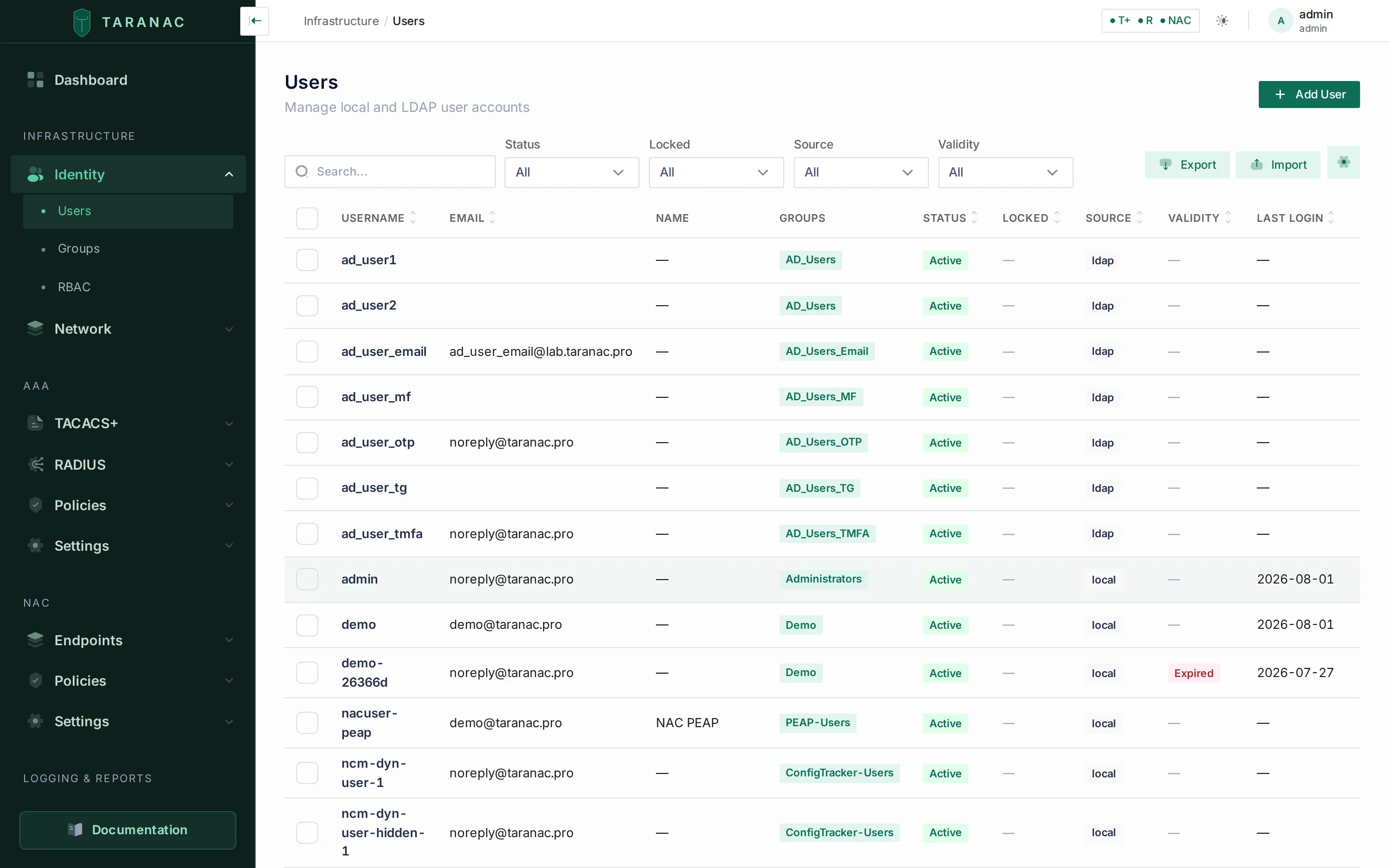 Infrastructure → Identity → Users — a local account is all PEAP needs; the NT hash is derived automatically.
Step 2 — Sort out server certificate trust
Section titled “Step 2 — Sort out server certificate trust”Windows validates the RADIUS server’s certificate before it will send a
password through the tunnel — and it is right to. This step is where most PEAP
bring-ups actually stall. When Windows rejects the server certificate, the TLS
handshake dies inside the EAP layer and no password is ever checked — but the
reject does not look like a wrong password. A supplicant refusing the server
certificate sends a fatal TLS alert, Taranac reads it out of the EAP message, and
the auth log records the reject as tls_server_cert_rejected with the alert’s
own text (unknown_ca and friends). So this failure names itself. Note that
the reason arrives in the log as that raw token: the NAC Auth Log’s translation
table does not carry it.
Two different certificates are involved here, and confusing them is the single most common way this step goes wrong:
| Certificate | What it is | Where it goes |
|---|---|---|
NAC server certificate — e.g. CN=taranac-nac | The identity FreeRADIUS presents during the EAP handshake | Stays on the server. You only need to read its CN |
The CA that signed it — e.g. CN=Taranac Internal CA | The trust anchor for that server certificate | This is what you install on the client |
You install the CA, and you name the server. Install the server certificate instead and you will get a setup that appears to work while validating nothing — see the callout below.
-
Open NAC → Settings → PKI / Certificates (
/nac/settings/pki) and find the NAC Server Certificate — the one FreeRADIUS presents for NAC. Note its CN (in a default install,taranac-nac) and which CA issued it. You will need both. -
Download that CA’s certificate — not the server certificate.
-
Install the CA on the Windows client — into the computer store:
Terminal window # Run as AdministratorImport-Certificate -FilePath .\taranac-internal-ca.pem `-CertStoreLocation Cert:\LocalMachine\RootOr
certlm.msc(notcertmgr.msc) → Trusted Root Certification Authorities → Import. -
Verify it landed, and that what landed is a CA:
Terminal window Get-ChildItem Cert:\LocalMachine\Root |Where-Object { $_.Subject -match 'Taranac' } |Select-Object Subject, IssuerOn a CA certificate, Subject and Issuer are the same (it is self-signed, a root). If they differ, you imported an end-entity certificate — go back to step 2.
-
If you already imported the server certificate on an earlier attempt, remove it. It is inert once the CA is trusted, but leaving an end-entity certificate sitting in the machine’s root store misrepresents what the working configuration actually requires — and the next person to copy this setup will carry the mistake forward.
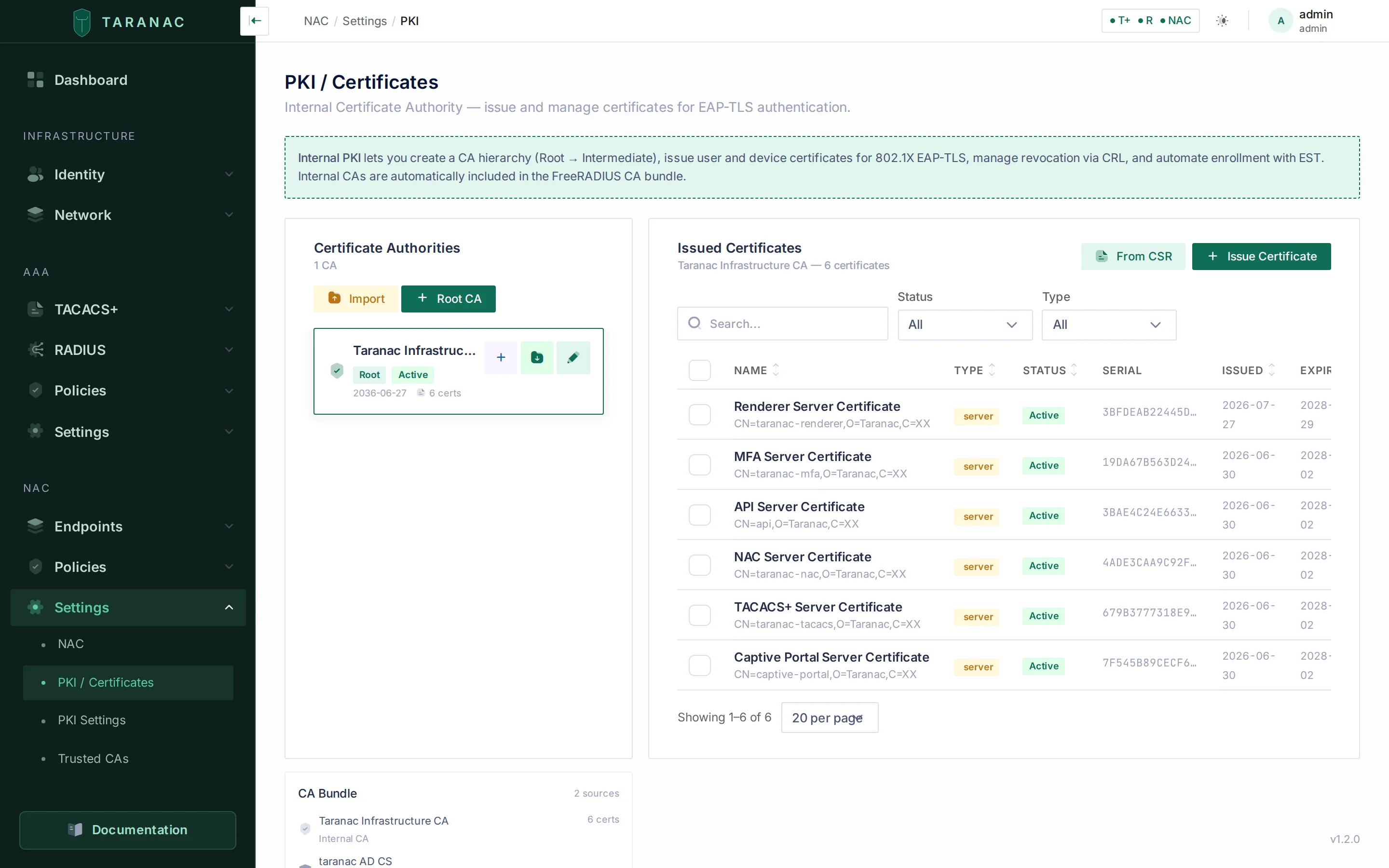 NAC → Settings → PKI / Certificates — the server certificate’s CN is the value Windows will check against.
Step 3 — Build the authorization profile
Section titled “Step 3 — Build the authorization profile”The profile is what the switch is told to do when a rule matches.
-
Open NAC → Policies → Authorization Profiles (
/nac/policies/profiles) and click New profile. Name itCorp-Data. -
Set VLAN ID to
10. That is all this lab needs — Taranac sends the standard tunnel attributes and the switch moves the port. -
Optionally set Re-auth timer (seconds) so sessions are periodically re-authenticated — it sends
Session-Timeouttogether withTermination-Action = RADIUS-Request, and for that reason cannot be combined with the plain session timeout. Leave ACLs and URL redirect alone for now.
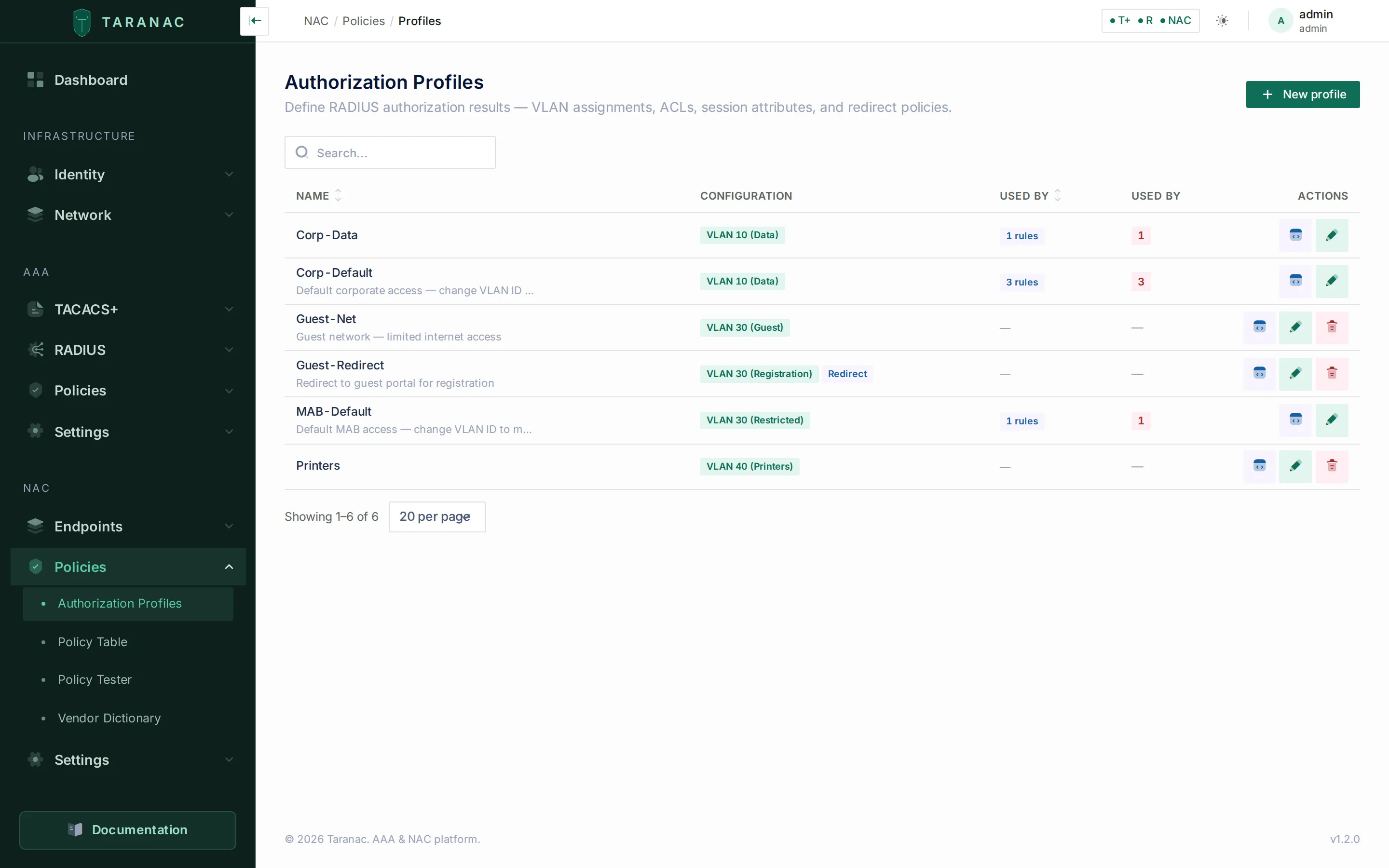 NAC → Policies → Authorization Profiles. The Used by column tells you how many rules depend on a profile before you change it.
VLAN assignment is the most portable authorization result there is — every switch that does 802.1X supports it. Downloadable ACLs and URL redirects are more powerful and considerably more vendor-dependent; see NAC policy for when each is worth reaching for.
Step 4 — Add the policy rule
Section titled “Step 4 — Add the policy rule”-
Open NAC → Policies → Policy Table (
/nac/policies) and look at what is already there before you add anything. A fresh install ships three rules:# Rule Matches 1 Dot1x Known Users → CorporatePEAP · any user · any endpoint · any device · always → Corp-Default(VLAN 100)2 MAB Known Endpoints → RestrictedMAB · any → MAB-Default(VLAN 300)— Default — Rejecteverything else Rule 1 matches every PEAP request. The Add rule button appends to the end of the list, so a rule added that way would sit below it and never be reached — the user would authenticate, land in VLAN 100, and the log would name a rule you did not write. Instead, hover rule 1’s row and press its ↑ button: that is Insert rule above, and the drawer opens titled New rule at position #1. (The ↑ and ↓ on a row insert; to move an existing rule, drag its handle.)
-
Fill the drawer in:
Field Value Rule name PEAP → Corp-DataMethod PEAP Action Permit (assign profile) Who PEAP-UsersWhat Any endpoint Where Any device — or restrict to your lab switch When Always Authorization profile Corp-Data -
Save, and confirm the order. NAC policy is first match wins, evaluated top-down by the rule numbers, with Default — Reject always at the bottom. Drag to reorder if the rule did not land where you meant.
-
Prove the order before you touch the switch. NAC → Policies → Policy Tester (
/nac/policies/tester) simulates one request: method PEAP (802.1X), usernamenacuser-peap, your switch’s NAS IP. It answers with Rule #N matched and an evaluation trace showing every rule it walked past. If it names anything other than your new rule, fix the order now — this is thirty seconds against a port bounce and a puzzled log reading.
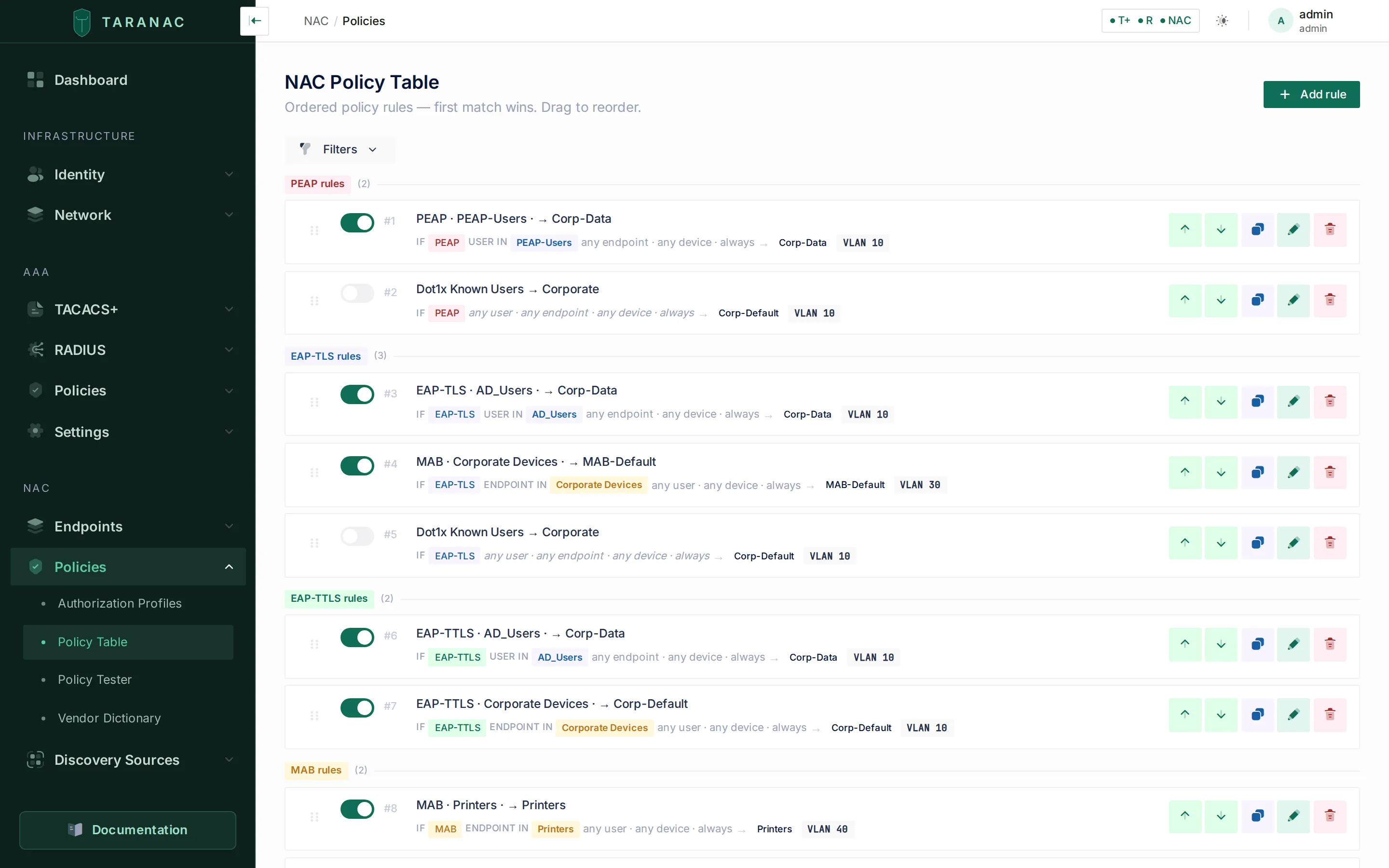 The rule reads as a sentence: IF PEAP · USER IN PEAP-Users · any endpoint · any device · always → Corp-Data · VLAN 10, and it sits at #1 — directly above the shipped
 Dot1x Known Users → Corporate, which would otherwise have matched first. The table groups rules by method for readability, but evaluation order is the rule number, and Default — Reject always ends the list.
Step 5 — Configure the Windows supplicant
Section titled “Step 5 — Configure the Windows supplicant”On the client, first make sure the Wired AutoConfig service is running and set to Automatic — without it the Authentication tab does not even appear:
Set-Service dot3svc -StartupType AutomaticStart-Service dot3svcThen open Network Connections → your Ethernet adapter → Properties → the Authentication tab. There are three nested dialogs; take them in order.
Dialog 1 — the Authentication tab
Section titled “Dialog 1 — the Authentication tab”| Setting | Value | Why |
|---|---|---|
| Enable IEEE 802.1X authentication | ✅ On | Without it Windows never sends EAPOL |
| Choose a network authentication method | Microsoft: Protected EAP (PEAP) | The outer method |
| Remember my credentials for this connection each time I’m logged on | ✅ On | Client-side convenience; invisible to RADIUS |
| Fallback to unauthorized network access | Your call | On failure Windows retries as MAB — see the callout above |
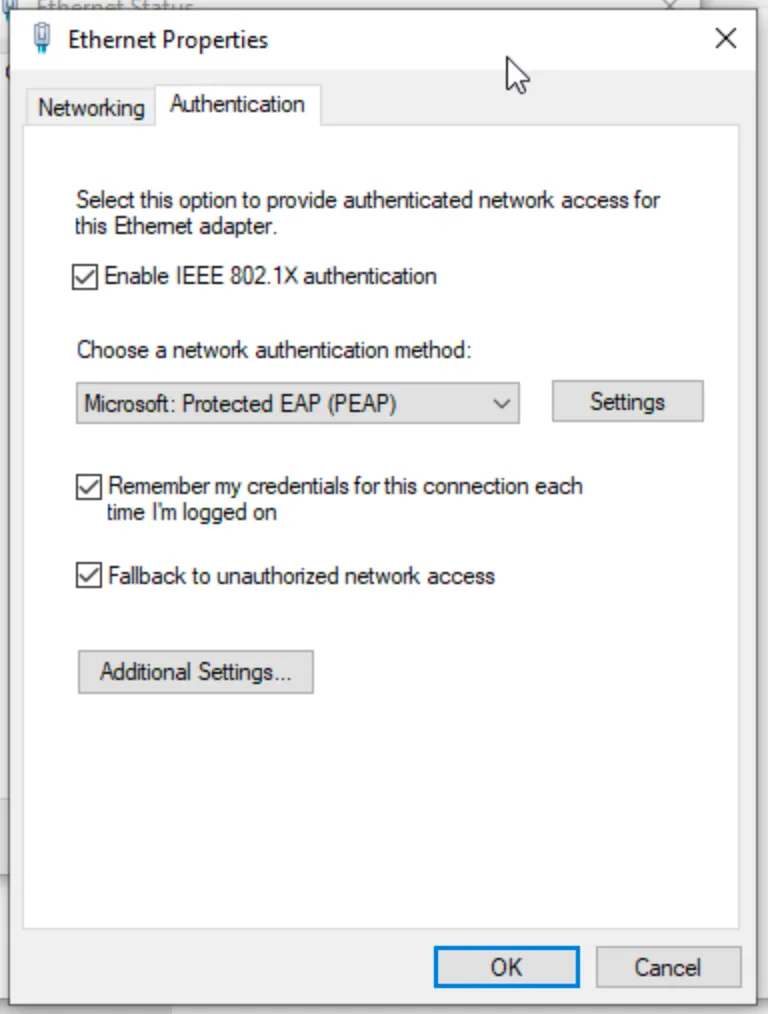 Dialog 1 — 802.1X on, PEAP chosen. Settings opens Dialog 2; Additional Settings opens Dialog 3.
Dialog 2 — Protected EAP Properties (Settings)
Section titled “Dialog 2 — Protected EAP Properties (Settings)”| Setting | Value | Why |
|---|---|---|
| Verify the server’s identity by validating the certificate | ✅ On | Off works, and hands your password to any rogue RADIUS server that asks. Required for production. |
| Connect to these servers | Tick it and enter the server certificate’s CN (e.g. taranac-nac) — or leave the box unticked | Pins which server may terminate the tunnel. See the three states below. |
| Trusted Root Certification Authorities | ✅ Tick the CA (e.g. Taranac Internal CA) | Tick the issuing CA, not the NAC server certificate — see Step 2. Leaving every box unticked with validation on also fails; the selection must be explicit. |
| Notifications before connecting | Don’t ask user to authorize new servers or trusted CAs | Strictest option. The default lets a user click through a rogue server prompt. |
| Select Authentication Method | Secured password (EAP-MSCHAP v2) | The only inner method Taranac supports for PEAP. |
| ↳ Configure… → Automatically use my Windows logon name and password | ❌ Off | Mandatory for a local Taranac account — see below. |
| Enable Fast Reconnect | ✅ On | TLS session resumption; speeds up reauthentication. While any CA is checked for revocation — by CRL or OCSP — Taranac turns resumption off so no session skips the check, and every reauthentication is a full handshake. |
| Disconnect if server does not present cryptobinding TLV | ❌ Off | See below — this one will stop you dead. |
| Enable Identity Privacy | Optional | Supported; see below. |
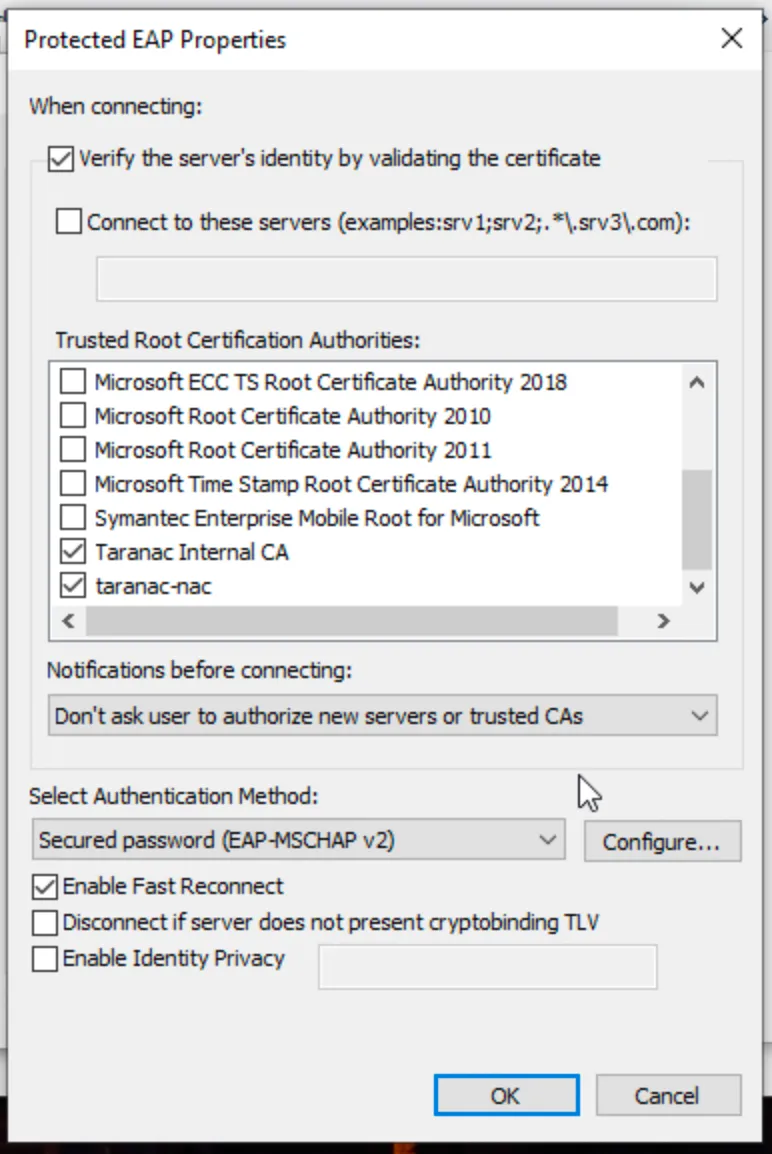 A working strict configuration: validation on, the CA ticked, and Don’t ask user to authorize new servers or trusted CAs. Reaching this state without a single prompt is the proof that the trust chain is genuinely valid.
The three states of “Connect to these servers”, because only one of them is a trap:
| State | What Windows does | Verdict |
|---|---|---|
| Unticked | Validates the certificate chain to a trusted root, does not check the server’s name | Works. Acceptable with a private CA that issues nothing but your own server certificates |
| Ticked, CN entered | Validates the chain and requires the name to match | Best. Use it whenever the CA signs anything beyond this one server |
| Ticked, left blank | Has a name requirement with no names to satisfy it | Broken — prompts the user in permissive mode, fails silently in strict mode |
Without name pinning, any server holding a certificate from that CA is accepted. With a dedicated internal CA that is a small gap; with a corporate CA that issues certificates widely, it is the whole attack.
Two settings worth understanding rather than copying:
-
Automatically use my Windows logon name and password. This makes Windows send the logged-on identity, which on a workgroup machine arrives as
DESKTOP-XYZ\aliceand on a domain machine asDOMAIN\aliceoralice@domain. For a local Taranac account this must be off. A qualified name may only ever resolve to a directory account: stripping the prefix and matching a local one would makeANYTHING\alicea free alias for the localalice. SoDESKTOP-XYZ\nacuser-peapresolves to nothing and the attempt is rejected as User not found. It comes into its own on a domain PC with a domain account, where the qualified name is the real one.⚠️ There is a second trap in the same checkbox: with it on and Enable single sign on off, Windows sends no RADIUS request at all — the supplicant runs as SYSTEM and has no way to reach the logged-on user’s credentials. The Wired-AutoConfig event log says
0x50001, Taranac logs nothing, and the port simply never authenticates. -
Identity Privacy. Sends a placeholder such as
anonymousas the outer identity so the real username never appears in cleartext, and reveals it only inside the tunnel. Taranac carries the inner identity out of the tunnel and logs and evaluates policy against it, so this works as intended — on the accept path. On an inner reject the tunnelled reply attributes are never copied outward, so the row in the auth log carries the outer identity: your failed logins will readanonymous. Worth knowing before you turn it on and then go debugging. On wired switch ports the threat it addresses is modest — an attacker needs physical access to the cable — but on wireless it is worth turning on.
Dialog 3 — Advanced settings (Additional Settings)
Section titled “Dialog 3 — Advanced settings (Additional Settings)”| Setting | Value | Why |
|---|---|---|
| Specify authentication mode | User authentication | The only mode that works without a directory. |
| ↳ Save credentials | Enter nacuser-peap + password | This is where the 802.1X credentials actually live. |
| Enable single sign on for this network | ❌ Off | SSO ties 802.1X to the Windows logon and only makes sense when the Windows and Taranac credentials are the same account — i.e. with AD/LDAP. |
| This network uses separate virtual LANs for machine and user authentication | ❌ Off | Requires machine authentication, which PEAP cannot do here. |
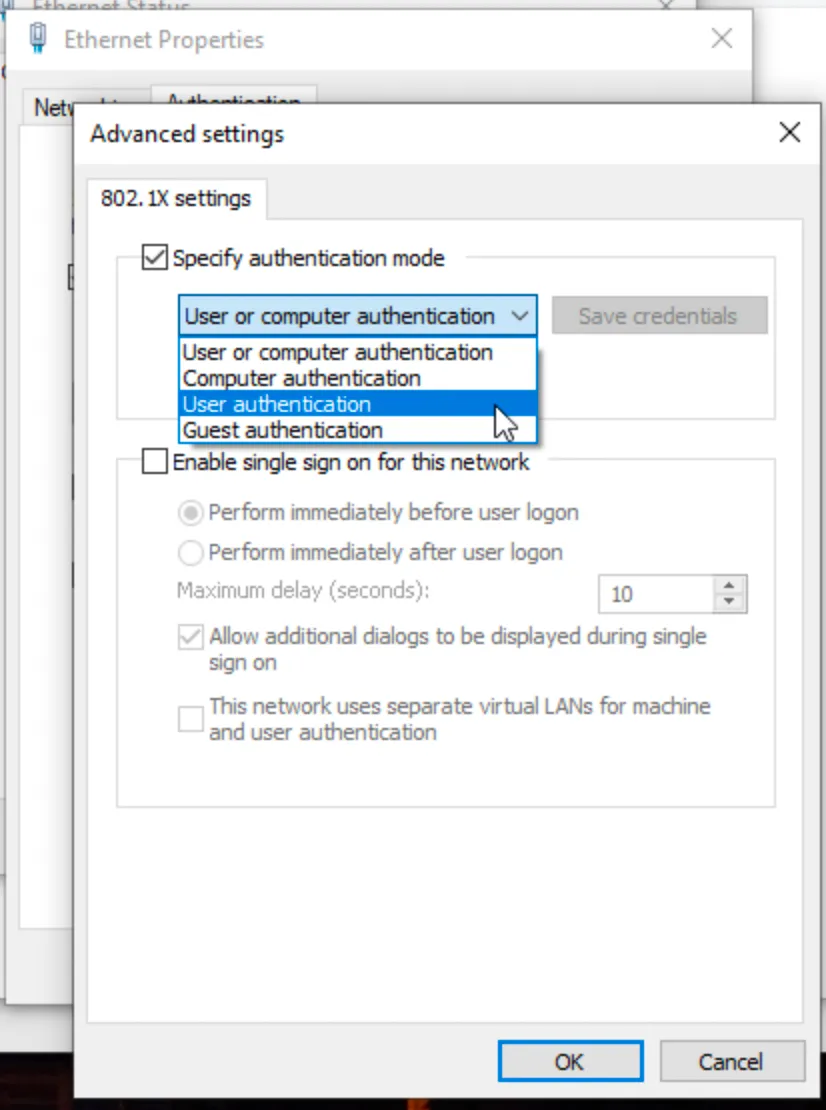 Dialog 3 — pick User authentication. Save credentials stays greyed out until you do.
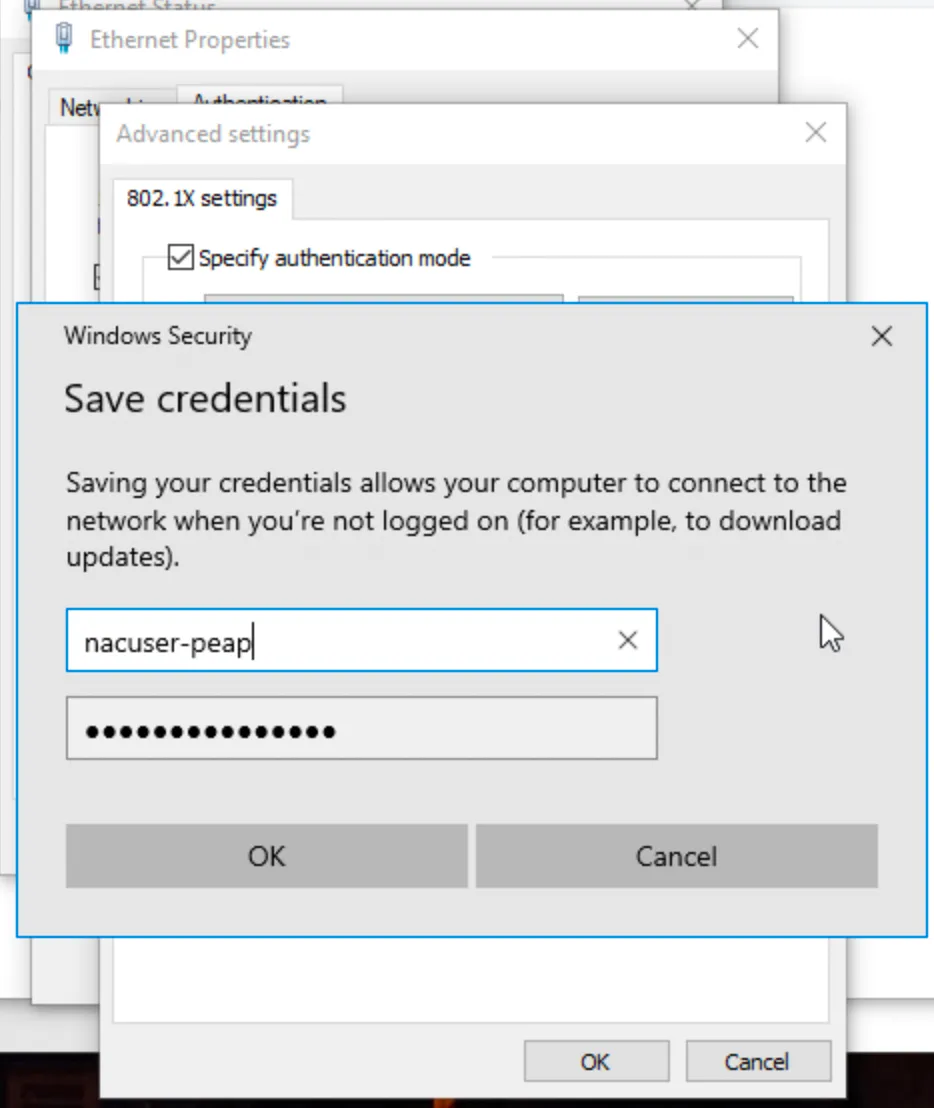 The credentials that are actually sent over 802.1X live here — not in the Windows logon.
Step 6 — Watch it authenticate
Section titled “Step 6 — Watch it authenticate”Bounce the port (unplug and replug, or shutdown / no shutdown on the
switch), and watch both ends.
On Taranac — Logging & Reports → NAC Logs → Auth Log
(/logging/nac/authentication):
- an Accept for
nacuser-peap, Auth MethodPEAP - the Rule that matched and the Profile it returned, right in the row —
PEAP · PEAP-Users → Corp-Data— plus the VLAN column - a live entry under Logging & Reports → NAC Logs → Sessions
(
/logging/nac/sessions) - the endpoint under NAC → Endpoints → Endpoints (
/nac/endpoints), tied to a user
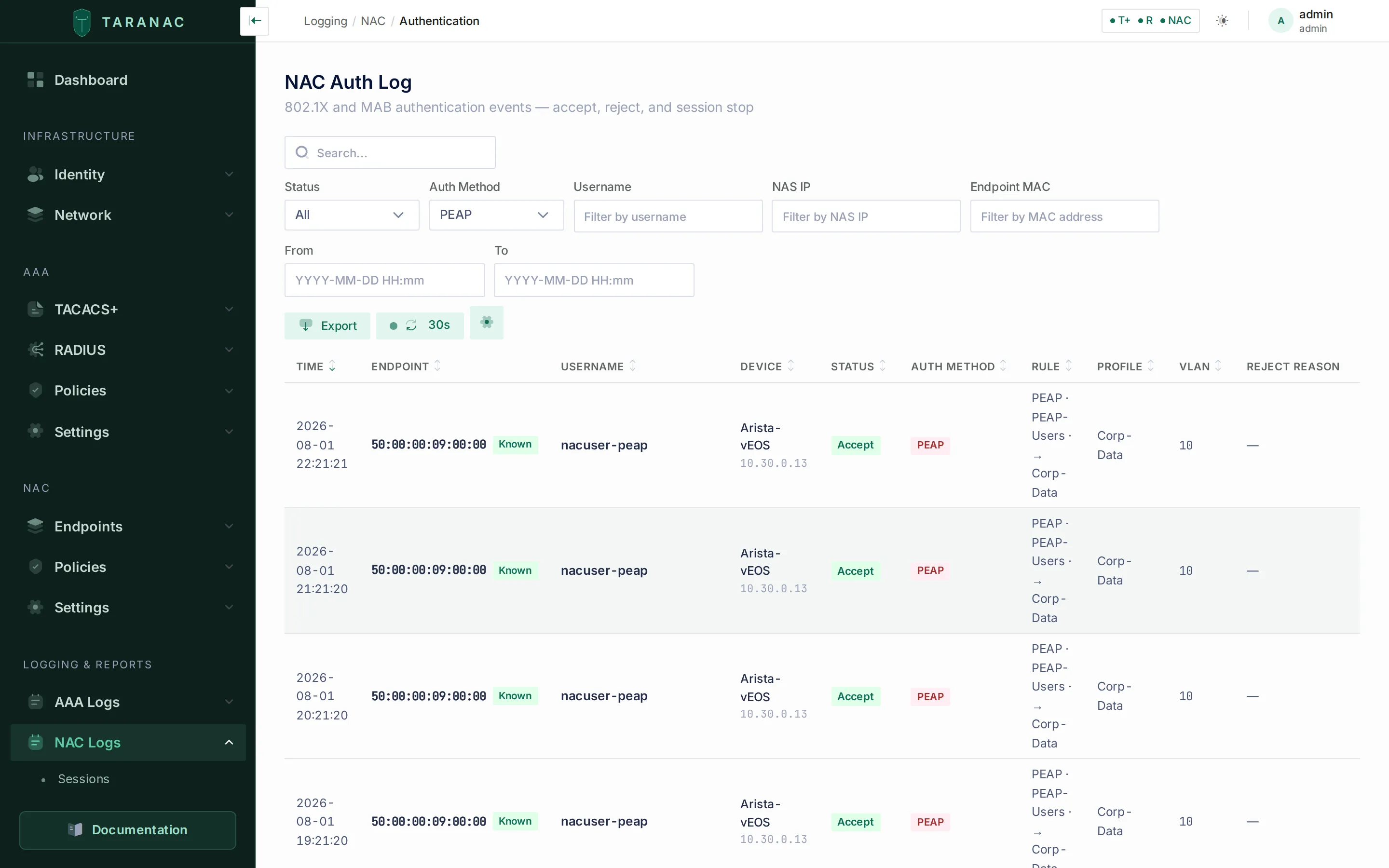 The NAC Auth Log, filtered to PEAP — this is where the guide is proved. Every row is the same rule (
PEAP · PEAP-Users → Corp-Data) accepting nacuser-peap on the lab’s Arista switch, VLAN 10, no reject reason. The rule is written once and is not per platform: point a Cisco at the same Taranac and its rows land in this same table, matched by the same rule.
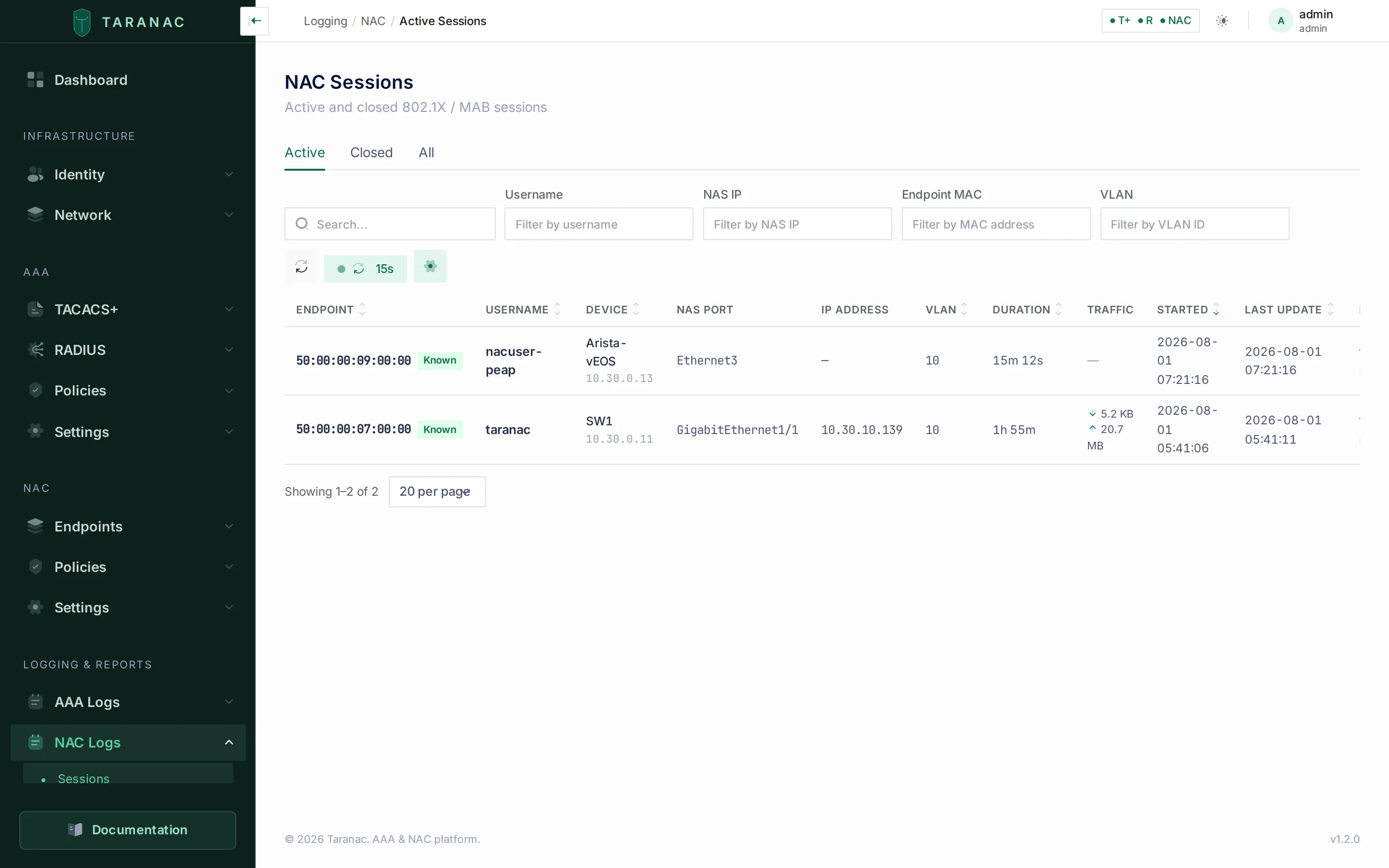 Logging & Reports → NAC Logs → Sessions — an authenticated session, its endpoint, the port it came in on, and live traffic counters.
On the switch:
show authentication sessions interface GigabitEthernet1/1 detailsLook for Status: Authorized, Method: dot1x, the username, and the VLAN
Taranac assigned. If you need to see the exchange itself:
debug dot1x eventsdebug radius authenticationshow dot1x interface Ethernet3show dot1x hostsshow radiusOn Windows: the adapter should pick up an address in VLAN 10’s subnet
(10.30.10.x). If the port authorized but the PC kept an old address, release
and renew — some supplicants do not re-DHCP after a VLAN change on their own.
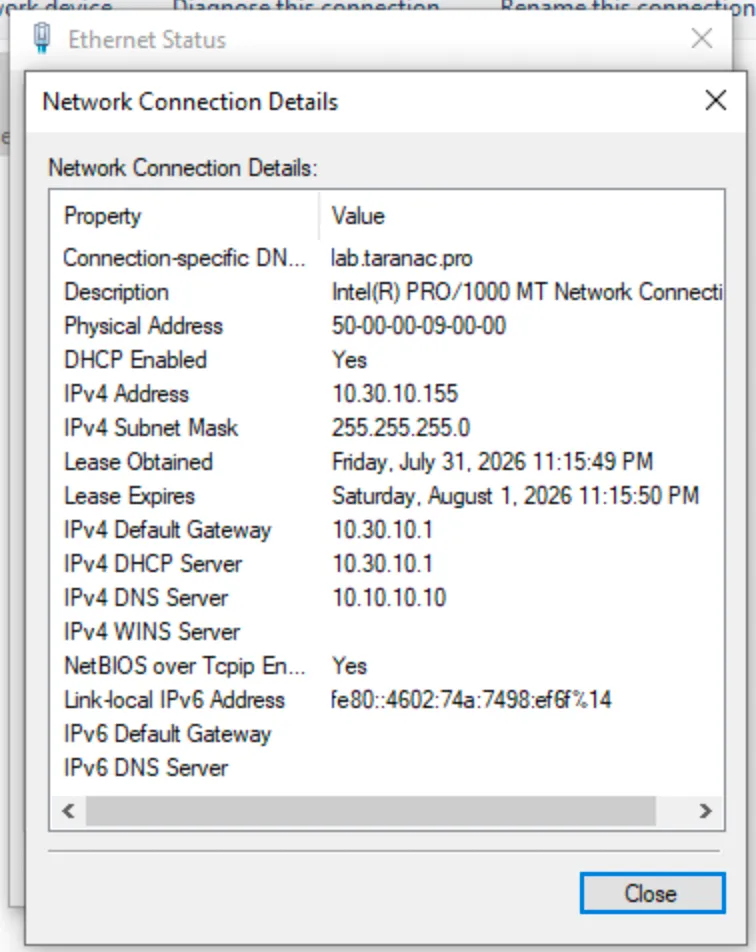 The proof that authorization actually applied: ipconfig /all — or Status → Details — shows an address in VLAN 10, handed out after Taranac told the switch where to put the port.
Step 7 — Close the port
Section titled “Step 7 — Close the port”Everything so far ran with authentication open — authentication happened and
was logged, but traffic passed regardless. Now enforce it.
interface GigabitEthernet1/1 no authentication openThe EOS port config from the lab guide is already closed — dot1x port-control auto enforces on its own, with MAC-based authentication as the fallback.
Re-test immediately: bounce the port with correct credentials (should authorize and pass traffic), then with a device that has no supplicant configured (should be denied, or land wherever your MAB rule sends it). Do this while you still have console access to the switch.
Troubleshooting
Section titled “Troubleshooting”| Symptom | Cause | Fix |
|---|---|---|
| No requests reach Taranac; port silent | dot1x system-auth-control missing on the switch | Add it globally — see lab setup |
| Windows never attempts to connect; nothing logged anywhere | Cryptobinding TLV enabled | Untick Disconnect if server does not present cryptobinding TLV |
Reject with reason tls_server_cert_rejected | The client refused our server certificate — TLS dies before any password is checked | Import the CA into LocalMachine\Root, tick it under Trusted Root CAs, and match Connect to these servers to the certificate CN |
| Works on the permissive notification setting, fails on Don’t ask user… | The trust chain was never valid — the connection only worked because the user accepted the server manually | You imported the server certificate rather than its CA, or left Connect to these servers blank. Fix both; do not loosen the notification setting |
Reject reason mschap_domain_not_joined for a directory account | That user’s directory can neither hold the machine account nor publish the NT hash | Join the domain (AD), grant the ipaNTHash ACI (FreeIPA), or route the user to EAP-TTLS / EAP-TLS |
Reject reason mschap_hash_not_readable (raw token) | FreeIPA answered without ipaNTHash — the ACI is missing, not the password | Apply the LDIF from the MS-CHAPv2 tab and re-run Check the directory — see LDAP directories |
Rejected, user “not found”, username looks like DOMAIN\user | Windows sent a qualified name, which may only resolve to a directory account | Untick Automatically use my Windows logon name and password and set credentials explicitly |
Rejected as auth_failed on a password you are sure of | An account-state refusal wearing the generic reason — most often Must change password still ticked | Clear the flag on the account (Step 1); also check disabled / locked / validity dates |
| Accepted, but into the wrong VLAN and by a rule you did not write | A broader rule sits above yours — on a fresh install, the seeded Dot1x Known Users → Corporate | Reorder so your rule is above it, and confirm with the Policy Tester |
Rejected with reason policy_reject | Your rule did not match, so evaluation fell through to Default — Reject | Check the rule is enabled and that Method/Who are right; the Policy Tester’s evaluation trace shows exactly what it walked past. (no_policy_match instead means even the default rule is gone.) |
| Authorized, but the PC has the wrong subnet | Client did not re-DHCP after the VLAN change | ipconfig /release && ipconfig /renew; consider a reauth timer on the profile |
| Access-Accept in the log, but nothing under Sessions | Accounting is not reaching Taranac | Sessions come only from accounting on 1815 — check the aaa accounting dot1x line survived the last reload, and that it was written to startup-config |
| Authorized as MAB instead of PEAP | Bad password, or the supplicant is not configured | Check for both a PEAP reject and a MAB attempt in the log — see the fallback callout |
For deeper diagnosis, Troubleshooting covers reading the NAC handler’s decisions.
What’s next
Section titled “What’s next”- MAB for printers and IoT — the other half of every real access port. (Coming next in this series.)
- EAP-TLS for domain users — certificates instead of passwords, and the method that fits Active Directory accounts.
- EAP-TTLS for directory users — the password method that works against any directory type, whatever it can do about NT hashes.
Related
Section titled “Related”- 802.1X authentication — how each EAP method behaves and what it needs
- NAC policy — profiles, conditions, CoA
- PKI & trust — server certificates and trusted CAs
- Users & groups — local accounts, NT hashes and group membership
- LDAP directories — the domain join, the
ipaNTHashACI, and Check the directory