

Microsoft Entra ID
Microsoft Entra ID (formerly Azure AD) is one of the directory types of Taranac. It sits in the same list as Active Directory and the LDAP directories — Settings → Integrations → LDAP — and its people get the same treatment as directory accounts: their groups drive RBAC, AAA rules and NAC policy, and Taranac MFA applies on top of their sign-in. What differs is the wire. There is no LDAP server: Taranac reads users and groups from Microsoft Graph through an app registration in your tenant, and asks Microsoft whether a password is right.
An Entra account can sign in to the web console (with its password or with Sign in with Microsoft), to network devices over TACACS+ and RADIUS PAP, and to the network over 802.1X EAP-TLS with a certificate Intune issued through Microsoft Cloud PKI. Intune devices can be bound to NAC endpoints and placed in endpoint groups. In a hybrid tenant, where Entra Connect synchronises an on-premises Active Directory, the passwords of those people can be checked by your domain controllers instead of by Microsoft.
This page takes you from an empty tenant to working sign-ins: what to create in Microsoft Entra, what to fill in on each tab in Taranac, how each sign-in door behaves for an Entra account, and what the logs say when something is refused.
Key concepts
Section titled “Key concepts”- One configuration, one tenant. A Microsoft Entra configuration connects exactly one tenant, named by its Directory (tenant) ID (a GUID — a domain name is not accepted). A second configuration with the same tenant ID is refused on save. The tenant’s domains are a list inside the one configuration, not separate configurations.
- The app registration. One application registered in your tenant does everything: it reads users and groups from Graph with Application permissions, and Taranac uses its client secret when it asks Microsoft to check a password. An optional second application serves Sign in with Microsoft only.
- UPN domains. The configuration imports only people whose UPN ends in one of the domains you list. Mixed groups are normal: a person of a domain not on the list is left out and counted, not reported as an error. A subdomain (
eu.contoso.com) is a different domain. - Short name and full name. The username of an Entra account is the part of its UPN before
@(aliceforalice@contoso.com). The person signs in by that short name or by the full UPN. When a UPN is renamed in Entra, the username stays and the full name follows the new UPN. - Identity by object ID. Accounts and groups are tracked by their Entra Object ID, never by name. A group renamed in Entra stays the same group in Taranac; role mappings keyed to it keep working.
- Cloud-only and hybrid accounts. A cloud-only account exists only in Entra; its password can be checked only by Microsoft. A hybrid account is synchronised from an on-premises Active Directory by Entra Connect; link that domain on the On-premises AD tab and its domain controllers check the password instead.
- Microsoft checks the password, Taranac adds the second factor. A password check asks Microsoft with the person’s synchronised UPN and the application’s credentials. Microsoft cannot show a second-factor prompt on a switch, so its own MFA must not apply to the Taranac application; the second factor for devices is Taranac MFA.
Who checks the password
Section titled “Who checks the password”Before you start
Section titled “Before you start”- Entra ID P1. Device sign-in needs the Taranac application excluded from Conditional Access policies that require MFA, and exclusions exist only in Conditional Access policies (Entra ID P1). Security defaults allow no exclusion. P1 is also what lets you assign groups to the application, if you choose the import mode Assigned to the application.
- A local break-glass account. If Microsoft is unreachable from a node — an outage, the node’s network, a revoked secret — Entra accounts cannot sign in anywhere through that node: Taranac does not let them in without Microsoft’s answer. Keep at least one local Taranac account with device access and MFA.
- Not supported: federated domains (ADFS and other identity providers in front of Entra), national clouds (US Government, China) and B2B guests (UPNs with
#EXT#are not imported).
What to create in Microsoft Entra
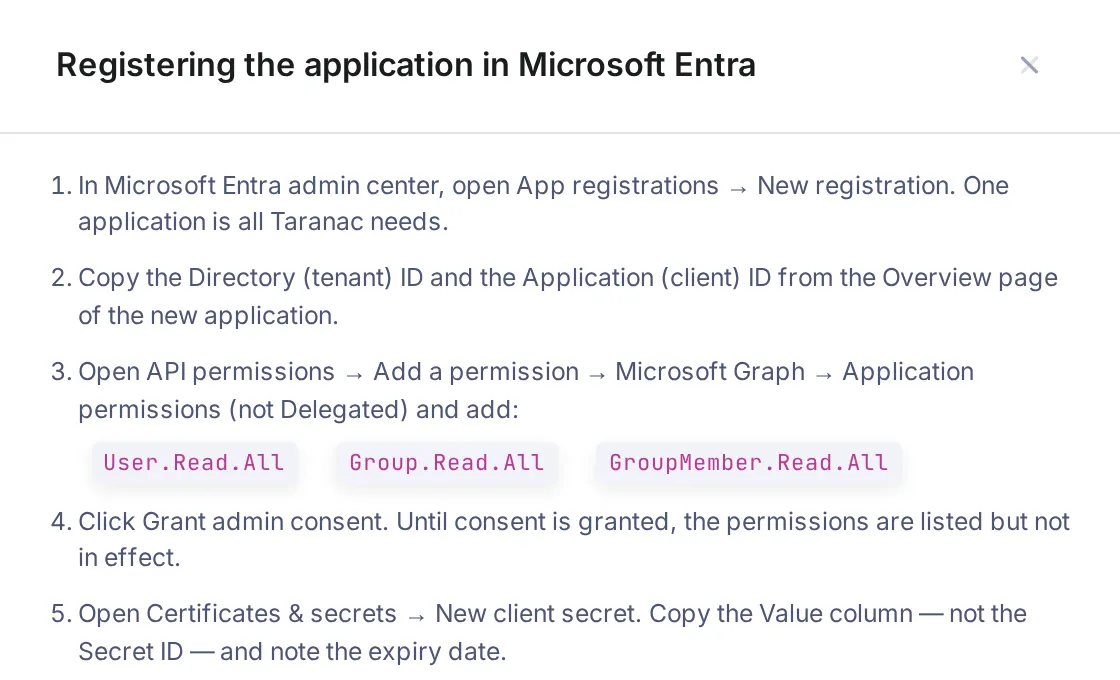
Section titled “What to create in Microsoft Entra”The i button next to the type Microsoft Entra ID — in the type picker and on the configuration — opens these steps in a drawer.
-
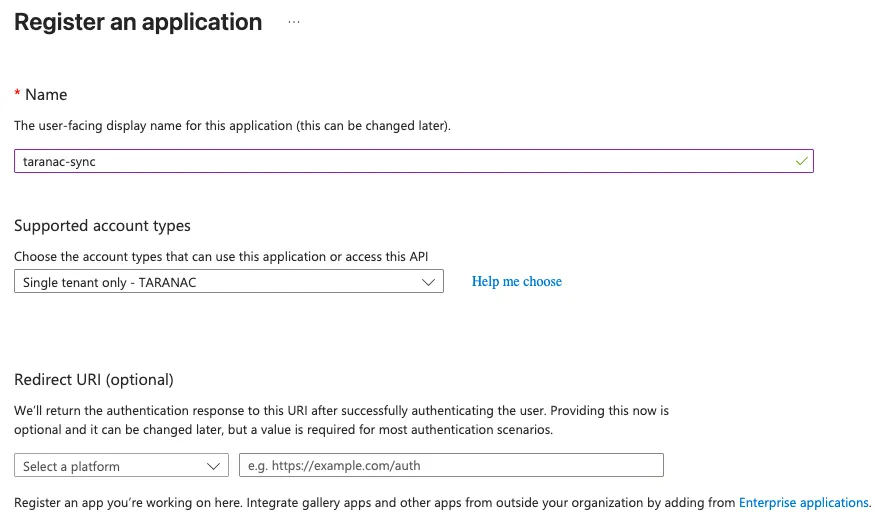
Register the application. Microsoft Entra admin center → App registrations → New registration. Any name; Supported account types: Accounts in this organizational directory only (Single tenant). No Redirect URI is needed yet.
-
Copy the IDs. From the application’s Overview page: the Directory (tenant) ID and the Application (client) ID. Both are GUIDs.
-
Add the Graph permissions. API permissions → Add a permission → Microsoft Graph → Application permissions — Application, not Delegated:
Permission When it is needed What for User.Read.Allalways Reading the people of the selected groups Group.Read.Allalways Listing and naming groups GroupMember.Read.Allalways Reading group members, nested groups included Application.Read.Allonly with the import mode Assigned to the application Reading who is assigned to the application. Also lets Test Connection verify the Web SSO Redirect URI DeviceManagementManagedDevices.Read.Allonly with the Intune tab on Reading Intune managed devices Leave the delegated
User.Readthat the registration carries by default.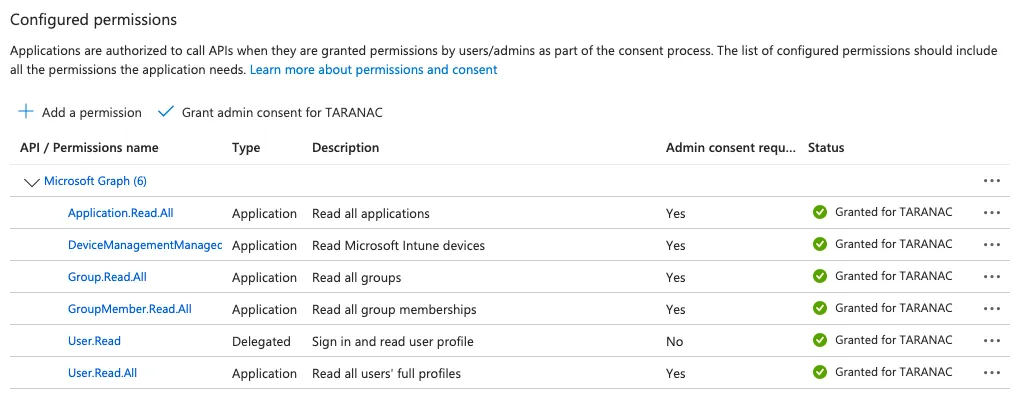
-
Grant admin consent. Until Grant admin consent is clicked, the permissions are listed but not in effect. Consent takes a few minutes to spread; Test Connection says so when the token already carries a permission that Graph still refuses.
-
Create a client secret. Certificates & secrets → New client secret. Copy the Value column — not the Secret ID — at once: the Value is shown only once. Note the expiry date. Taranac authenticates as the application with this secret.

-
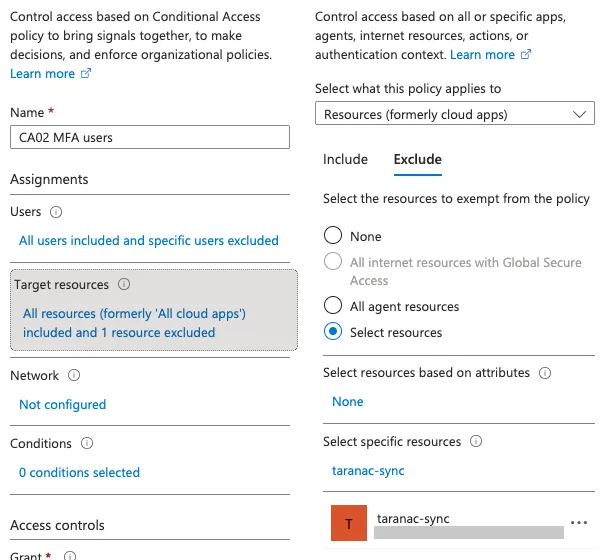
Exclude the application from MFA policies. In every Conditional Access policy that requires MFA and targets all resources: Target resources → Exclude → the Taranac application. Remember the policies Entra creates when security defaults are switched off — they are created without exclusions. People keep Microsoft MFA everywhere else; for Taranac, the second factor is Taranac MFA.
-
Optional — let Entra decide who is imported. For the import mode Assigned to the application: add
Application.Read.All(step 3), and assign users and groups under Enterprise applications → this application → Users and groups. That is all the import needs. Properties → Assignment required = Yes is a recommendation on top of it, not a requirement: with it on, Microsoft itself refuses a password check for anyone not assigned, and admits only the direct members of an assigned group — assign nested groups to the application as well, or their members are refused. With the import mode Selected groups this step does not apply, and Assignment required stays No.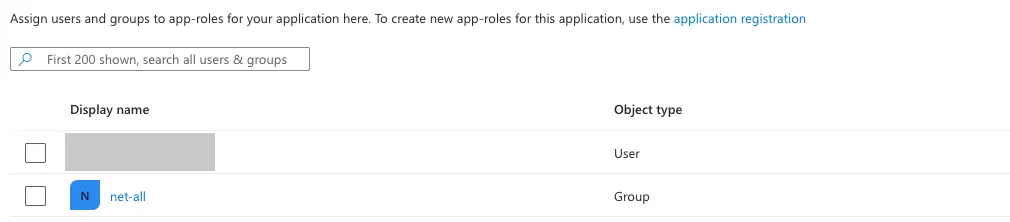
The Smart Lockout threshold of the tenant (Protection → Authentication methods → Password protection → Lockout threshold) should stay above Taranac’s own limit of refused passwords — see Smart Lockout and the attempt limit.
Network requirements
Section titled “Network requirements”| From | To | Why |
|---|---|---|
| Every node | login.microsoftonline.com 443/TCP | Tokens for the application; every password check; Sign in with Microsoft |
| Every node | graph.microsoft.com 443/TCP | User, group and Intune sync; group browsing; Test Connection |
| Every node | The CRL host of your Cloud PKI issuing CA, 80/TCP, direct | Downloading the CRL of the EAP-TLS tab — fetched over plain HTTP without a proxy |
| Every node | The domain controllers of each linked AD domain | Hybrid password checks over LDAPS or StartTLS (see Hybrid accounts) |
The password check runs on the node that received the request, so each node needs its own path to Microsoft. Outbound HTTPS uses the same proxy and extra CA bundle as Taranac’s other outbound calls: HTTPS_PROXY / NO_PROXY, and OUTGOING_CA_CERTFILE for a TLS-inspecting proxy’s CA. Certificate verification cannot be turned off. A node that cannot reach Microsoft refuses Entra accounts with domain_unreachable; local accounts, other directories and other nodes are not affected.
Connecting the tenant
Section titled “Connecting the tenant”Open Settings → Integrations → LDAP → Add Configuration and pick Microsoft Entra ID. Its card says up front: no MS-CHAPv2 — password logins use PAP (TACACS+ ASCII, RADIUS PAP); 802.1X only with EAP-TLS. The type is permanent once the configuration exists.
The first page is the Users & Groups tab. An Entra configuration has no servers, bind account, search bases, filters or attribute maps, and no Computers or MS-CHAPv2 tab.
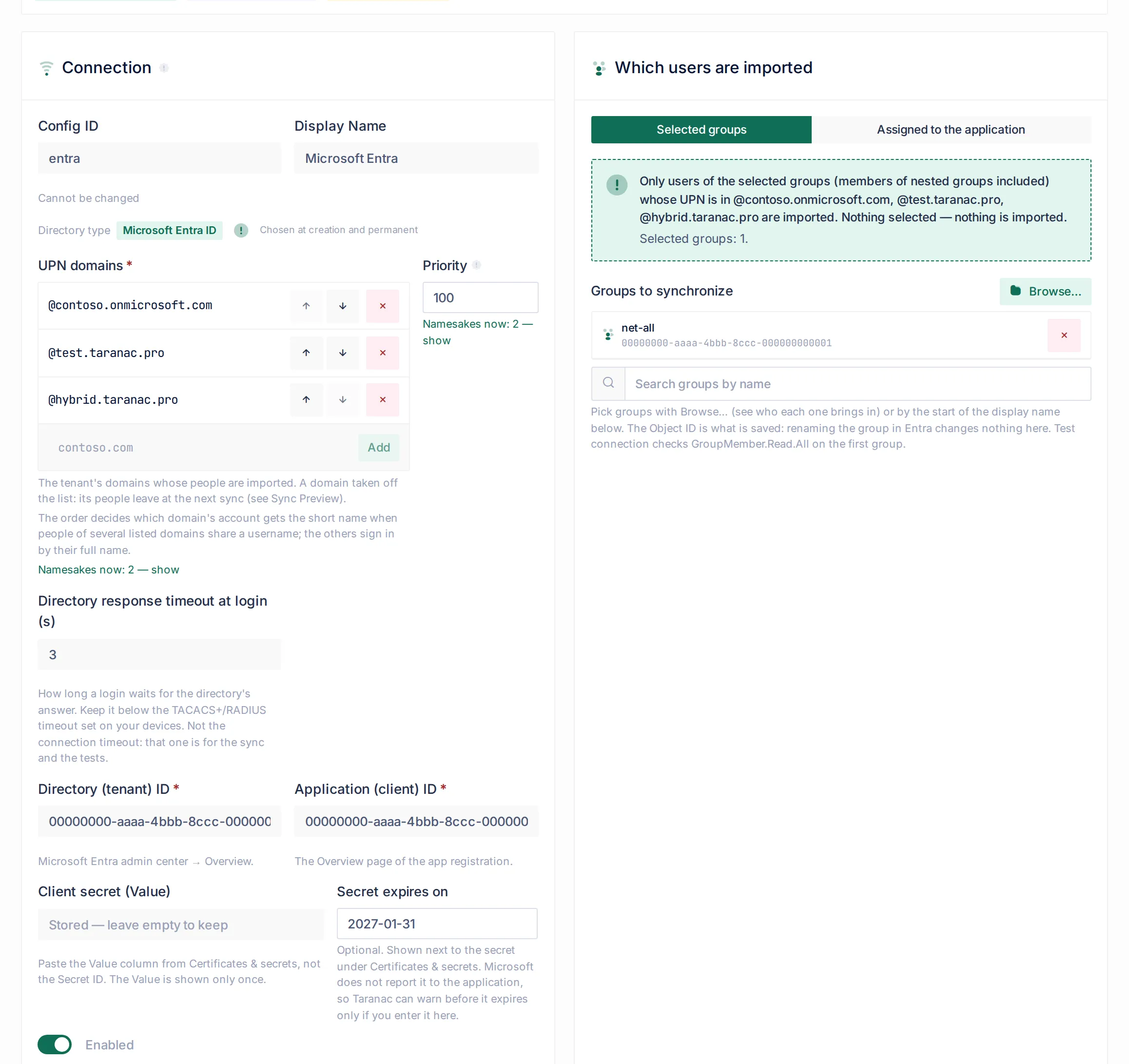
Connection
Section titled “Connection”| Field | What to enter |
|---|---|
| Directory (tenant) ID | The GUID from Microsoft Entra admin center → Overview. |
| Application (client) ID | The GUID from the Overview page of the app registration. |
| Client secret (Value) | The Value from Certificates & secrets, not the Secret ID. Stored encrypted; after saving the field reads Stored — leave empty to keep. |
| Secret expires on | Optional. Microsoft does not tell the application when its secret expires, so Taranac can warn before it does only if you enter the date here. Test Connection warns from 30 days before it. |
| UPN domains | The tenant’s domains whose people are imported (contoso.com). At least one. Each domain may belong to only one Entra configuration. The order matters — see below. |
| Directory response timeout at login (s) | How long a sign-in waits for Microsoft’s answer: 1–60, default 3. Keep it below the TACACS+/RADIUS timeout configured on your devices. Not the connection timeout, which applies to the sync and the tests. |
| Priority | Which account gets a short name that several directories hold — lower value wins. See Namesakes and Priority. |
The order of UPN domains decides which domain’s account gets the short name when people of several listed domains share it (alice@contoso.com and alice@fabrikam.com): the first listed domain wins, and the others sign in by their full name. Both are imported. Use the up and down arrows to reorder.
Which users are imported
Section titled “Which users are imported”The card Which users are imported offers two modes under Who is imported:
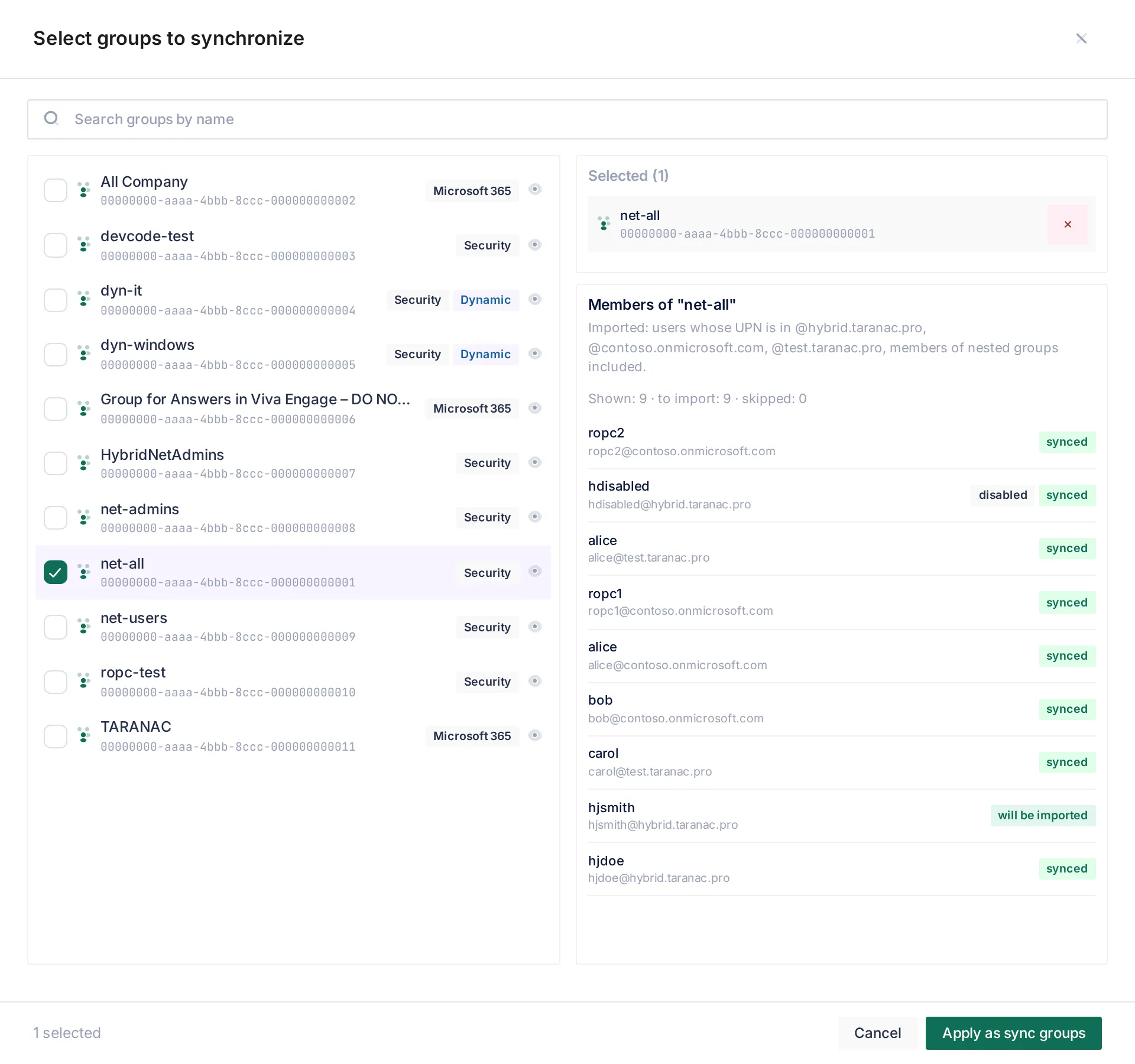
- Selected groups (default — Taranac decides). Only the members of the groups you select are imported, members of nested groups included; nothing selected, nothing imported. Pick groups with Browse… — it lists every group of the tenant (Security, Microsoft 365, Distribution, and Dynamic groups marked) and, for a group you click, who the sync would import from it: will be imported, other domain: not imported, guest: not imported, no UPN: not imported. You can also search by the start of the display name, or paste an Object ID. Browsing works before the configuration is saved, as soon as the tenant ID, client ID and secret are filled in. What is stored is the Object ID.
- Assigned to the application (Microsoft Entra decides). The users and groups assigned to the application in Entra (Enterprise applications → this application → Users and groups) are imported; an assigned group brings everyone in it, nested groups included. Assigned groups are imported as groups for AAA rules and role mapping; nested groups are not imported as groups of their own. Needs
Application.Read.All. Nobody assigned, nothing imported. The selection of the other mode is kept, unused, in case you switch back.
In both modes only people of the listed UPN domains are imported, and guests are skipped.
Synchronization and roles
Section titled “Synchronization and roles”The Synchronization card works as for any directory: Enable Auto Sync with an Interval (min), Create users, Deactivate missing users, Remove stale users, and Email a report after each successful sync. The Mode is fixed — Groups → Users, the selected groups and their members; the whole tenant is never imported. Nested groups are always resolved, because Graph returns the members of member groups too.
Default RBAC and Per-Group Overrides map Entra groups to RBAC models; Browse… picks the group for a role from the tenant. See Roles & permissions.
Test Connection
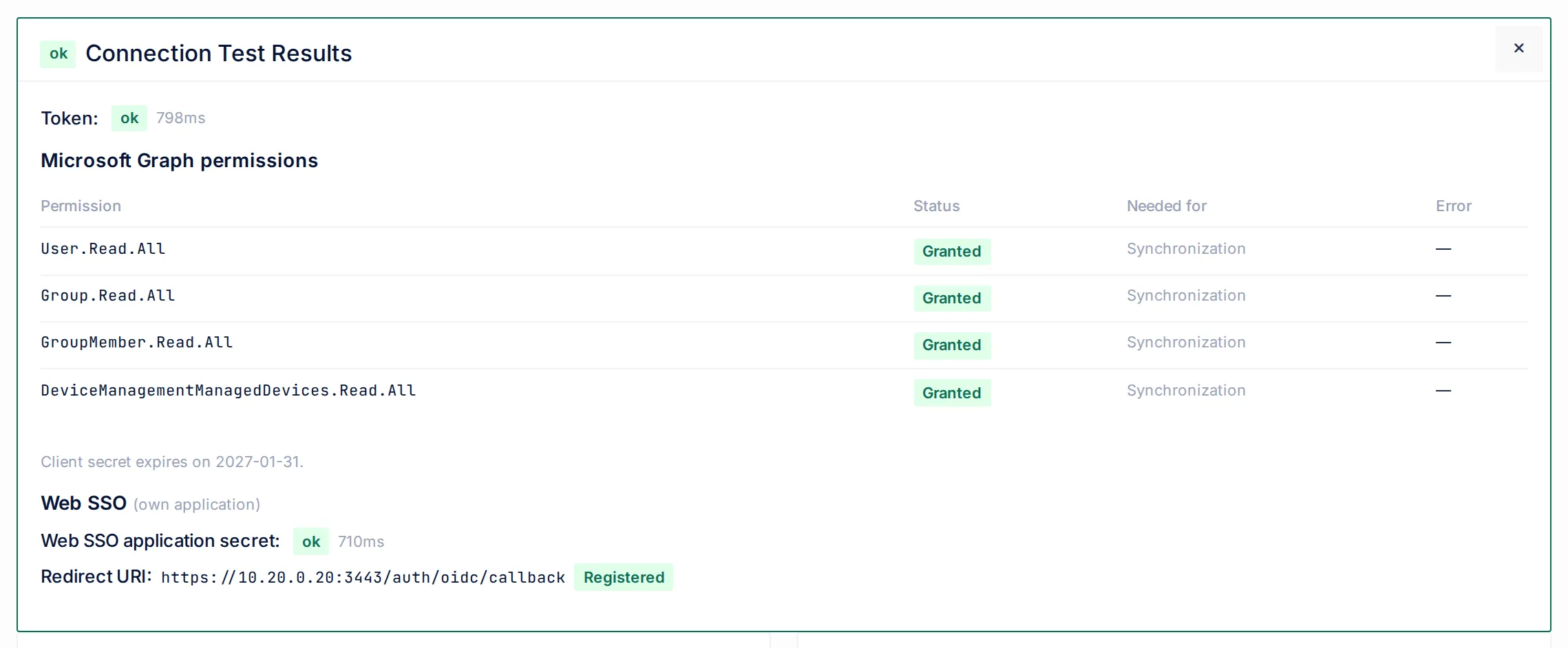
Section titled “Test Connection”Save, then press Test Connection. It takes a fresh token — does the secret work right now — and then checks each Graph permission by name with the smallest read that needs it:
- Token — a refusal is named: The Secret ID was pasted instead of the secret Value, The client secret has expired, No such application in this tenant, The application is disabled in Microsoft Entra, Tenant not found, Microsoft refused the token request, Microsoft is throttling requests. When the problem is the path to Microsoft (DNS, connection, timeout, TLS, proxy, an answer that did not come from Microsoft), it is shown as a connection problem with the Microsoft host it concerns.
- Microsoft Graph permissions — one row per permission: Granted, Missing, Error or Not tested.
GroupMember.Read.Allis tested on the first selected group, or on any group of the tenant.Application.Read.Allappears only with Assigned to the application;DeviceManagementManagedDevices.Read.Allonly with the Intune tab on. - Client secret expiry — a warning from 30 days before the date you entered, and after it.
- Web SSO (when it is on) — the secret of the Web SSO application in the mode Own application, and whether the Redirect URI is registered on the application: Registered, Not registered (with a separate message if it is registered as a Single-page application) or Not checked (the sync application has no
Application.Read.All— check it by hand).
Test Connection cannot check a person’s password; that needs a real sign-in, and its result is in the logs.
What the sync imports
Section titled “What the sync imports”Sync Preview and Trigger Sync work as for any directory, over Graph instead of LDAP. For each person the sync records the short name, the UPN, the Object ID and whether the account is enabled in Entra.
- Disabled in Entra (Block sign-in): the account is marked disabled in the directory and refused at every door.
- Gone — removed from the selected groups or deleted in Entra: handled by Deactivate missing users and Remove stale users, as for any directory. The sync’s guard against a suspiciously small answer applies too.
- Other domains are skipped; the preview shows Left out — users of other domains of the tenant: N.
- A UPN renamed in Entra to another listed domain is the same account; the short name stays.
- A short name held by a local account is not imported for the Entra person — reported on the sync run, the local account is untouched.
- New accounts get the MFA setup email, as other directory accounts do. The sync does not auto-issue an EAP-TLS certificate to a new Entra account: their certificates come from Intune.
Each sync run is in the Sync History tab. When a sync is refused by Microsoft or the network, it stops before writing anything, and its message starts with where to fix it: In Microsoft Entra, the connection to Microsoft, or In Taranac.
Signing in with an Entra account
Section titled “Signing in with an Entra account”| Door | Cloud-only account | Hybrid account of a linked domain |
|---|---|---|
| Web console, username and password | ✅ Microsoft checks | ✅ Domain controller checks |
| Web console, Sign in with Microsoft | ✅ when Web SSO is on | ✅ when Web SSO is on |
| TACACS+ (PAP, ASCII login) | ✅ Microsoft checks | ✅ Domain controller checks |
| RADIUS PAP | ✅ Microsoft checks | ✅ Domain controller checks |
| RADIUS MS-CHAPv2 | ❌ directory_method_unsupported | ✅ only for the domain the node is joined to |
| 802.1X EAP-TLS (Cloud PKI certificate) | ✅ no password | ✅ no password |
| 802.1X PEAP-MSCHAPv2 | ❌ directory_method_unsupported | ✅ only for the domain the node is joined to |
| 802.1X EAP-TTLS/PAP | ❌ directory_method_unsupported | ✅ Domain controller checks |
| Captive portal sign-in | ❌ refused | ❌ refused |
The person types the short name (alice) or the full UPN (alice@contoso.com, any letter case). The full UPN must belong to a listed domain of an enabled Entra configuration and be the domain of that account’s own UPN; a domain no configuration knows is refused as user_not_found without asking Microsoft. Whatever is typed, Microsoft is always asked with the UPN the sync recorded — so only a synchronised person can sign in — and Taranac accepts the answer only when Microsoft’s token names the same Entra object and tenant the account was synchronised from. A UPN handed to someone else in Entra cannot sign in to the previous holder’s account.
After the password, Taranac MFA applies by the usual rules — see Multi-factor (MFA). Group and web-console access gates apply as for any account.
MFA and Conditional Access
Section titled “MFA and Conditional Access”Microsoft checks the password without its own MFA. A policy that requires Microsoft MFA for the Taranac application refuses every password sign-in with directory_mfa_required; no MFA registration by the person will help. Exclude the application, as in step 6 above. Other Conditional Access refusals (a blocked location, a device requirement, risk) come back as directory_policy_blocked; Entra’s Sign-in logs name the policy.
For four refusals that Microsoft only gives after a correct password, the device receives a short English message:
| Reason | Message to the device |
|---|---|
password_expired | Your Microsoft password has expired or must be changed: change it in Microsoft, then retry |
directory_mfa_required | Microsoft requires MFA for this account: contact your administrator |
directory_policy_blocked | Sign-in blocked by a Microsoft policy: contact your administrator |
directory_not_assigned | Account not assigned to the Taranac application in Microsoft: contact your administrator |
Over RADIUS the text goes in Reply-Message, over TACACS+ PAP in the server message. A TACACS+ ASCII login shows the daemon’s own Password incorrect. for any failure, so the reason is visible only in the log. Every other refusal — wrong password, unknown or disabled account, the attempt limit, network, configuration — is a plain failure, because it can be learned without the password. The web console shows the same four reasons as messages in the interface language, a neutral “unavailable” message for network and configuration problems, and “invalid credentials” for the rest.
Smart Lockout and the attempt limit
Section titled “Smart Lockout and the attempt limit”Every password check reaches Microsoft from your node’s address, so wrong passwords count toward the tenant’s Smart Lockout of that person — in all of Microsoft 365. Taranac keeps its own count in front of it:
- After 8 refused passwords of one account within 60 seconds — across the cluster, the web console and devices together — Taranac stops asking Microsoft for that account until the window has passed, refusing with
directory_attempts_exhausted. The limit is the settingldap.entra_auth_attempt_limit(Settings → General → Show all parameters); keep it below the tenant’s lockout threshold (10 by default in Microsoft Entra). It slows guessing down rather than preventing a lockout: a sustained guess still reaches Microsoft’s default threshold in about two minutes. - When Microsoft answers that the account is locked (
directory_locked— Smart Lockout of the account, or a block of the node’s address), Taranac does not ask about that account at all for 60 seconds: each guess sent to a locked account would only extend the person’s lockout. An alert is raised. - Network failures, timeouts and refusals of the application itself are not counted against the person.
A device that times out and retries on a second server makes a second check, and a wrong password then counts twice. Keep the device’s timeout comfortably above Directory response timeout at login.
Sign in with Microsoft (Web SSO tab)
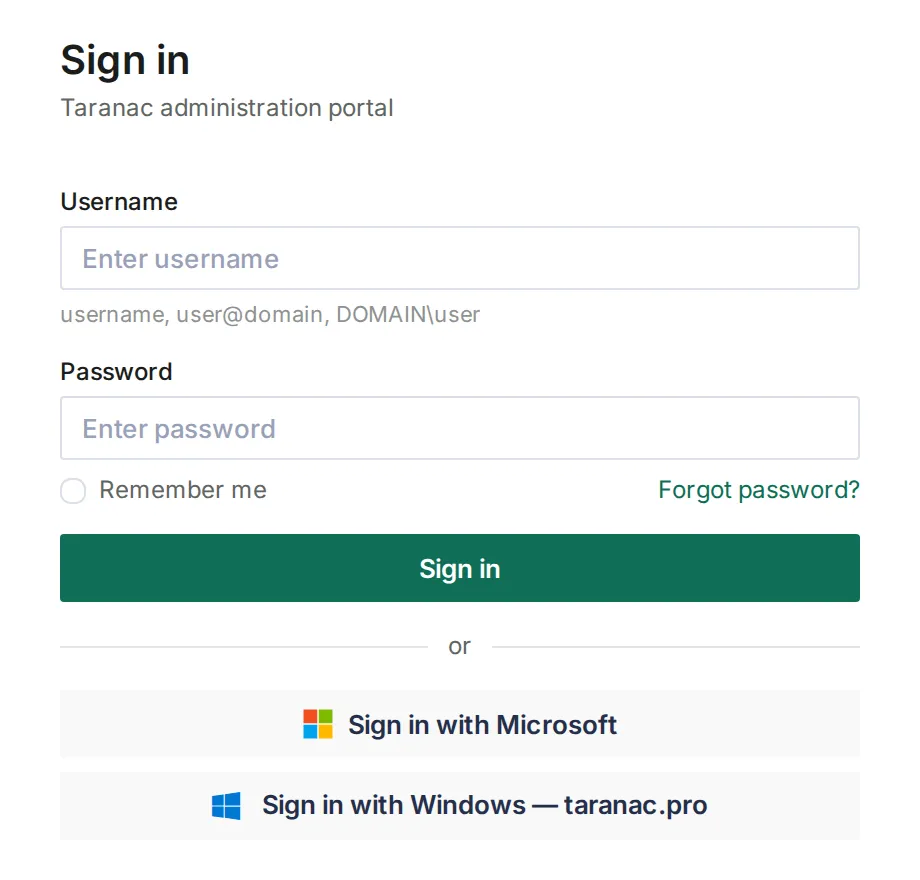
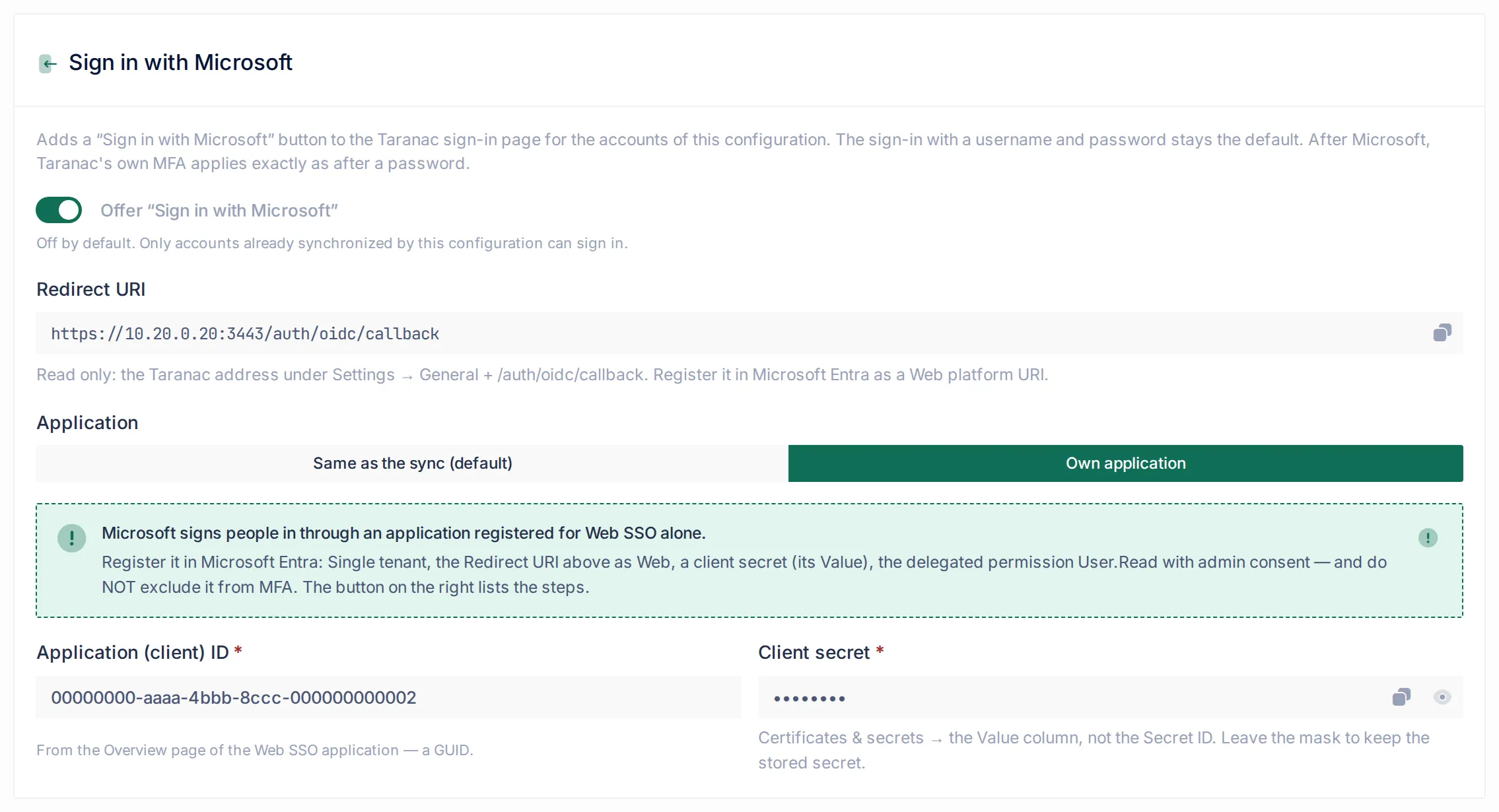
Section titled “Sign in with Microsoft (Web SSO tab)”The Web SSO tab adds a Sign in with Microsoft button to the Taranac sign-in page for the accounts of this configuration (with several configurations offering it, each button carries the configuration’s name). Username and password stay available. Microsoft handles the sign-in on its own page — Taranac never sees the password — and afterwards Taranac MFA applies exactly as after a password. Only accounts this configuration has already synchronised can sign in this way.
- Set the Taranac address first. The Redirect URI is built from Settings → General → Taranac address — the address people open the console by — plus
/auth/oidc/callback. While the address is empty, Web SSO cannot be turned on and the tab links to Settings → General. If you change the address, change the Redirect URI in Entra too. - Choose the application under Application:
- Same as the sync (default). Add the Redirect URI shown on the tab to the sync application in Entra: App registrations → the application → Authentication → Add a platform → Web. The platform must be Web, not Single-page application. Because that application is excluded from MFA for device sign-in, Microsoft lets people in without its own MFA; the second factor is Taranac MFA.
- Own application. For when console sign-in must pass Microsoft MFA. Register a second application: Single tenant; the Redirect URI as a Web platform; a client secret (its Value); the delegated permission
User.Readwith admin consent — and do not exclude it from MFA. Enter its Application (client) ID and Client secret on the tab. The i button there lists the steps.
- Turn on Offer “Sign in with Microsoft” (off by default), save, and run Test Connection — it checks the Web SSO secret and whether the Redirect URI is registered.
A refused Microsoft sign-in shows the person what to do; the Activity Log records USER_LOGIN_FAILED with the reason:
| Reason | Meaning |
|---|---|
sso_not_synchronized | Microsoft signed the person in, but this configuration has no account for them — not synchronised yet, or outside the selected groups or assignments. |
sso_wrong_tenant | The person used an account of another organisation. |
sso_redirect_uri_mismatch | The Redirect URI is not registered as a Web platform URI on the application. Microsoft often shows this on its own page, and nothing reaches Taranac. |
sso_consent_required | The application has no admin consent for signing in. |
sso_unavailable | Web SSO is off, the configuration is disabled, or the Taranac address is empty. |
sso_cancelled, sso_flow_invalid, sso_code_invalid | Cancelled, too slow, started in another window, or the code was already used — try again. |
sso_state_mismatch, sso_token_invalid | Microsoft’s answer did not pass Taranac’s checks. Also check the node’s clock. |
The reasons shared with the password check (directory_not_assigned, directory_policy_blocked, directory_misconfigured, directory_config_invalid, domain_unreachable, …) mean the same here — see What the logs show.
802.1X EAP-TLS with Microsoft Cloud PKI (EAP-TLS tab)
Section titled “802.1X EAP-TLS with Microsoft Cloud PKI (EAP-TLS tab)”In NAC, a cloud-only Entra account connects only with EAP-TLS: PEAP and EAP-TTLS need a password check Microsoft does not provide. The certificate is the one Intune issues to the person through Microsoft Cloud PKI.
In Intune, the user’s SCEP certificate profile must set Subject alternative name → User principal name (UPN) = {{UserPrincipalName}}. The UPN alone names the account: a certificate carrying only an email or only a CN is refused.
In Taranac, on the EAP-TLS tab of the Entra configuration:
- Issuing CA Certificate — put the issuing CA of Cloud PKI here: Intune admin center → Tenant administration → Cloud PKI → the issuing CA → Download. The root may go beside it, but a certificate names an account only when its issuer is a CA of this tab; with the root alone, every connection is refused with
tls_identity_issuer_mismatch. A single-tier CA that issues the certificates itself goes here as it is. - CRL — enter the CRL distribution point of the issuing CA from its Cloud PKI page, not the one inside the CA certificate (that one leads to the root’s CRL, and every client would be refused). Saving a URL downloads the CRL; with a CRL configured, the tab holds one issuing CA. Clients are checked against it while CRL checking is on in NAC Settings. Cloud PKI re-issues its CRL on every revocation. Taranac fetches it over HTTP (port 80) without a proxy, from every node.
- OCSP — leave it off: Cloud PKI has no OCSP responder. It is there for an AD CS behind the Intune Certificate Connector.
- Enable EAP-TLS for the accounts of this configuration. This switch is 802.1X for the directory: while it is off, every certificate of its accounts is refused (
directory_config_invalid).
A certificate is accepted for an Entra account when, in order: the configuration is enabled, its EAP-TLS tab is on, the certificate’s issuer is a CA of the tab, its SAN UPN is the account’s current UPN, and the last sync saw the account. Then the usual account checks apply (disabled in Entra, deactivated or locked in Taranac). A CA that appears only in Entra tabs names only that tenant’s synchronised people: a Cloud PKI certificate of someone outside the selected groups or domains is refused (tls_identity_unknown) — it never falls through to a local account of the same name or to a machine rule.
After renaming a UPN in Entra, run a sync (Trigger Sync). Until then the new UPN is unknown; afterwards a certificate with the old UPN is refused (tls_identity_upn_mismatch) and must be reissued in Intune. NAC policy then works on the account’s Entra groups as on any directory group — see NAC authentication and NAC policy. Revocation behaviour is described on Certificate revocation.
Intune devices in NAC (Intune tab)
Section titled “Intune devices in NAC (Intune tab)”The Intune tab synchronises the tenant’s Intune managed devices so that a device certificate can bind an endpoint to its Intune device.
In Entra, give the sync application DeviceManagementManagedDevices.Read.All (Application permission, admin consent). In Intune, the device SCEP certificate profile, issued by the CA of the EAP-TLS tab, must set Subject name format CN={{AAD_Device_ID}} with no SAN UPN. The CN — the Entra device ID — is what names the device; the device name or the Intune device ID does not.
In Taranac, on the Intune tab:
- Synchronise Intune devices — on. One tenant, one configuration with Intune. Turning it off deletes this configuration’s Intune devices and unbinds their endpoints.
- Sync interval — 15 to 1440 minutes, default 15. Sync now runs it at once. Intune runs are listed in Sync History as Intune devices.
- The EAP-TLS tab must be on with the issuing CA: device certificates reach the Intune lookup only through it. Conversely, while the Intune tab is off, device certificates of that CA are refused — the EAP-TLS tab warns about this.
The tab lists the synchronised devices (Name, Entra device ID, Primary user, OS, Compliance, State, Last Intune check-in, Endpoints), filterable by State and Compliance.
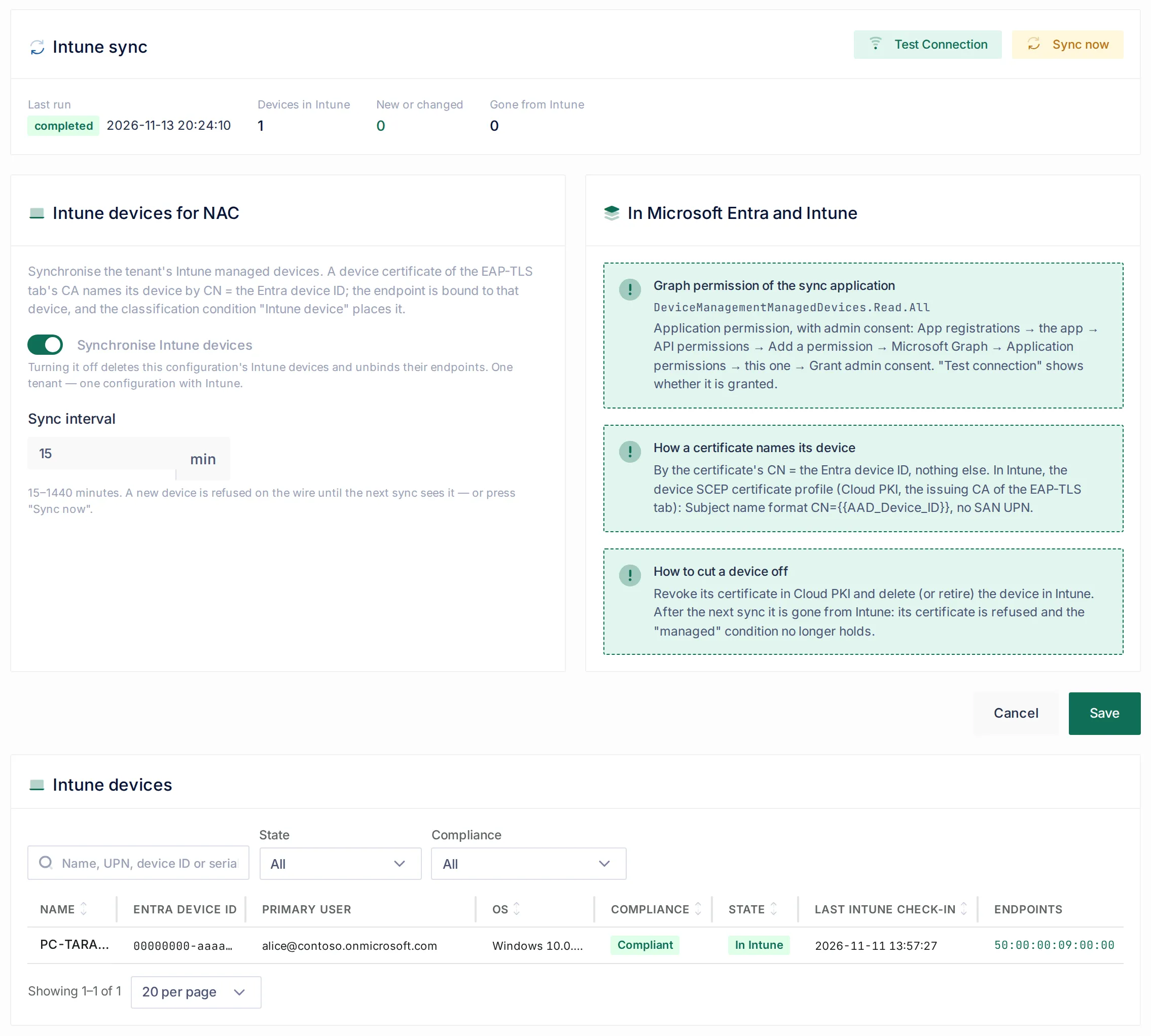
On the wire. A device certificate whose CN is not a GUID is refused (intune_device_id_invalid); one whose device the last Intune sync did not see is refused (intune_device_unknown). A new device is refused until the next Intune sync sees it, or until you press Sync now. Otherwise the endpoint is bound to the Intune device.
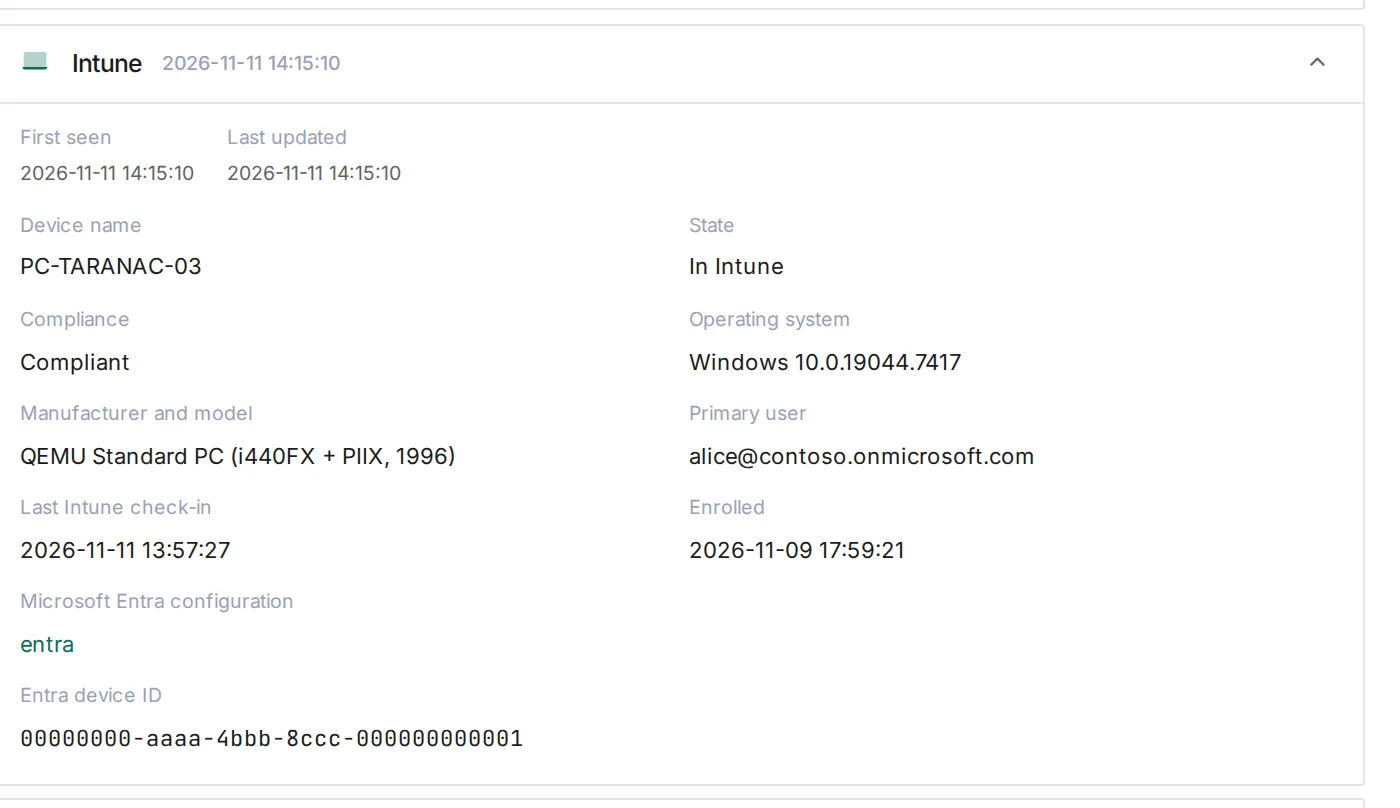
On the endpoint. The Discovery & Authentication list of a bound endpoint shows Intune: device name, state, compliance, operating system, manufacturer and model, serial number, primary user, last Intune check-in, Entra device ID and enrolment date. The endpoint’s host name and operating system are taken from Intune (marked from Intune) over DHCP, certificate and profiling values, but not over a directory value or a manual edit.
Placing the device in a group. Add a classification rule with the condition Intune Device — pick the Microsoft Entra configuration, value Managed by Intune (or Gone from Intune). Pair it with Certificate Issuer = the CA of the Entra configuration’s EAP-TLS tab, and reference the group in an EAP-TLS policy rule. The issuer condition matters because the binding lives on the endpoint’s MAC address: a shared docking station’s MAC may later carry another laptop with a certificate of another CA, and the issuer condition takes the group away when that laptop’s session is classified. See Endpoints.
Cutting a device off. Revoke its certificate in Cloud PKI and delete (or retire) the device in Intune. After the next sync it is Gone from Intune: its certificate is refused and the Managed by Intune condition stops matching its endpoints.
Hybrid accounts (On-premises AD tab)
Section titled “Hybrid accounts (On-premises AD tab)”In a tenant where Entra Connect synchronises an on-premises Active Directory, the Entra configuration still owns the accounts — their Entra groups, the full UPN, Sign in with Microsoft, Intune certificates — but their passwords can be checked by your domain controllers. The On-premises AD tab links one ordinary Active Directory configuration per AD domain of the tenant.
Linking a domain
Section titled “Linking a domain”- Create an Active Directory configuration for the domain (Settings → Integrations → LDAP, type Active Directory — see LDAP directories). Its realm is the DNS domain of the AD (
corp.local), not the UPN suffix (company.com): a hybrid account is routed by the AD domain Entra reports for it. Each linked configuration needs TLS with the certificate checked (ldaps://servers or StartTLS, and Validate certificate on) — a hybrid account’s password goes to the domain controller — and a service account (bind DN and password), with which the account’s AD object is looked up by SID. Put several domain controllers in its servers. - On the Entra configuration’s On-premises AD tab, Add AD configuration for each domain, then Save the list. An AD configuration serves at most one Entra configuration, and the realms and NetBIOS names of all linked configurations must differ. Saving is refused, naming the configuration and what to fix, while a rule is not met.
- Run the Entra sync, then read the On-premises AD status card: for each AD domain, Who checks the password — Domain controllers via the linked configuration, Microsoft Entra (ROPC) for a domain without a link, or Nobody — refused — and how many Hybrids it has.
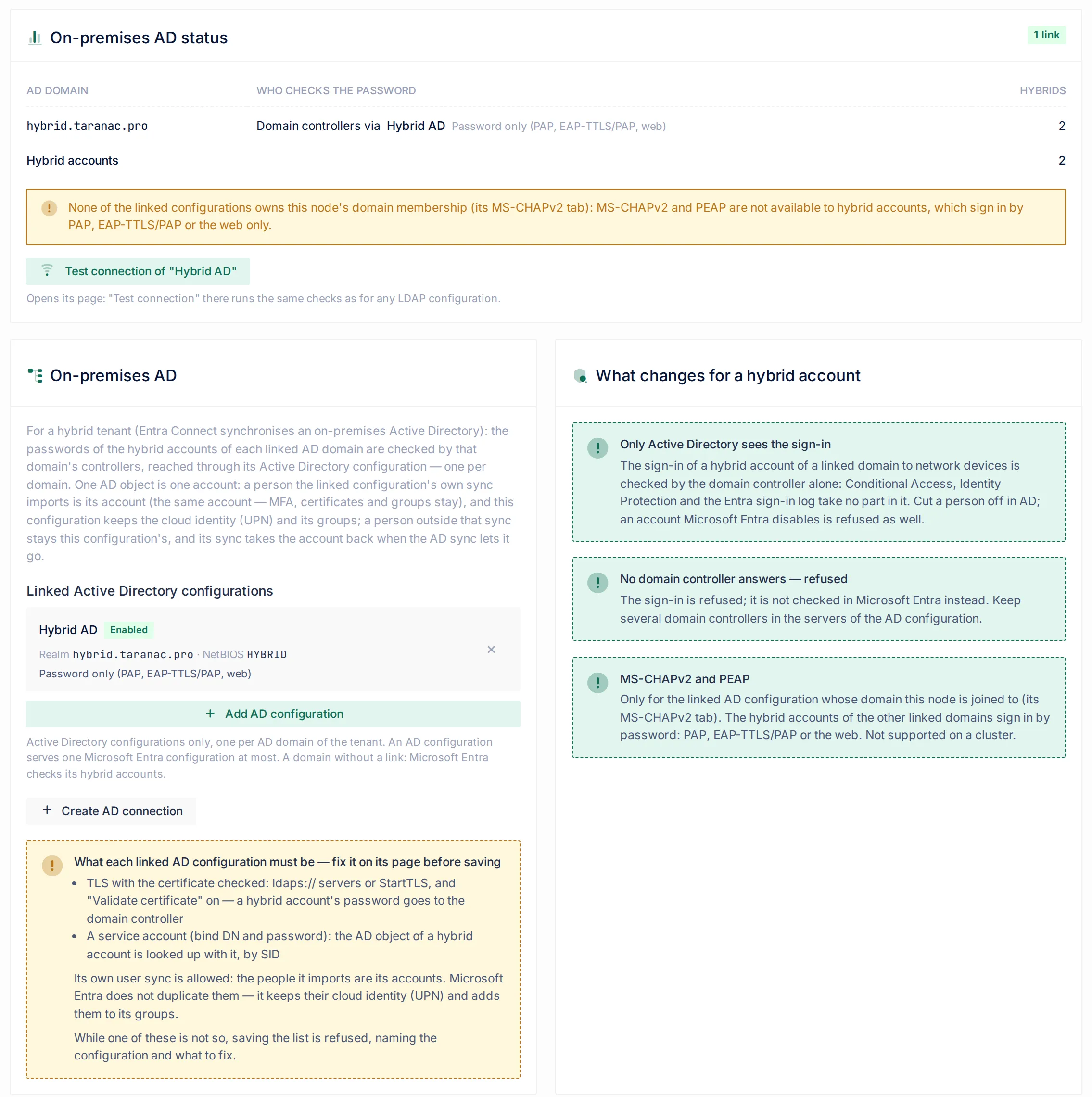
The UPN domains still decide who is imported. The tab warns when a linked AD domain is not among them: if that domain’s people have UPNs in it, the sync leaves them out and the link checks no one; if they sign in with another UPN suffix, that suffix is the one to list.
What changes for a hybrid account
Section titled “What changes for a hybrid account”- Only Active Directory sees the sign-in. On the web console, TACACS+, RADIUS PAP and EAP-TTLS/PAP, the domain controller alone checks the password. Conditional Access, Identity Protection and the Entra sign-in log take no part. An account Microsoft Entra disables is refused as well.
- No domain controller answers — refused. The sign-in is not sent to Microsoft instead; it is refused with
domain_unreachable. - MS-CHAPv2 and PEAP work only for the linked domain this node is joined to (that AD configuration’s MS-CHAPv2 tab). Hybrid accounts of the other linked domains sign in by password: PAP, EAP-TTLS/PAP or the web. Domain MS-CHAPv2 and PEAP are not supported on a cluster.
- The
NETBIOS\namesign-in. A hybrid account also signs in asHYBRID\jsmith— the NetBIOS name of its linked domain and its sAMAccountName. The user page lists that name among the account’s full names. A cloud-only account has no such name. - A domain controller that keeps refusing. On TACACS+, RADIUS and NAC, after three refusals by the domain controller, Taranac asks it about that account at most once in 10 minutes (
domain_auth_held), so the AD account is not locked out. - The domain controller cannot find the object by its SID (
onprem_identity_not_found): it was deleted, moved to another domain, or the link points at the wrong domain — run the Entra sync. - A linked AD configuration cannot be disabled or deleted while it is linked: a broken link refuses the hybrid accounts of its domain and of every domain without a link. To hand a domain back to Microsoft, remove its link on the Entra tab (confirmed, recorded in the activity log).
Accounts in AD’s Protected Users group cannot be checked by an LDAP bind; for them Taranac asks the domain controller’s Kerberos service — see Protected Users and Kerberos.
One account when the AD sync also imports the person
Section titled “One account when the AD sync also imports the person”The linked AD configuration may run its own user sync, and some people (tier-0 administrators, network staff, service accounts) may exist only in AD. One AD object is one account in Taranac, matched by SID:
- A person the AD sync imports is the AD configuration’s account — the same account the Entra sync had: MFA, certificates and history stay. It signs in the LDAP way, and possibly under a new name, its sAMAccountName (
john.smithbecomesjsmith). It keeps its Entra groups, the full UPN, Sign in with Microsoft and its Intune certificates. Run Sync Preview of the AD configuration first: it counts who moves to AD and who is renamed. Tell renamed people to useHYBRID\jsmith,jsmithor the full UPN in saved VPN profiles and scripts. - A person outside the AD sync’s scope stays an Entra account, its password checked by the domain controller through the link.
- Someone who leaves the AD sync’s scope goes back to Entra as the same account at the next Entra sync. To give people back to Entra, narrow the AD sync’s scope; the link is not what decides this. If the narrowing takes away more than half of the AD configuration’s accounts, the sync guard holds it back and the preview offers Apply anyway.
What the logs show
Section titled “What the logs show”A refused sign-in is recorded with a reason token. Its label in the log starts with where to fix it — the person, In Microsoft Entra, the connection, or In Taranac — and the details carry Microsoft’s AADSTS code and trace IDs (for a code Taranac does not know, a link to login.microsoftonline.com/error?code=N).
- TACACS+ and RADIUS: Logging & Reports → AAA Logs → Authentication Log.
- 802.1X: Logging & Reports → NAC Logs → Auth Log.
- Web console: Logging & Reports → Activity Log, event
USER_LOGIN_FAILED.
| Reason | Side | What it means and what to do |
|---|---|---|
bad_password | Person | Wrong password; counted. |
password_expired | Person | Expired, temporary or must be changed — change it in Microsoft. |
directory_user_not_found | Microsoft Entra | No account with the synchronised UPN: renamed or deleted since the last sync — run the sync. Not counted. |
directory_user_disabled | Microsoft Entra | The account is disabled (Block sign-in). |
directory_mfa_required | Microsoft Entra | An MFA requirement applies to the Taranac application — exclude it in Conditional Access → the policy → Target resources → Exclude. |
directory_policy_blocked | Microsoft Entra | Blocked by Conditional Access or security defaults — Sign-in logs → the sign-in → Conditional Access names the policy. |
directory_not_assigned | Microsoft Entra | Assignment required is on and the person is not assigned — Enterprise applications → the application → Users and groups; nested groups are assigned separately. |
directory_locked | Microsoft Entra | Smart Lockout of the account or a block of the node’s address; not asked again for 60 s. Not Taranac’s own locked. |
directory_misconfigured | Microsoft Entra | Microsoft refused the application: consent, secret (Secret ID instead of Value, expired), application disabled. An entra_auth alert names which. Not counted. |
directory_rejected | Microsoft Entra | A code Taranac does not know; counted. The link in the details explains it. |
directory_config_invalid | Taranac | The configuration is disabled or incomplete, or Microsoft does not know its tenant or client ID. In NAC also: the EAP-TLS tab or, for a device certificate, the Intune tab is off. For a hybrid: a link points at a configuration that is gone, off or has no domain. |
directory_attempts_exhausted | Taranac | The attempt limit was reached — paused for a minute. |
directory_identity_mismatch | Taranac | The account’s UPN signed in as another Entra object, or the last sync did not see the account — run the sync. |
domain_auth_unavailable | Taranac | The node could not complete the check on its own side (load, database, internal API); Microsoft was not asked. |
domain_unreachable | Connection | Microsoft (or, for a hybrid, the domain controller) did not answer within the login timeout, or the node cannot reach it: network, DNS, proxy, throttling or an outage. |
directory_method_unsupported | Device | A method that cannot be checked against the account’s directory: PEAP, EAP-TTLS, MS-CHAPv2 or the captive portal for a cloud-only account — use PAP or EAP-TLS. |
user_not_found | Taranac | A full name whose domain no enabled configuration lists. |
onprem_identity_not_found | Taranac | Hybrid: the domain controller has no object with the account’s SID. |
domain_auth_held | Taranac | Hybrid: held back after repeated refusals by the domain controller. |
tls_identity_issuer_mismatch | Taranac | EAP-TLS: the issuer is not a CA of the EAP-TLS tab — add the issuing CA, not only the root. |
tls_identity_upn_mismatch | Certificate | EAP-TLS: no SAN UPN, or not the account’s current UPN — reissue in Intune. |
tls_identity_unknown | Sync | EAP-TLS: the Cloud PKI certificate names no synchronised account of that configuration. |
intune_device_id_invalid | Certificate | Device certificate whose CN is not an Entra device ID — fix the device SCEP profile. |
intune_device_unknown | Sync | The device is not among the configuration’s Intune devices — wait for the sync, press Sync now, or it is gone from Intune. |
Alerts. entra_auth:<configuration> — Microsoft refused the application (error) or locked an account or the node’s address (warning); it clears with the next accepted password. entra_identity:<configuration>:<user> — an account’s UPN signed in as another Entra object. onprem_auth:<AD configuration> — the domain controller refused the service account: no hybrid of that domain can sign in. onprem_domain:<Entra configuration> — a link matches no hybrid account while accounts of domains without a link exist: almost always the realm was written as the UPN suffix instead of the AD DNS domain.
For support, ./taranac diagnose --protocol ldap collects the configuration (secrets as fingerprints), recent test and sync traces and refused directory logins — see Diagnostics.
Common scenarios
Section titled “Common scenarios”- Network administrators from a cloud-only tenant. Select the group Network Admins, sync, reference it in a TACACS+ rule with Taranac MFA required. Exclude the application from MFA policies; administrators sign in with
aliceoralice@contoso.com. - Console sign-in through Microsoft MFA. Web SSO with Own application, not excluded from MFA. Password sign-in on the console keeps working through the sync application.
- Wi-Fi for Intune-managed laptops. A user SCEP profile (SAN UPN) and a device SCEP profile (
CN={{AAD_Device_ID}}) from one Cloud PKI issuing CA; the EAP-TLS and Intune tabs on; an endpoint group with Intune Device = Managed by Intune and Certificate Issuer = that CA; an EAP-TLS policy rule giving it the corporate VLAN. - Hybrid tenant, Windows supplicants on PEAP. Link the AD domain on the On-premises AD tab, join this node to it on that AD configuration’s MS-CHAPv2 tab; hybrids of that domain keep PEAP while cloud-only accounts use EAP-TLS.
- Tier-0 accounts only in AD. Turn on the linked AD configuration’s own user sync for their OU; they become AD accounts, and the rest of the hybrids stay Entra accounts checked by the same domain controllers.
When to use what
Section titled “When to use what”| Situation | Use |
|---|---|
| No on-premises AD; people live in Entra | A Microsoft Entra configuration |
| On-premises AD synchronised to Entra; Entra groups, Intune and Sign in with Microsoft are wanted | A Microsoft Entra configuration with the On-premises AD tab |
| On-premises AD synchronised to Entra; only AD groups matter and PEAP/MS-CHAPv2 must work everywhere | An Active Directory configuration alone — the domain controller is closer, works without the internet, and serves every method |
| Console MFA by Microsoft | Web SSO with Own application |
| 802.1X for cloud-only accounts | EAP-TLS with Cloud PKI certificates |
| Device posture in NAC | The Intune tab and the Intune Device condition |
Reference
Section titled “Reference”| Item | Value |
|---|---|
| Where | Settings → Integrations → LDAP, type Microsoft Entra ID |
| Tabs | Users & Groups, EAP-TLS, Intune, Web SSO, On-premises AD, Sync History |
| Configurations per tenant | One |
| Required Graph permissions | User.Read.All, Group.Read.All, GroupMember.Read.All (Application, admin consent) |
| Optional Graph permissions | Application.Read.All (assigned-to-application mode; Redirect URI check), DeviceManagementManagedDevices.Read.All (Intune tab) |
| Web SSO own application | Single tenant, Web Redirect URI, client secret, delegated User.Read with consent, not excluded from MFA |
| Redirect URI | <Taranac address>/auth/oidc/callback |
| Username | The part of the UPN before @; the full UPN also signs in |
| Directory response timeout at login | 1–60 s, default 3 |
| Attempt limit | 8 refused passwords per account in 60 s (ldap.entra_auth_attempt_limit); 60 s hold after a Microsoft lockout |
| Secret expiry warning | From 30 days before the entered date |
| Intune sync interval | 15–1440 min, default 15 |
| User certificate (Intune SCEP) | SAN UPN = {{UserPrincipalName}} |
| Device certificate (Intune SCEP) | Subject CN={{AAD_Device_ID}}, no SAN UPN |
| Hybrid DC hold | After 3 refusals, one attempt per 10 min per account |
| Outbound | login.microsoftonline.com, graph.microsoft.com (443) from every node; Cloud PKI CRL (80, direct) |
Related
Section titled “Related”- LDAP directories — Active Directory configurations, the domain join, MS-CHAPv2
- Users & groups — short names, full names and Priority
- Multi-factor (MFA) · Taranac MFA
- Roles & permissions
- NAC authentication · NAC policy · Endpoints · Certificate revocation
- AAA policy · Authentication logs
- Settings