

PKI & trust
EAP-TLS authenticates a user or device by their certificate instead of a password. For that to work Taranac has to do two things: decide which certificates it trusts (the issuing CAs), and — optionally — issue the certificates itself. Settings → PKI / Certificates covers both. It lets you stand up an internal Certificate Authority, issue and revoke user and device certificates, enroll devices automatically over EST or SCEP, pull in external CAs you already operate (a corporate AD CS, a partner’s CA), and run Taranac’s own CA under your corporate root. Two sibling pages complete the picture: Settings → PKI Settings (EST, SCEP, certificate defaults, public endpoints) and Settings → Trusted CAs.
If you are running EAP-TLS at all, every certificate path on your network passes through here. This page explains the pieces, how to configure them in the admin UI, and when to lean on Taranac’s built-in PKI versus an external one you already have.
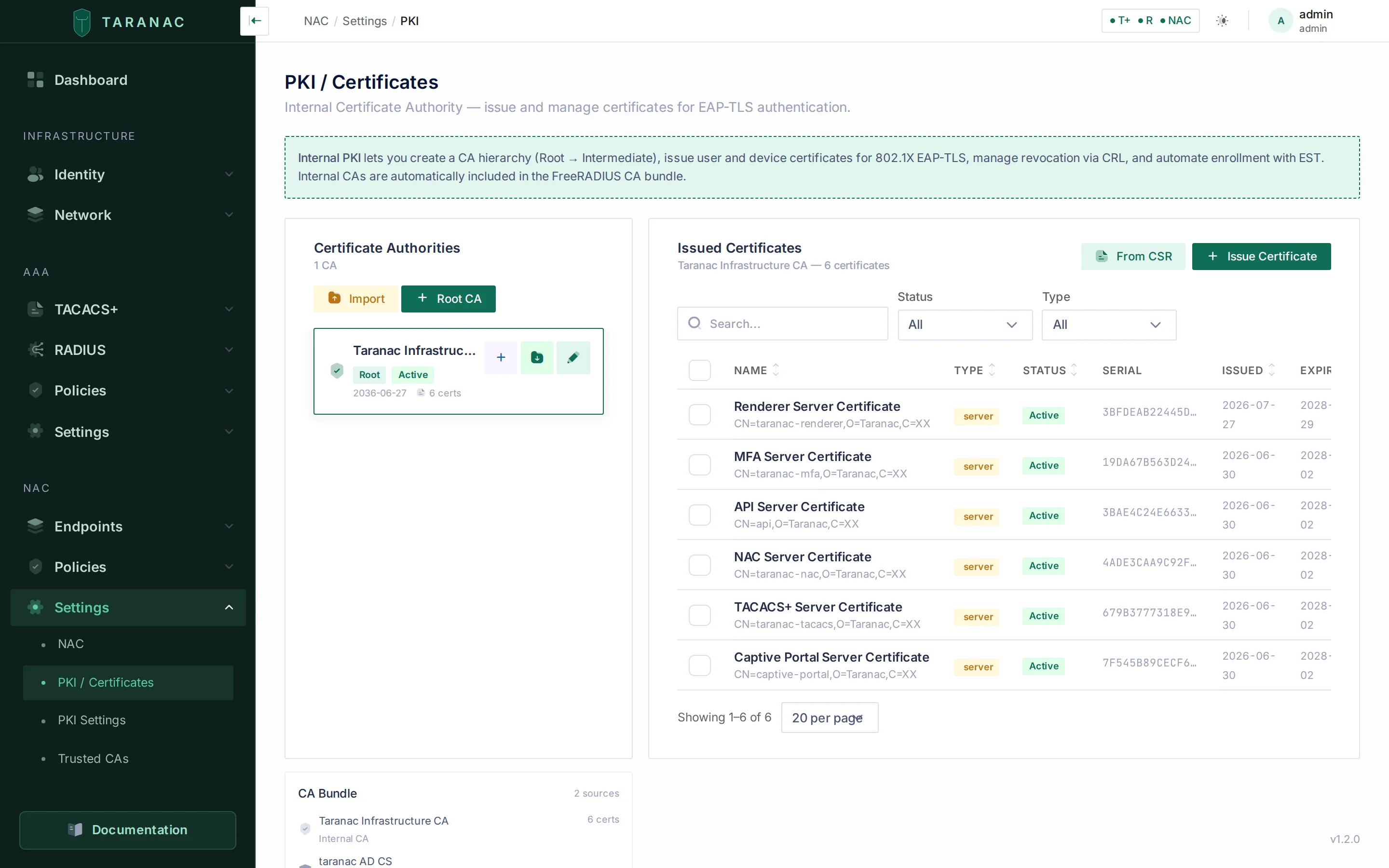 The PKI page — a CA tree on the left, the issued-certificate table on the right, and the live CA bundle composition at the bottom.
Key concepts
Section titled “Key concepts”| Term | What it means in Taranac |
|---|---|
| Internal CA | A Certificate Authority that Taranac generates (or imports) and uses to sign certificates. Can be a self-signed Root, an Intermediate signed by a parent Internal CA, or an intermediate signed by your corporate PKI (see Taranac under your corporate root). |
| Issuing chain | For an Internal CA signed outside Taranac: every certificate above it, up to the corporate root. Handed out with the CA’s certificates, never trusted for EAP-TLS. |
| Issued certificate | An end-entity certificate signed by an Internal CA. Type is user, device, or server. |
| Server certificate | The certificate FreeRADIUS presents to clients during EAP (its TLS identity). Exactly one is active at a time. |
| Trusted CA | An external CA certificate you upload so Taranac trusts client certificates issued by it — without Taranac issuing anything. |
| CA bundle | The combined trust list (ca_clients.pem) FreeRADIUS uses to verify client certificates. Assembled from Internal CAs, Trusted CAs, and the CAs of LDAP/AD domains. |
| CRL | Certificate Revocation List — the signed list of revoked certificates that FreeRADIUS checks so revoked credentials stop authenticating. Checked per CA: see Certificate revocation. |
| OCSP | Online Certificate Status Protocol — asking a responder about one certificate as it authenticates. Optional, per Trusted CA or LDAP EAP-TLS CA; never for an Internal CA. |
| EST | Enrollment over Secure Transport (RFC 7030) — a protocol devices use to request and renew certificates automatically, over HTTPS. See EST enrollment. |
| SCEP | Simple Certificate Enrollment Protocol (RFC 8894) — the enrollment protocol of network equipment that does not speak EST, such as classic Cisco IOS and MikroTik. See SCEP enrollment. |
Where trust comes from
Section titled “Where trust comes from”The CA bundle that FreeRADIUS uses to validate a client certificate is built from three independent sources. The panel at the bottom of the PKI page shows exactly what is in it:
- Internal CAs — CAs Taranac runs itself (this page).
- Trusted CAs — external CA certificates you uploaded on the Trusted CAs page.
- LDAP / AD domain CAs — the EAP-TLS CA certificate of every LDAP configuration that has EAP-TLS enabled, pulled in automatically.
A client certificate authenticates if it chains to any enabled CA in the bundle. You do not have to issue certificates from Taranac to use EAP-TLS — you can trust an external issuer and never touch the Internal CA features at all.
The bundle is deployed together with the NAC configuration, so adding, removing or disabling a CA takes effect at once, without a restart: within seconds on the node where you saved it, and on every other node on its next configuration check (30 seconds by default). Rebuild Bundle on the Trusted CAs page applies it on demand. With no CA in the bundle at all, EAP-TLS is answered with a reject while PEAP and EAP-TTLS keep working. A CA whose certificate cannot be decrypted on a node does not silently drop out: that node keeps its bundle as it was and raises the alert NAC CA bundle not updated: a trusted CA cannot be used.
A Trusted CA or LDAP EAP-TLS CA may hold a whole chain (a root and its issuing CA). Clients of every CA in it are accepted, and a CA uploaded as the root alone also accepts clients that send their issuing CA’s certificate along with their own.
Certificate Store, on the PKI Settings page, opens the same thing in detail: every certificate currently in ca_clients.pem with its source (Internal CA / Trusted CA / LDAP) and validity, plus a CRL Status tab that names the CAs with no revocation list on disk. A CA without a CRL is not necessarily a problem: only CAs with a CRL configured are checked (see Certificate revocation).
The Internal CA
Section titled “The Internal CA”Root vs Intermediate
Section titled “Root vs Intermediate”An Internal CA is either a Root (self-signed, the top of a chain) or an Intermediate (signed by a parent Root or Intermediate). A two-tier hierarchy — one offline-style Root, one issuing Intermediate — is the textbook design, but for a lab, pilot, or small site a single Root that issues directly is perfectly fine.
| Field | Root | Intermediate |
|---|---|---|
| Signed by | itself | a parent Internal CA, or an external CA (corporate PKI) |
| Default key algorithm | rsa4096 | rsa4096 |
| Default validity | 10 years (1–30) | 5 years (1–20), clipped to the parent’s remaining life |
| Supported key algorithms | rsa2048, rsa4096, ec256, ec384 | same |
Creating a CA
Section titled “Creating a CA”On the PKI page, the left panel lists your Certificate Authorities as a tree. Use Root CA to create a self-signed root, Import to bring in a CA you already have, or Request (CSR) to generate a CA key and a CSR for your corporate CA to sign (see Taranac under your corporate root). Pending requests are listed under the tree as Awaiting signature.
When creating a Root you supply a display name and the subject fields — Common Name plus optional Organization, Organizational Unit, Country, State, Locality — along with the key algorithm and validity in years. To build a hierarchy, use Create intermediate CA on a CA in the tree.
Importing an existing CA
Section titled “Importing an existing CA”Import brings in a CA you already operate: paste the CA certificate (PEM) and its private key (with the key password if it is encrypted), and choose whether it is a root or an intermediate. For an intermediate, Issuer says who signed it: Internal CA in Taranac (then pick the Parent CA) or External CA (issuing chain) (then paste every certificate above it, up to the self-signed root, into Issuing chain (PEM)). The second case is a SubCA of your corporate PKI. Its chain rules and warnings are on Taranac under your corporate root.
On import Taranac validates the material strictly and rejects anything that is not a usable CA:
- the PEM must parse;
- CA certificate (PEM) must hold exactly one certificate, this CA’s own. Everything in that field becomes an EAP-TLS trust anchor, so a certificate pasted together with its chain is refused with the count, and the issuers go in the chain field;
- it must carry BasicConstraints with
CA = true; - if it carries KeyUsage,
keyCertSignmust be set (a CA certificate with no KeyUsage extension at all is accepted, with a warning in the log); - it must not be expired;
- the private key must match the certificate;
- a root must be self-signed. A certificate issued by someone else is refused as a root, with its issuer named;
- an intermediate must actually be signed by the parent CA you reference, or its issuing chain must pass the chain rules.
CA status and lifecycle
Section titled “CA status and lifecycle”Each CA has a status — active, expired, revoked, or disabled. Only active, enabled CAs are written into the FreeRADIUS bundle. There are two ways to turn a CA off, and both read Disabled: the Disable action in the CA’s Danger Zone, and the Enabled switch in its form. Switching a disabled CA back on makes it active again, and it issues again.
Which CA can issue. A CA issues only when it is enabled, active and within its validity, and so is every CA above it up to the root. Disabling or revoking a root therefore stops everything below it, even a child that is still enabled itself. A CA past its expiry date counts as expired immediately, before the nightly job marks it. The same rule applies to every issuing path: Issue Certificate, From CSR, user certificates, LDAP auto-issue, NAC and TACACS+ server certificates, EST and SCEP.
CA selections show every CA. Every CA picker (the EST and SCEP CA and the Default CA on PKI Settings, the issuing CA of a server certificate, the parent of an imported CA, user certificates) lists all CAs. One that cannot issue is greyed out with its reason: Disabled, Expired, Revoked or Parent CA unusable. A setting that still names such a CA shows it greyed rather than as an empty field. A setting left on a deleted CA shows CA not found. The PKI tree and the CA’s form show the same reason as a badge. Create intermediate CA and Issue Certificate stay visible but disabled, with the reason in their tooltip.
Refusals name the reason: CA ‘X’ is disabled, has expired or is revoked, or Parent CA ‘Y’ of CA ‘X’ is disabled (or expired, or revoked). EST and SCEP devices get the same text. In the audit log the refusal carries a stable reason code: ca_disabled, ca_expired, ca_revoked, ca_parent_unusable or ca_not_found.
Used by. The CA’s form has a Used by card. It lists the places that issue new certificates from this CA: EST, SCEP and Certificate Defaults. A place that names a CA below this one is listed too, as via that child. The setting counts whether or not its protocol is switched on. Certificates already issued do not count.
A CA can only be deleted when no place uses it, it has no active issued certificates, and it has no child CAs. This protects you from leaving a setting pointing at nothing, orphaning live credentials or cutting a chain in half. While it is used, the Danger Zone says where, and the CA has to be replaced there first. Disabling, revoking and expiry are not blocked. The CA simply stops issuing, and the places that use it refuse with the reason.
Issued certificates
Section titled “Issued certificates”The right panel lists everything an Internal CA has issued, filterable by Status (active / revoked / expired), Type (user / device / server) and Source. Each row shows the name, type, status, source, serial, issue date, and expiry.
Source is how the certificate was issued: Manual, Manual (CSR), User auto-issue, LDAP auto-issue, EST, EST re-enroll, SCEP, SCEP renewal, NAC server, TACACS+ server or Infrastructure (the certificates generated at first start). The issuing path records it, not the client. A certificate whose source was never recorded reads Unknown, because the source is not guessed. A reissue counts as Manual. Click a certificate to open its view: status, source, subject, serial, issuing CA and validity, and, for a renewal or a reissue, Renewed from with a link to the certificate it replaces.
Issuing a certificate
Section titled “Issuing a certificate”Use Issue Certificate to have Taranac generate a key pair and sign the certificate in one step, or From CSR to sign a Certificate Signing Request from a device that generated its own key (the private key never leaves the device — Taranac stores only the signed certificate).
| Field | Notes |
|---|---|
| CA | Which Internal CA signs it (it must be able to issue, see CA status and lifecycle). |
| Name | Admin label, e.g. “John — Laptop”. |
| Type | user, device, or server. User/device get clientAuth; server gets serverAuth. |
| Subject CN | e.g. john@company.com or LAPTOP-001.company.local. |
| Key algorithm | rsa2048, rsa4096, ec256 (default), ec384. |
| Validity (days) | Default 365, capped at the CA’s own expiry. |
| SAN — UPN / email | For user certificates (e.g. john@company.com). |
| SAN — DNS / IP | For device certificates: FQDNs, and IP addresses for a device reached by address. Up to 20 of each. |
| Linked user / endpoint | Optionally tie the certificate to a Taranac user or endpoint for tracking and lifecycle. |
What every certificate carries
Section titled “What every certificate carries”Whatever the path (Issue Certificate, From CSR, EST, SCEP, server certificates, child CAs), a certificate an Internal CA signs carries the same basics:
- a random serial number, so a CA imported again elsewhere never reissues a serial it already used, and two issuances at once never draw the same one;
- an Authority Key Identifier copied from the CA’s own Subject Key Identifier. This matters for a CA whose SKI was computed another way (RFC 7093, many corporate PKIs), because OpenSSL refuses a chain where the two differ. The CA’s CRL carries the AKI too;
- the CA’s CRL distribution point, when one is set (see Publishing a CRL);
- a validity that starts one hour in the past, never earlier than the issuing CA’s own start, so a device whose clock runs a little behind accepts it at once.
Downloading
Section titled “Downloading”Download an issued certificate as a password-protected PKCS#12 (.p12) archive — the usual choice for installing on a laptop or phone — or as PEM. You can include the CA chain in the download. For a CA signed by your corporate PKI, the chain runs up to the corporate root. For user-facing delivery, Taranac can instead email a one-time download link (see Delivering certificates to users below) so you never handle key material by hand.
Revoking, reassigning, reissuing
Section titled “Revoking, reassigning, reissuing”- Revoke marks a certificate
revokedwith an RFC 5280 reason (key_compromise,ca_compromise,affiliation_changed,superseded,cessation_of_operation,certificate_hold,unspecified) and re-signs the CA’s CRL at once. With CRL checking on, the certificate stops authenticating within 5 minutes, with no restart (see CRL). - Reassign applies only to device certificates: hand a device certificate to a different user, or unlink it entirely. User certificates cannot be reassigned.
- Reissue and send revokes the old certificate (reason
superseded), issues a replacement from the same CA with the same label, type, subject and key algorithm — carrying over its email and DNS SANs, with a new key, and dated to expire when the old one would have — then emails the user a download link. The clean recovery path when a certificate is lost or suspected compromised.
The server certificate
Section titled “The server certificate”EAP-TLS and PEAP both require the RADIUS server to present its own certificate to clients. The Server Certificate card manages that identity — it lives on Settings → NAC, not on the PKI page itself. Exactly one server certificate is active at a time, and it has three possible sources:
| Source | When to use it |
|---|---|
self_signed | Default on first boot. Fine for a lab or closed pilot; clients must be told to trust it (or skip server validation). |
internal_ca | Issue the server certificate from one of your Internal CAs — clients that already trust the CA validate the server automatically. |
uploaded | Upload a certificate from a public or corporate CA (cert + key + chain). Best when clients should validate the server against a CA they already trust. |
After uploading or issuing, press Deploy to FreeRADIUS. The material is written into the NAC service’s config volume and applied like any NAC configuration: a new FreeRADIUS process takes over from the running one, with no request lost and nothing to restart by hand (see Applying a configuration). The card then reports In use by the service: Applied (and since when), Awaiting service restart while the running process is still presenting a different certificate, or Unknown on a node whose daemon has not yet reported. That badge describes what FreeRADIUS actually loaded, not what was written to disk.
The card offers upload, self-signed generation, issuance from an Internal CA, and deploy. Issue from Internal CA opens with this node’s values filled in: the IP addresses of the node (TARANAC_NODE_IPS, NODE_ADDRESS) in IP addresses (SAN), its host name (TARANAC_DOMAIN) as the Common Name (CN), and the PKI Default CA as Issuing CA when that CA can issue. Every value stays editable. A hostname CN is also written as the first DNS SAN, because clients match the server’s identity against the SANs only. For an external CA, create the key and the CSR outside Taranac, have the CA sign the CSR, then upload the certificate with its key and chain. If your corporate PKI should sign it without that manual round-trip, put an Internal CA under the corporate root instead and issue from it (see Taranac under your corporate root).
What supplicants receive. server.pem holds the server certificate followed by its intermediates, with the root left out: a client must already hold the root to trust anything. For a certificate issued from an Internal CA, the intermediates are that CA’s chain as it is at deploy time, including a corporate chain above it. When that CA is renewed or its chain is replaced, every node rewrites server.pem within 30 seconds, with the same certificate and key and no redeploy. For an uploaded certificate, the intermediates come from the CA chain (PEM, optional) you uploaded with it.
Deploy asks first when the CA changes. If the certificate about to be deployed was issued by another CA than the one FreeRADIUS serves on this node, Deploy to FreeRADIUS names both CAs and asks for confirmation (Deploy anyway). Clients that trust only the current CA reject the new certificate and stop authenticating over TLS until they trust the new CA.
Restore previous. When an earlier deployed certificate exists and has not expired, the card offers Restore previous. After a confirmation that shows its subject, issuer, last deployment and expiry, it becomes the active certificate again and is deployed at once. Nothing is deleted: the certificate it replaced can be restored the same way.
Trusted CAs — trust without issuing
Section titled “Trusted CAs — trust without issuing”The Trusted CAs page is for the case where certificates are issued elsewhere and you only need Taranac to trust them. Upload the CA’s PEM certificate and Taranac adds it to the bundle. Per trusted CA you also configure:
| Setting | Values | Purpose |
|---|---|---|
| Identity source | cert_cn, cert_san_upn, cert_san_email, cert_subject | Recorded with the CA; the NAC service does not read it. The identity always comes from the certificate’s SAN UPN, then SAN email, then CN — see EAP-TLS — certificate-based. |
| Cert type | user, computer, both | What kind of certificates this CA is allowed to authenticate. |
| CRL distribution URL / Upload CRL file | URL, or a PEM/DER CRL | Gives the CA a CRL, which makes its clients checked while Enable CRL Check is on. Saving a URL downloads the CRL or refuses the save; Delete CRL removes both. See Setting a CRL. |
| Check revocation with OCSP + OCSP responder URL | on/off, http:// URL or empty | Asks an OCSP responder about every client certificate of this CA and its sub-CAs; empty URL = the address in the certificate. A client is refused whenever the check cannot be made. See OCSP checking. |
The certificate of a Trusted CA cannot be changed after it is created: to replace it, delete the CA and create it again.
This is the typical path for a Windows estate that already issues machine and user certificates from Active Directory Certificate Services (AD CS) — you trust the AD CS CA and let domain-joined devices authenticate with the certificates they already hold.
Revocation for a Trusted CA comes from a CRL distribution URL that Taranac downloads on a schedule, or from a CRL file you upload (PEM or DER), and optionally from an OCSP responder. A distribution point inside your own network, the usual case for AD CS, works: see Fetching CRLs from a URL. For a CA that issues through a sub-CA, the CRL that matters is the issuing CA’s: see The CRL that counts.
CRL — keeping revocation enforced
Section titled “CRL — keeping revocation enforced”CRL checking is switched on and off by Enable CRL Check, in the CRL Control section of NAC → Settings (on for new installations), and applies per CA. With the switch on, a client certificate is checked when some CA of its chain has a CRL configured: an Internal CA always, a Trusted CA or LDAP EAP-TLS CA once it has a CRL URL or an uploaded CRL. A chain with no such CA is accepted without a CRL check. Once checked, the client is looked up in the CRL of the CA that issued it, which must be present and current: a root’s CRL does not cover the clients of its sub-CA. The whole rule, with examples and the refusal reasons, is on Certificate revocation: CRL and OCSP, which also covers OCSP.
Revocations apply without a restart. The first CRL of a CA applies at once; FreeRADIUS rebuilds its CA store from the CRL files at most 5 minutes after one changes, on the first new TLS session after that interval. A revocation, a downloaded CRL or an uploaded one therefore applies to new authentications within 5 minutes.
TLS session resumption is off while any CA is checked by CRL or OCSP. A resumed session would skip the revocation check, so a revoked certificate could keep getting in. Every EAP-TLS, PEAP and TTLS authentication then performs a full handshake.
Where each CRL comes from
Section titled “Where each CRL comes from”| Source | Where its CRL comes from |
|---|---|
| Internal CA | Taranac signs it on every revocation and re-signs it daily at 03:00. Each CRL is valid for 7 days and carries an increasing CRL Number. It is held in the database, so it is the same on every node. A disabled Internal CA is left out of the trust bundle and is not trusted for EAP-TLS. |
| Trusted CA | The CRL distribution URL, downloaded when it is saved and then on a schedule, or an uploaded or pasted CRL. |
| LDAP EAP-TLS CA | The CRL Distribution URL or CRL file on the LDAP configuration’s EAP-TLS tab, saved the same way. The URL is fetched only when the configuration has its EAP-TLS CA certificate, which the CRL is verified against. |
Every node writes all CRLs from the database to its own disk at startup and on every fetch run, so the nodes of a cluster converge on the same CRLs.
Fetching CRLs from a URL
Section titled “Fetching CRLs from a URL”Schedule. The External CRL Fetch job on Settings → Workers downloads the CRLs of Trusted CAs, LDAP configurations and the issuing-chain certificates of Internal CAs every 15 minutes by default (minimum 5). It also runs when the service starts. Fetch next to the URL in the form tests a URL and shows the CRL it gets. In a cluster, each node downloads on its own.
Signature check. A downloaded or uploaded CRL must be signed by the CA it is configured on, or it is refused. The usual cause is a CA renewed with a new key. Re-upload the current CA certificate (the old and new certificates can be uploaded together). A delta CRL is refused too: FreeRADIUS would read it as the complete list. AD CS publishes the delta next to the base CRL as <CA>+.crl, so check that the URL names the base CRL.
Only a newer CRL replaces the stored one. A downloaded CRL is stored only if it is later than the one held: a higher CRL Number, or a later issue date when the CRLs carry no number. A distribution point whose replicas lag behind therefore cannot roll a revocation back. A CRL you upload, paste or save from Fetch is stored as given, which is the way back from a bad CRL.
Allowed addresses. Only http:// and https:// URLs are fetched. The host may resolve to a public address or a private one: RFC 1918, CGNAT (100.64.0.0/10) or IPv6 ULA (fc00::/7), so an AD CS distribution point on the LAN works. Taranac refuses loopback, link-local (including the cloud metadata address 169.254.169.254), multicast, unspecified and reserved addresses. Every redirect is checked the same way, and the connection is pinned to the address that was checked. TLS is verified, the download is capped at 5 MB, and at most three redirects are followed. A failure shows as Last fetch error on the Trusted CA, without describing what was found at the other end.
CRL alerts
Section titled “CRL alerts”| Alert key | Raised when | Severity |
|---|---|---|
nac_crl_expiry:<kind>:<id> | A CRL is about to expire: the time left is under 4 hours or 5 % of the CRL’s validity, whichever is shorter. Or it has expired. | warning. An expired CRL is critical while CRL checking is on. |
nac_crl_fetch:<kind>:<id> | Three downloads in a row failed on a node. For a URL that has not delivered a CRL yet, the first failure. A successful download resolves it. | warning. For a URL with no CRL yet, critical while CRL checking is on: its clients are already refused. |
nac_ca_expiry:<ca_id> | An Internal CA’s earliest expiry — its own certificate or one above it in its issuing chain — is within 90 days, or has passed. Titled Internal CA chain expires soon / Internal CA chain expired. See Expiry. | warning within 90 days, critical within 30 days and once expired |
<kind> is internal_ca, trusted_ca, ldap or ca_chain. Downloads are only for trusted_ca, ldap and ca_chain. ca_chain is a certificate in the issuing chain of a CA signed by your corporate PKI. Both of its alerts are always warnings, because FreeRADIUS does not use that CRL (see Upper-chain CRLs). The expiry alert is raised once for the cluster. The fetch alert is raised per node, because a distribution point may be reachable from one node only. A CA without any CRL raises no alert: it is simply not checked. OCSP alerts are on Certificate revocation.
Publishing a CRL
Section titled “Publishing a CRL”Certificates an Internal CA issues carry a CRL distribution point so clients and network gear can fetch the revocation list themselves. Taranac serves it, without authentication:
| URL | Encoding |
|---|---|
/api/v1/public/crl/{ca_id}.crl | DER (application/pkix-crl) — what network equipment expects |
/api/v1/public/crl/{ca_id}.pem | PEM — convenient for openssl and for humans |
Fill in Public base URL under Public endpoints on the PKI Settings page and every CA’s distribution point is derived from it automatically — adding a CA does not mean remembering to paste a URL, and moving the hostname is one setting to edit. A CA can still carry an explicit URL of its own, which wins. With neither set, issued certificates carry no CDP extension at all.
The base URL must be empty or http://host[:port][/path], with a host name or an IP address (IPv6 in brackets). https:// is refused: validating a certificate must not first require validating the certificate of the server holding the revocation list.
EST and SCEP — automated enrollment
Section titled “EST and SCEP — automated enrollment”Network equipment can request and renew certificates from an Internal CA without manual P12 handling, over two protocols served by the same est-gateway container on every node:
- EST (RFC 7030), at
https://<host>:8445/.well-known/est(EST_GATEWAY_PORT). A device enrolls the first time with a local account’s password and renews with its current certificate, both at that one URL. See EST enrollment. - SCEP (RFC 8894), at
http://<host>:8446/scep(SCEP_HTTP_PORT), for devices that do not speak EST. A device enrolls with a shared challenge password and renews by signing with its current certificate. See SCEP enrollment.
Each protocol has its own card on the PKI Settings page, with its own switch, CA, validity, approval and networks; neither reads the other’s settings. Requests that wait for approval share one Enrollment requests queue on the PKI page, with a Protocol column.
Delivering certificates to users
Section titled “Delivering certificates to users”Rather than emailing key material yourself, Taranac can generate a one-time download link: a single-use URL that delivers the P12/PEM and shows its password, valid for the Download link expiry set on PKI Settings (72 hours by default, 1–720). Use Send link for one certificate, Send all certificates for every active certificate a user holds, or Reissue and send to rotate a compromised credential. Optionally, Taranac can auto-issue a certificate when a local user is created or when a new LDAP user is first synced, using your configured certificate defaults, and email the link automatically.
Certificate defaults (on PKI Settings) pre-fill the issuing CA, key algorithm, validity, and templates for the subject and label, so issuing is one click and stays consistent. The Organization (O) is inherited from the issuing CA, following standard PKI practice.
When to use what
Section titled “When to use what”Internal PKI vs. external / trusted CA
Section titled “Internal PKI vs. external / trusted CA”| Situation | Recommendation |
|---|---|
| Pilot, demo, lab, or greenfield site with no existing PKI | Use the Internal CA — stand up a Root (or Root + Intermediate) and issue from it. No external infrastructure needed. |
| Windows estate already issuing certificates from AD CS | Add the AD CS CA as a Trusted CA (or via the LDAP/EAP-TLS source). Let domain devices use the certificates they already have. |
| Mixed: domain laptops via AD CS, plus BYOD / contractors / IoT | Trust AD CS and run an Internal CA for the non-domain devices. Both feed the same bundle. |
| Devices and clients already trust your corporate root, and you want Taranac to issue | Run the Internal CA under the corporate root, imported or requested by CSR. Everything it issues chains to a root that is already deployed. See Taranac under your corporate root. |
| You need automated, hands-off enrollment and renewal for network equipment | Choose the Internal CA as the EST CA, or the SCEP CA for devices that speak only SCEP. |
| Clients must validate the RADIUS server against a CA they already trust | Source the server certificate from that external/public CA (upload) rather than self-signed. |
Key algorithm and validity guidance
Section titled “Key algorithm and validity guidance”| Certificate | Suggested algorithm | Suggested validity |
|---|---|---|
| Root CA | rsa4096 or ec384 | 10–20 years |
| Intermediate CA | rsa4096 or ec384 | 3–5 years |
| User / device certificate | ec256 (default) or rsa2048 | 1 year (365 days) |
| Server certificate | rsa2048 | 1–2 years |
Reference
Section titled “Reference”Certificate types
Section titled “Certificate types”| Type | Extended Key Usage | Typical subject / SAN |
|---|---|---|
user | clientAuth | CN = user@domain; SAN = UPN and/or email |
device | clientAuth | CN = device FQDN; SAN = DNS name(s); reassignable between users |
server | serverAuth | the RADIUS server identity (one active) |
Revocation reasons
Section titled “Revocation reasons”key_compromise · ca_compromise · affiliation_changed · superseded · cessation_of_operation · certificate_hold · unspecified
Maintenance schedule (automatic)
Section titled “Maintenance schedule (automatic)”| Task | Cadence |
|---|---|
| Re-sign CRLs for all active Internal CAs | daily, 03:00 |
Mark expired certificates expired, and undecided EST and SCEP requests expired | daily, 03:30 |
| Clean up used / expired download tokens | daily, 04:15 |
| Expiry check — server certificate, Internal CAs, issued certificates | daily, 06:00 |
| Fetch CRLs from configured URLs (Trusted CAs, LDAP configurations, issuing-chain certificates), then write every CRL from the database to this node’s disk | every 15 minutes and at startup; set on Settings → Workers (External CRL Fetch, minimum 5 minutes) |
The expiry check writes warnings to the service log — server certificate at 30 days (critical at 7), Internal CA at 90 days (critical at 30). For Internal CAs it also raises the Internal CA chain expires soon / expired alert (nac_ca_expiry:<ca_id>, see CRL alerts), which counts the certificates above a CA signed by your corporate PKI as well as the CA itself, and names the one that expires first. The dashboard’s certificate expiry widget lists what runs out inside 90 days with an expired / ≤7 days / ≤30 days badge and links straight back to this page. It shows an Internal CA by that same earliest date.
Related
Section titled “Related”- Taranac under your corporate root — an Internal CA signed by your corporate PKI: import or CSR, issuing chain, renewal, Replace chain.
- Certificate revocation: CRL and OCSP — which CAs are checked, which CA’s CRL counts, OCSP per CA, refusal reasons.
- NAC policy — how an authenticated certificate identity drives access decisions.
- Endpoints — devices a certificate can be linked to.
- Captive portal — onboarding flows for devices that are not yet certificate-enrolled.
- EST enrollment — automated enrollment and renewal from an Internal CA.
- SCEP enrollment — the same for network equipment that speaks SCEP.
- TACACS+ over TLS — Internal CAs as the trust for network devices’ TACACS+ client certificates.
- Deployment bundle & docs: github.com/TaranacLabs/taranac