

EAP-TLS for domain users
EAP-TLS replaces the password with a certificate. There is no shared secret to phish, nothing to type, and nothing that expires the way a password does — the client proves possession of a private key, and Taranac decides who that key belongs to.
For directory users this is the method that actually fits. PEAP can
authenticate an Active Directory account, but only by asking a domain
controller to prove the MS-CHAPv2 response — which means joining the Taranac
node to the domain on the LDAP configuration’s MS-CHAPv2 tab — and since
there is one winbindd and one join, at most one configuration can own it.
EAP-TTLS avoids all that by binding to LDAP, but a password still crosses the
tunnel.
EAP-TLS removes the password from the picture entirely and needs no join at all,
which is why it is what most Windows domains standardise on. See
802.1X authentication for how each method gets its
credential.
This guide takes a domain-joined Windows PC and an Active Directory user, and gets the port authorized on a certificate.
Two ways to get client certificates
Section titled “Two ways to get client certificates”Before anything else, decide where client certificates come from. Taranac supports both, they are not exclusive, and the choice does not change how policy or authentication works — only who issues and delivers the credential.
| Internal PKI — Taranac issues | External CA — Taranac only trusts | |
|---|---|---|
| Who signs | Taranac’s built-in Certificate Authority | Your existing issuer: AD CS, a corporate PKI, a partner’s CA |
| Delivery to the device | Download a PKCS#12, email a one-time link, or let the device enroll itself over EST; optional auto-issue on user creation | However that CA already does it — for AD CS, autoenrollment by group policy |
| Revocation | Revoke in Taranac; CRL published automatically | Handled by the issuing CA, consumed by Taranac via CRL/OCSP |
| Fits | BYOD, contractors, non-domain machines, printers and IoT | Domain-joined fleets that already have a working PKI |
| Work per user | One issuance action (or automated) | None — the domain does it |
Both feed the same trust bundle, so you can run them side by side: domain laptops on AD CS certificates, everything else on certificates Taranac issued. Nothing downstream needs to know the difference.
This guide walks the AD CS path, because that is the realistic shape of a Windows domain. Where the internal-PKI path differs, it is called out inline.
Step 1 — Teach Taranac to trust the issuing CA
Section titled “Step 1 — Teach Taranac to trust the issuing CA”A client certificate is accepted when it chains to a CA in Taranac’s client trust bundle. That bundle is assembled from three independent sources:
- Internal CAs — every enabled CA Taranac runs itself
- Trusted CAs — external CA certificates you upload (
/nac/settings/trusted-cas) - LDAP domains with EAP-TLS enabled — the CA attached to a directory
For a domain scenario, prefer the third. Open Settings → Integrations → LDAP, select the domain, and on its EAP-TLS tab tick Enable EAP-TLS for this domain and paste your AD CS certificates into CA Certificate (PEM): the root, and on a two-tier hierarchy the issuing CA that signs the client certificates as well, one after the other. Enabling without a certificate is refused, so this is one action rather than two. With the root alone, Taranac accepts only the clients that send their issuing CA’s certificate along with their own; the issuing CA in the field accepts every client of it, and is what lets its CRL be verified and checked (see the caution below).
Attaching the CA to the domain rather than uploading it as a standalone Trusted CA is not just bookkeeping: the same tab also carries which certificates that domain issues (user, computer, or both) and how a certificate maps to a user — the subject of Step 2. Trust and identity rules stay with the directory they belong to, instead of being scattered across two pages.
Use the Trusted CAs page instead when the CA has nothing to do with a directory — a partner’s issuer, or a CA for devices that have no user at all.
Step 2 — Decide how a certificate becomes a user
Section titled “Step 2 — Decide how a certificate becomes a user”A certificate proves a key; it does not by itself say which account that is. Taranac reads one identity out of the certificate — the first of these fields the certificate actually carries:
SAN UPN → SAN email → Subject CN
The RADIUS User-Name is never used: the supplicant can put anything there. A
certificate carrying none of the three is a machine session with no user.
That is a choice of field, not a search. Whichever field wins is looked up
case-insensitively among Taranac’s active users. If it matches nothing,
Taranac does not fall back to the next field. If the UPN is
alice@lab.example.com and no account is named that in full, the bare alice is
tried.
For a directory account such as your AD users, that is not enough. The certificate must also be bound to the account’s directory, in one of two ways:
- the UPN (or CN) carries the LDAP configuration’s domain suffix exactly,
case-insensitively.
alice@lab.example.commatches an account of the configuration whose suffix islab.example.com. A sub-domain or an alternative UPN suffix (alice@example.com) does not. - or the identity is the account’s own e-mail address (its
mailattribute). This is the only way a SAN e-mail is accepted.
A certificate that names a directory account without either is rejected before
policy, with tls_identity_domain_mismatch in the Auth Log. A bare CN such as
alice, with no domain, is rejected as tls_identity_no_domain. Neither falls
back to the machine flow. Local Taranac accounts are not bound this way: any
trusted CA’s certificate for alice@anything names the local alice.
So the certificate template decides the lookup. A certificate carrying both a UPN and an e-mail address is always resolved by the UPN; if the accounts you want matched are named by something else, the certificate must not carry a UPN at all. With AD CS’s standard user template the UPN’s domain is the AD domain, which is the configuration’s domain suffix, so it matches without further work.
The LDAP domain’s Identity extraction setting — san_upn, san_email or
cn, defaulting to san_upn — records which field that population’s
certificates are expected to carry, and for AD CS with a standard user template
san_upn is the right answer. Treat it as a declaration rather than a switch:
the order above is fixed in the 802.1X service and is the same for every domain.
When no user matches, this is not necessarily an error: Taranac treats it as a machine certificate and evaluates policy with no user at all, matching on the endpoint’s groups instead — which can be filled from the directory itself, by LDAP DN or LDAP group classification rules, rather than by hand. That is how domain computers authenticate before anyone logs in — see Machine authentication and SSO. This guide stays on user certificates.
Step 3 — Issue the certificate
Section titled “Step 3 — Issue the certificate”On the CA, publish a certificate template for user certificates with:
- Client Authentication in Extended Key Usage — without this EKU Windows will not offer the certificate to the supplicant at all
- the user’s UPN in the Subject Alternative Name, which is what Step 2 matches on
- no e-mail name in the subject or the SAN, unless every user in scope
actually has a populated
mailattribute — see below - Read, Enroll and Autoenroll for the group that should receive it
Then refresh policy and force an enrollment cycle, as the user, unelevated:
gpupdate /forcecertutil -user -pulseVerify the certificate arrived, and note where it landed:
Get-ChildItem Cert:\CurrentUser\My | Select-Object Subject, EnhancedKeyUsageList, NotAfterA user certificate belongs in the current user’s store
(Cert:\CurrentUser\My), which is exactly the opposite of where the CA went in
the PEAP guide — that was a machine-wide trust anchor, this is a personal
credential.
Confirm the UPN really made it into the SAN, because that is what Taranac matches on:
(Get-ChildItem Cert:\CurrentUser\My)[0].Extensions | Where-Object { $_.Oid.FriendlyName -match 'Subject Alternative Name' } | ForEach-Object { $_.Format($true) }When the certificate never arrives
Section titled “When the certificate never arrives”Autoenrollment fails quietly by design, so work down this list rather than guessing.
certutildefaults to the machine context.certutil -pulsewithout-userruns machine autoenrollment — unelevated it returns access denied, elevated it enrolls the computer certificate. Either way the user store stays empty and nothing about the user was ever attempted. Use-user.- Elevation changes who you are. A shell elevated with a different account enrolls for that account, into that account’s store. Run user enrollment as the user, unelevated — it needs no administrative rights at all.
-pulsereports success when it does nothing. “Completed successfully” only means the cycle ran; it says nothing about whether a certificate was issued. Never treat it as confirmation.- The fastest real diagnostic is the manual request.
certmgr.msc→ Personal → All Tasks → Request New Certificate, as the user. If the template is not listed, it is not published or the user lacks Read/Enroll. If it is listed and fails, the wizard prints the CA policy module’s actual error — which is the one thing no log gives you as directly. - Enroll and Autoenroll are different rights. The manual wizard needs Read + Enroll, so a template can enroll by hand and still be skipped silently by autoenrollment, which additionally needs Autoenroll. Verify on the template’s own Security → Advanced → Effective Access for a real user, not by reading checkboxes — permissions accumulate across groups.
- User and computer autoenrollment are two independent halves of the policy
(Computer Configuration and User Configuration each have their own
Certificate Services Client – Auto-Enrollment). A working computer
certificate says nothing about the user half. Check
HKCU:\Software\Policies\Microsoft\Cryptography\AutoEnrollment\AEPolicy— absent or0means user autoenrollment is off.
Open NAC → Settings → PKI / Certificates (/nac/settings/pki) and issue a
certificate of type user, linked to the Taranac account it represents. Set
the subject and SAN so the identity matches what Step 2 expects — the UPN for a
directory user.
Deliver it as a password-protected PKCS#12, or have Taranac email the user a
one-time download link so you never handle key material yourself. Import it
into Cert:\CurrentUser\My on the client.
Taranac can also auto-issue a certificate whenever a local user is created or an LDAP user is first synced, which turns this step into no step at all.
For network equipment that can enroll itself, there is a third route: Taranac speaks EST (RFC 7030) and SCEP (RFC 8894), each signed by an Internal CA you nominate, with an optional approval queue so a human reviews each request before a certificate is signed. An EST device enrolls the first time with a password and renews with its current certificate, both at the EST gateway’s URL (port 8445 by default); a SCEP device enrolls with a shared challenge password on port 8446. Configure both on PKI Settings, which shows the URL to configure on the device. See EST enrollment and SCEP enrollment.
Step 4 — Add the policy rule
Section titled “Step 4 — Add the policy rule”Same shape as the PEAP rule, with two conditions changed:
| Dimension | Value |
|---|---|
| How (method) | eap_tls |
| Who (user groups) | your AD-synced group |
| What / Where / When | Any / Any / Always |
| Result | an authorization profile, e.g. Corp-Data |
Rules are evaluated first match wins, so place it above the default reject. See NAC policy for the full condition model.
Step 5 — Make the client trust the NAC server certificate
Section titled “Step 5 — Make the client trust the NAC server certificate”Three ways to close it. In a domain they are not equally good.
Have the domain CA sign Taranac’s NAC server certificate. Every domain member already trusts that root, published to the forest automatically — so there is nothing to distribute, now or when you add machines.
In Taranac, the server certificate can come from an uploaded certificate rather
than the internal CA. It lives on the Server Certificate card of
NAC → Settings → NAC (/nac/settings) — not on the PKI page — which offers
upload (certificate + key + optional chain), self-signed generation, issuance
from an Internal CA, and Deploy to FreeRADIUS. Taranac does not generate the
key or the CSR for this path. Create both outside Taranac (with openssl, or
certreq on a Windows host), sign the CSR on the AD CS, then upload the
certificate with its key and deploy. Give it a SAN matching the name clients will
pin in Connect to these servers. Paste the AD CS intermediates into the chain
field: FreeRADIUS sends them after the certificate (the root is left out), so
clients need only the root.
This also survives contact with reality better: when the internal CA is rotated, nothing on thousands of clients has to change.
Have AD CS sign a subordinate CA for Taranac once, and let Taranac issue the
NAC server certificate from it. The server certificate then chains to the domain
root that every member already trusts, and Taranac generates its key, issues it
and renews it without a certreq round-trip each time.
On NAC → Settings → PKI / Certificates, use Request (CSR): Taranac
generates the CA key and a CSR, AD CS signs it with the Subordinate
Certification Authority template, and you complete the request with the signed
certificate and the AD CS chain. Then issue the server certificate from that CA
with Issue from Internal CA on the Server Certificate card and deploy it. The
server.pem FreeRADIUS presents carries the SubCA and the AD CS intermediates,
without the root, so clients need nothing but the root they already have.
The AD CS chain does not become an EAP-TLS trust anchor through this: Taranac
trusts the clients of its own SubCA, and domain-issued client certificates stay
trusted through the CA you attached in Step 1. The full procedure, with the
certreq commands, renewal and expiry alerts, is on
Taranac under your corporate root.
Keep the Taranac-issued server certificate and push Taranac’s internal CA to domain clients as a trusted root, via Computer Configuration → Policies → Windows Settings → Security Settings → Public Key Policies → Trusted Root Certification Authorities.
Correct, and fine when the NAC server certificate is already in place and you do not want to touch it. The cost is that you maintain two trust anchors across the fleet instead of one.
Either way, verify on the client before touching the supplicant — the CA that signed the server certificate must be present machine-wide:
Get-ChildItem Cert:\LocalMachine\Root | Where-Object { $_.Subject -match 'Taranac|lab-taranac' } | Select-Object Subject, IssuerStep 6 — Configure the Windows supplicant
Section titled “Step 6 — Configure the Windows supplicant”Open the adapter’s Authentication tab, as in the PEAP guide.
Dialog 1 — the Authentication tab
Section titled “Dialog 1 — the Authentication tab”Set the method to Microsoft: Smart Card or other certificate. Everything else on this tab behaves as it did for PEAP.
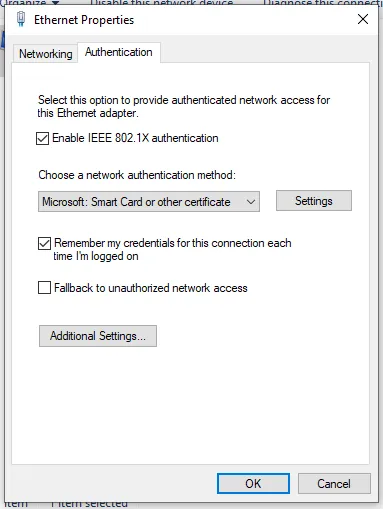 Dialog 1 — the only change from PEAP is the method.
Dialog 2 — Smart Card or other Certificate Properties
Section titled “Dialog 2 — Smart Card or other Certificate Properties”| Setting | Value | Why |
|---|---|---|
| Use a certificate on this computer | ✅ | The other option is a physical smart card |
| Use simple certificate selection | ✅ On | Windows picks the appropriate certificate itself; turn it off only when several certificates qualify and it picks wrong |
| Verify the server’s identity by validating the certificate | ✅ On | Same rules as PEAP — see Step 2 there |
| Connect to these servers | The NAC server certificate’s CN | Ticked but empty is the trap; see the PEAP guide |
| Trusted Root Certification Authorities | Tick the CA that signed the server certificate | In a domain, push this by GPO rather than by hand |
| Don’t prompt user to authorize new servers or trusted certification authorities | ✅ On | The strict setting. Here it is a single checkbox, not the three-option dropdown PEAP shows — same meaning: no click-through on an unverifiable server |
| Use a different user name for the connection | Usually off | Lets you pick a certificate whose identity differs from the logged-on user |
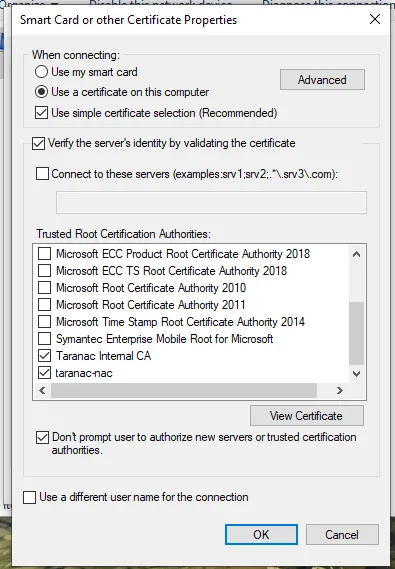 Dialog 2 — certificate on this computer, simple selection, server validation on, and the strict no-prompt checkbox at the bottom.
The CA you tick here is the one from Step 5 — the issuer of the server certificate. It is usually a different CA from the one in Step 1, which is what makes this pair so easy to get half-right: fix only Step 1 and every client refuses to talk; fix only Step 5 and the server rejects every client.
Dialog 3 — Advanced settings
Section titled “Dialog 3 — Advanced settings”Set Specify authentication mode to User authentication, and the supplicant will use the certificate from the logged-on user’s store. On a domain machine, User or computer authentication also works and is what you would pick once machine certificates are in play.
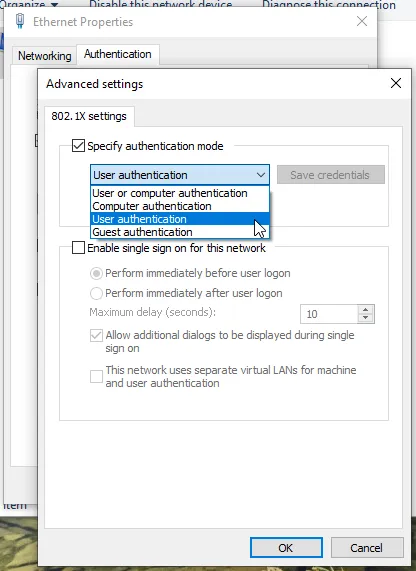 Dialog 3 — User authentication for this guide. The single sign-on block below it is what turns this into two-phase machine-then-user authentication; that gets its own page.
Step 7 — Watch it authenticate
Section titled “Step 7 — Watch it authenticate”Bounce the port and open Logging & Reports → NAC Logs → Auth Log
(/logging/nac/authentication). An EAP-TLS accept shows the resolved username
and the matched rule, exactly as PEAP did.
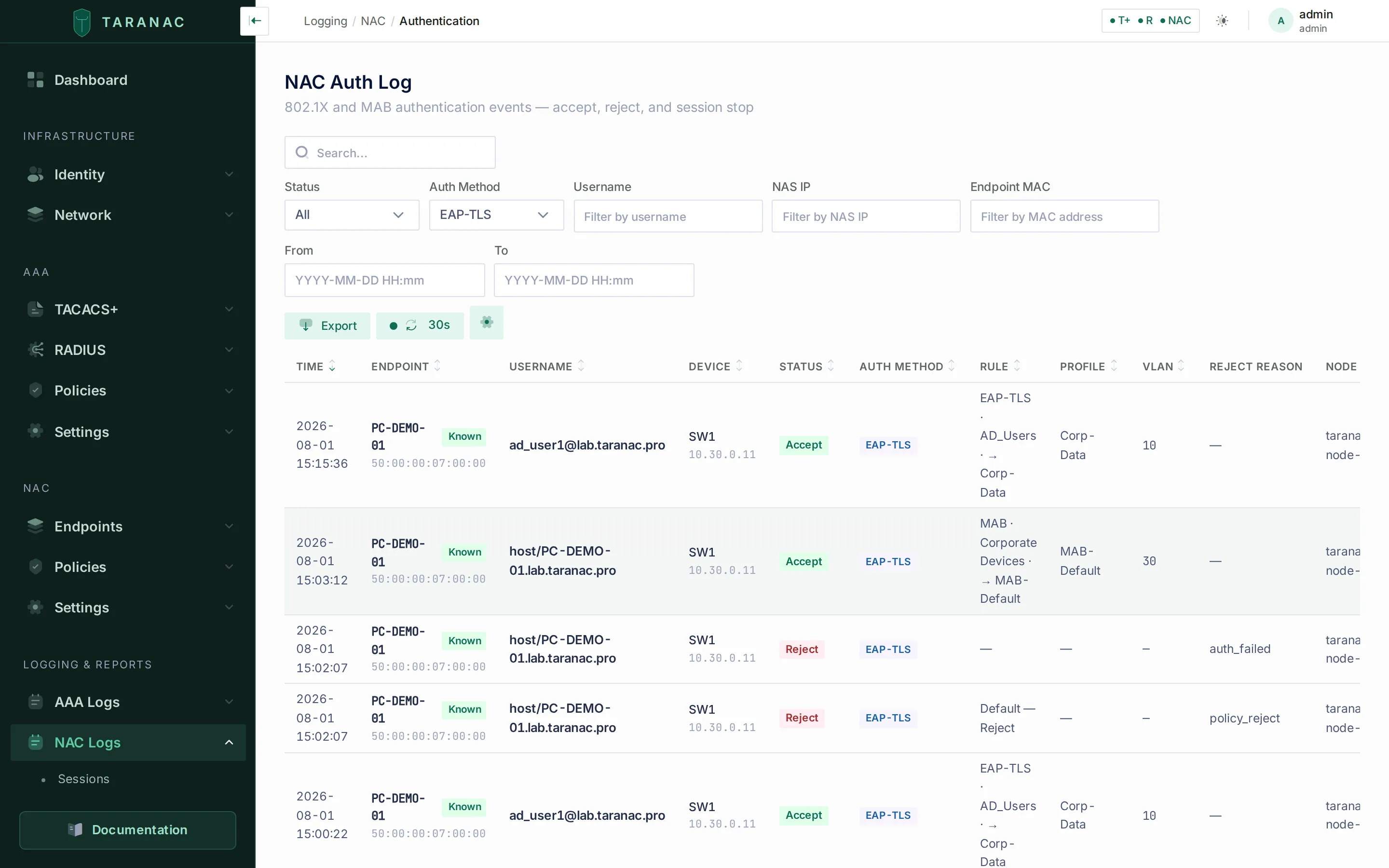 Filtered to EAP-TLS. Each accept carries a username, the rule that matched (
EAP-TLS · AD_Users → Corp-Data) and the VLAN it returned. Machine-phase rows are a different flow, covered in Machine authentication and SSO.
Note what the username column shows: the Taranac account the certificate
resolved to, as it is named in Taranac (for a synced AD user, its login name). It
is never what the supplicant typed into User-Name. Seeing the account you
expected here is the quickest confirmation that Step 2 resolved the way you
intended. A row for a certificate that resolved to no account shows the name in
the certificate instead (the UPN, e-mail or CN, else its DNS name).
The endpoint gets more than an accept, though. Taranac records the certificate it
saw — subject CN, the SAN entries, serial and issuer, plus whether it reads as a
user or a machine certificate — against the endpoint under NAC → Endpoints
(/nac/endpoints). That turns the endpoint list into an inventory of which
certificate each device authenticated with, which is what you want on the day a
CA has to be rotated or a batch of certificates revoked.
Sessions still come from accounting, not authentication — if an accept appears with no session, see that callout in the PEAP guide.
Troubleshooting
Section titled “Troubleshooting”| Symptom | Cause | Fix |
|---|---|---|
Rejected with tls_client_cert_untrusted | The issuing CA is not in Taranac’s bundle | Attach the AD CS certificates to the LDAP domain (Step 1), or upload them under Trusted CAs |
| Every domain client fails, client certificates are demonstrably fine | The client does not trust the NAC server certificate | Step 5 — issue the server certificate from the domain CA, or push Taranac’s CA to clients by GPO |
| Windows never offers a certificate | No certificate with the Client Authentication EKU in the right store | Check the template’s EKU and Cert:\CurrentUser\My |
| Certificate accepted, then rejected — no user | The identity in the certificate matches no Taranac account | Confirm the directory user is synced; check the certificate carries a UPN and that identity match is san_upn |
Rejected with tls_identity_domain_mismatch | The certificate names a directory account, but its UPN or CN is not in that LDAP configuration’s domain suffix, and it is not the account’s own e-mail. The detail shows what was expected | Check that the configuration’s domain suffix is the domain the UPNs carry. An alternative UPN suffix or a sub-domain does not match: issue the certificates with the AD domain as UPN suffix, or with the account’s own e-mail and no UPN |
Rejected with tls_identity_no_domain | The certificate’s identity (usually a CN) has no domain, and it names a directory account | Put the UPN in the SAN, or a CN of the form user@<domain suffix> |
Every client refused with tls_crl_missing | A CRL is set, but not the issuing CA’s — usually the root’s | Give the issuing CA’s CRL; see The CRL that counts |
Worked yesterday, whole populations failing today with tls_crl_expired | The CRL stopped being refreshed: the distribution point is unreachable or the CA stopped publishing | Check Last fetch error and the CRL alerts; publish a fresh base CRL |
Refused with tls_ocsp_failed or tls_ocsp_unknown | OCSP is on and the responder cannot be used for this CA | See OCSP checking and the Online Responder settings there |
| Only some users fail | Their certificates carry a different identity field than their accounts are named by — and there is no fallback to the next field | Align the template with the account names: the UPN wins whenever it is present |
| Authenticates as the machine, not the user | Windows used the computer certificate | Set authentication mode to User authentication |
| TACACS+ / RADIUS logins against the directory fail with a TLS error while 802.1X works | The Connection tab’s Directory server CA certificate is empty; the EAP-TLS CA is never used for LDAPS | Paste the directory server’s issuing CA there — Use the EAP-TLS CA copies it across when it is the same one |
Machine authentications do not match a rule written for them with method peap | A machine presenting a certificate authenticates as EAP-TLS, even with an empty subject | Change that rule’s method from peap to eap_tls |
When to use what
Section titled “When to use what”| Situation | Reach for |
|---|---|
| Domain-joined fleet, AD CS already running | External CA + autoenrollment. Zero per-user work, revocation where the rest of your PKI lives |
| Non-domain devices that should still chain to the domain root | Internal PKI under the AD CS root: Taranac issues, the root every member trusts vouches |
| BYOD, contractors, non-domain laptops | Internal PKI — issue per device, deliver by one-time link, revoke centrally |
| Printers, cameras, IoT that cannot hold a certificate | Not EAP-TLS at all — use MAB with endpoint classification |
| Directory users, no PKI and no appetite for one | EAP-TTLS — verifies by LDAP bind, no certificates on clients |
Related
Section titled “Related”- 802.1X authentication — how each method behaves
- PKI & trust — CAs, server certificate, CRL, EST enrollment
- Certificate revocation: CRL and OCSP — which CAs are checked, which CA’s CRL counts, OCSP
- Taranac under your corporate root — an Internal CA signed by AD CS
- LDAP directories — directory integration and sync
- 802.1X with PEAP — server-certificate trust, in detail